
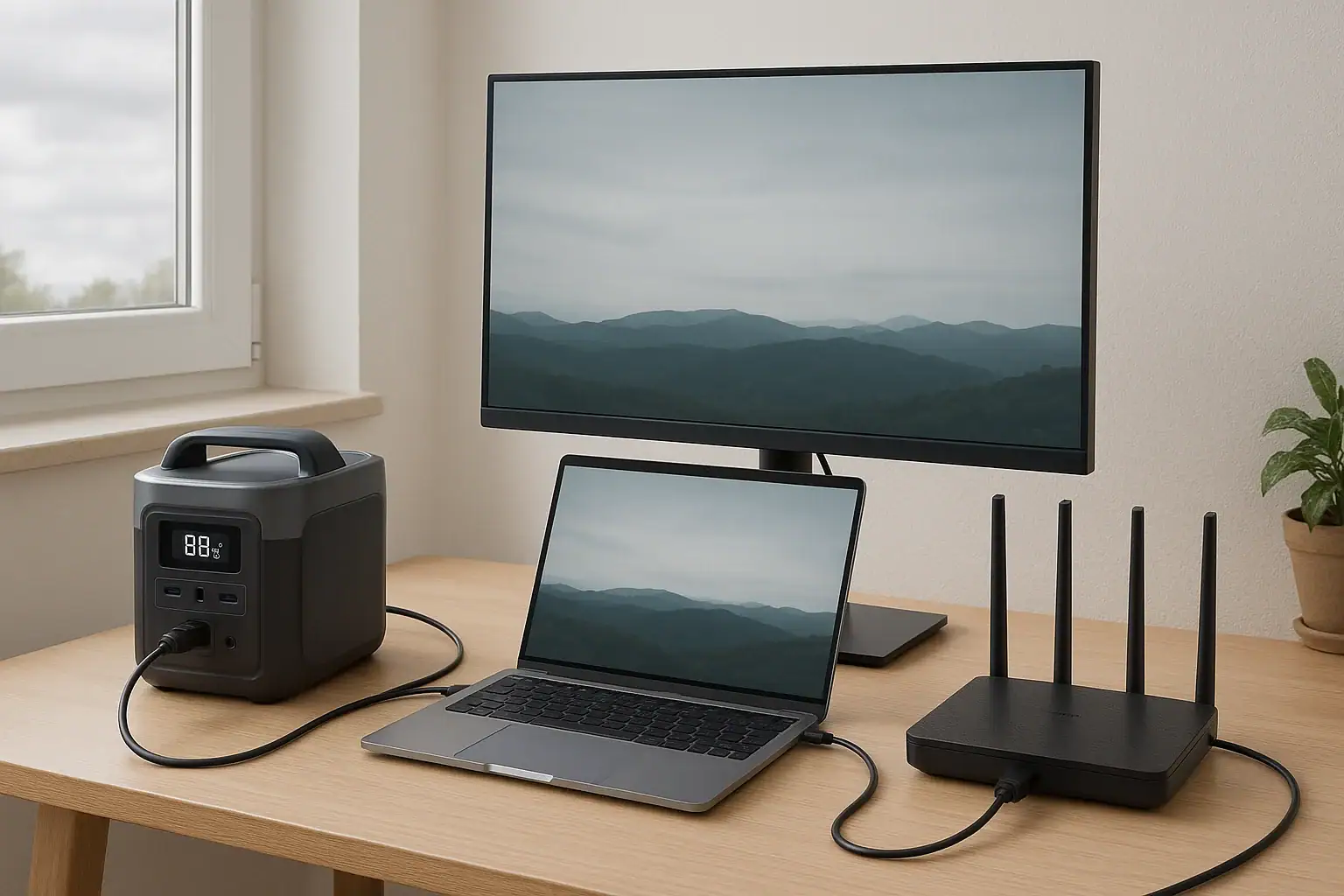
A reliable remote work power kit is a portable setup that keeps your laptop, monitor, and internet running using a battery-based power station and efficient devices. It is designed to provide enough runtime, stable wattage, and the right ports to mimic a normal desk even when the wall outlet is unavailable. Whether you call it a backup power station, off-grid desk setup, or mobile office power, the core idea is the same: match your total load to the power station’s capacity, output watts, and inverter limits.
This kind of kit matters for power outages, travel, van life, or simply working in places without convenient outlets. By understanding input limits, surge watts, and realistic runtimes, you can avoid random shutdowns, slow charging, or overloaded inverters. The goal is not just to turn devices on, but to keep them running long enough to finish meetings, upload files, and stay connected. The rest of this guide walks through how remote work power kits work, what to avoid, and which specs to focus on.
What Is a Remote Work Power Kit and Why It Matters
A remote work power kit is a portable power solution built around a battery-powered unit (often called a portable power station) that can safely run typical desk gear: a laptop, external monitor, Wi ‑Fi router or hotspot, and small accessories like a phone charger or webcam light.
Instead of relying on wall outlets, the kit uses stored energy measured in watt-hours (Wh) and delivers it through AC outlets, USB ports, and sometimes DC outputs. When sized correctly, it acts like a mini wall outlet you can carry with you.
This matters because modern remote work depends on stable internet and predictable uptime. A short power blip can drop a video call, corrupt a file, or interrupt a remote presentation. With a properly designed kit, you can:
- Bridge short outages without losing connection.
- Work from cabins, vehicles, coworking patios, or client sites with limited outlets.
- Protect productivity during storms or grid instability.
For most people, the goal is not to power a whole house, but to keep essential work tools online with minimal noise, heat, and complexity. A well-matched kit focuses on efficiency and runtime, not just maximum watts.
How a Portable Power Station Remote Work Setup Actually Works
To build a remote work power kit around a portable power station, it helps to understand how power flows and which numbers matter.
Battery capacity and runtime
The battery inside the power station is rated in watt-hours (Wh). This tells you roughly how long it can run your devices:
Approximate runtime (hours) = battery Wh × 0.8 ÷ total device watts
The 0.8 factor accounts for inverter and conversion losses. For example, if your total desk load is 80 W and your battery is 512 Wh:
512 × 0.8 ÷ 80 ≈ 5.1 hours of runtime.
Continuous watts vs. surge watts
The AC inverter inside the power station has two important ratings:
- Continuous output (W): the maximum power it can supply steadily.
- Surge (peak) output: a short burst for devices that briefly draw extra power at startup.
Remote work gear is usually low-surge, so continuous watts are the main constraint. Add up the wattage of your laptop charger, monitor, router, and any extras, and keep that total well below the inverter’s continuous rating for stable operation.
Ports, voltage, and PD profiles
Most kits rely on a mix of ports:
- AC outlets: for standard laptop bricks and monitors.
- USB-C PD (Power Delivery): can directly power many modern laptops (45–100 W) without the bulky brick.
- USB-A: for phones and small peripherals.
- DC outputs: sometimes used for routers or low-voltage gear.
USB-C PD profiles matter because they define how much power a port can negotiate. A 65 W PD port may run an ultrabook but struggle with a power-hungry workstation laptop under load.
Charging the power station (input limits)
The power station itself must be recharged via AC wall power, solar panels, vehicle DC, or a mix. The input limit (W) determines how fast it can refill. The input limit (W) determines how fast it can refill. For daily remote work, a higher input limit means you can recharge the battery between work sessions or during breaks.
For example, a 500 Wh unit charging at 250 W can go from empty to full in about 2–3 hours, while charging at 60 W could take most of a day.
| Component | Typical Power Draw (W) | Notes |
|---|---|---|
| Work laptop (light use) | 20–40 | Higher under heavy CPU/GPU load. |
| 24-inch monitor | 20–30 | LED panels are more efficient. |
| Wi ‑Fi router / modem | 8–15 | Combo units may be on the higher side. |
| USB phone charging | 5–15 | Depends on fast charging settings. |
| Desk lamp / ring light | 5–20 | LED is best for battery use. |
Example Remote Work Power Kits and Runtimes
Putting the concepts together, here are realistic example scenarios that show how a portable power station can support remote work.
Lightweight laptop-only setup
Devices:
- 13-inch laptop via USB-C PD (30 W average)
- Smartphone charging (5 W average)
Total load: ~35 W
With a 256 Wh power station:
- 256 × 0.8 ÷ 35 ≈ 5.8 hours of runtime.
This is enough for a half day of focused work, especially if the laptop battery itself can carry some of the load when the power station runs low.
Standard home office kit
Devices:
- 15-inch laptop via AC brick (45 W average)
- 24-inch monitor (25 W)
- Wi ‑Fi router (10 W)
- Phone charging (5 W)
Total load: ~85 W
With a 512 Wh power station:
- 512 × 0.8 ÷ 85 ≈ 4.8 hours of runtime.
This is a solid baseline for most remote workers who need to survive an afternoon outage or work from a location without reliable power.
Extended outage or off-grid workday
Devices:
- 15-inch laptop (50 W average under heavier use)
- 27-inch monitor (35 W)
- Router + modem combo (15 W)
- Phone and tablet (10 W)
Total load: ~110 W
With a 1024 Wh power station:
- 1024 × 0.8 ÷ 110 ≈ 7.4 hours of runtime.
Paired with a reasonably fast AC or solar charger, this can support a full workday, especially if you reduce screen brightness and close power-hungry apps during video calls.
Mobile hotspot instead of home router
If you are working from a vehicle or a location without wired internet, a mobile hotspot or phone tethering can replace the router + modem. This often reduces power draw because the hotspot or phone is already charging from USB, not from a separate AC-powered device.
For example, replacing a 15 W router/modem with a 5–10 W hotspot can add an extra hour or more of runtime over a full workday, depending on your overall load and battery size.
Common Remote Work Power Mistakes and Troubleshooting Tips
Many remote workers run into the same issues when they first try to power their desk from a portable power station. Knowing these pitfalls makes troubleshooting much easier.
Underestimating total power draw
It is common to assume a laptop uses whatever is printed on the charger (for example, 65 W) at all times. In reality, usage fluctuates. However, if you add a monitor, router, and other gear, the peaks can approach or exceed the inverter’s continuous rating.
Symptoms:
- Power station shuts off unexpectedly.
- Warning icons or overload messages on the display.
- Fans running at high speed frequently.
Fix: Add up the rated watts of each device and leave at least 20–30% headroom below the inverter’s continuous limit.
Ignoring inverter efficiency losses
Some users calculate runtime by dividing battery Wh by device watts and are disappointed when the actual runtime is shorter. The missing piece is inverter and conversion losses.
Symptoms:
- Real-world runtime is 10–30% lower than expected.
- Battery seems to drain quickly even at moderate loads.
Fix: Multiply battery capacity by 0.7–0.85 in your calculations and prefer DC or USB-C outputs over AC when possible.
Using inefficient monitors or lighting
Older or high-brightness monitors can draw much more power than expected, and some desk lamps use inefficient bulbs.
Symptoms:
- Monitor feels unusually warm.
- Runtime improves noticeably when the monitor is off.
Fix: Use energy-efficient LED monitors, lower brightness, and LED lighting. Consider smaller screen sizes for battery-powered sessions.
Overloading USB-C PD ports
Not all USB-C ports are equal. Some provide only 15–30 W, while others support 60–100 W PD.
Symptoms:
- Laptop charges slowly or not at all.
- Laptop battery continues to drain under heavy load.
Fix: Match your laptop’s power needs to the PD port rating. If the laptop requires 65 W and the port only offers 45 W, expect slower charging or use the AC adapter instead.
Forgetting about internet equipment
During outages, people often focus on the laptop and forget that the modem, router, or hotspot also need power.
Symptoms:
- Laptop stays on, but there is no internet.
- Router reboots when switching power sources.
Fix: Include all networking gear in your power budget and, if possible, run it from a dedicated DC or USB output for better efficiency.
Safety Basics for Running Remote Work Gear on a Power Station
Portable power stations are designed to be safer and simpler than improvised battery setups, but there are still important safety practices to follow when building a remote work power kit.
Respect power limits and ratings
Never exceed the power station’s rated continuous or surge output. Consistently overloading the inverter can trigger protective shutdowns and may shorten the lifespan of both the power station and connected devices.
Use power strips only as a way to add outlets, not to increase total wattage beyond what the power station can handle. Avoid daisy-chaining multiple strips.
Provide adequate ventilation
Power stations generate heat, especially under higher loads or while charging. Place the unit on a hard, flat surface with open space around the vents. Do not cover it with bags, papers, or fabric, and keep it away from direct heat sources.
Use appropriate cables and adapters
Use cables rated for the current and power you need, particularly for USB-C PD and AC extensions. Damaged or low-quality cables can overheat, cause intermittent connections, or reduce charging speed.
Avoid stacking heavy plugs or adapters directly on the power station’s outlets, as this can stress the sockets. A short, high-quality extension cord or power strip with a built-in switch can help organize connections safely.
Keep moisture and dust away
Do not operate the power station in wet or extremely dusty environments. Liquids, condensation, or fine dust can damage internal components or create shock risks. If you must work outdoors, use a sheltered, dry location and protect the unit from direct rain or splashes.
Do not attempt internal modifications
Do not open the power station, modify the battery pack, or bypass built-in protections. If you need to integrate backup power with home wiring or complex equipment, consult a qualified electrician rather than attempting DIY panel work.
| Safety Area | Good Practice | Why It Matters |
|---|---|---|
| Load management | Stay 20–30% below max continuous watts. | Reduces shutdowns and component stress. |
| Ventilation | Keep vents clear and unit off soft surfaces. | Prevents overheating and throttling. |
| Cabling | Use undamaged, properly rated cables. | Reduces fire and shock risks. |
| Environment | Avoid moisture, extreme heat, and dust. | Protects electronics and battery health. |
| Modifications | Leave internals sealed; no DIY rewiring. | Keeps built-in protections effective. |
Related guides: Portable Power Station Buying Guide • Surge Watts vs. Running Watts: How to Size a Portable Power Station • Can a Portable Power Station Replace a UPS? • AC vs DC Power: How to Maximize Efficiency and Runtime
Maintaining and Storing Your Remote Work Power Kit
A remote work power kit is only useful if it works when you need it. Basic maintenance and smart storage habits extend battery life and ensure consistent performance.
Regular charging habits
Lithium-based batteries prefer moderate charge levels. Avoid leaving the power station completely full or empty for long periods. For most users:
- Keep the charge level between roughly 20% and 80% during regular use.
- Top up to a higher level before a known storm or planned outage.
If you rarely use the kit, schedule a reminder every 1–3 months to check the charge and cycle it briefly under a light load.
Storage environment
Store the power station in a cool, dry place away from direct sunlight. High temperatures accelerate battery aging. Avoid leaving it in a hot vehicle or near heating vents for extended periods.
For long-term storage (several months), many manufacturers recommend storing the battery partially charged rather than full. Check the user manual for specific guidance for your unit.
Inspecting cables and connectors
Periodically inspect all AC and USB cables for fraying, bent connectors, or discoloration. Replace any damaged cables immediately. A single bad cable can cause intermittent power drops that feel like random device issues.
Keep dust out of ports by covering the power station or using it in a clean area. Gently remove visible dust with dry air or a soft brush; avoid liquids.
Testing before critical use
Before relying on the kit for an important presentation or trip, run a test session:
- Connect your full remote work setup.
- Measure how long the power station lasts under typical use.
- Note which ports and cables you used.
This real-world test often reveals small issues—like a power-hungry monitor or a weak USB-C cable—before they cause problems during an actual outage.
Practical Takeaways and Specs to Look For in a Remote Work Power Kit
Designing a reliable remote work power kit comes down to balancing capacity, output, and efficiency for your specific devices. Start by measuring or estimating the power draw of your laptop, monitor, and internet gear. Then choose a portable power station that can comfortably handle that load for the number of hours you need, with room for growth.
Whenever possible, run devices from USB-C PD or DC outputs instead of AC to squeeze more runtime out of the same battery. Keep cords organized, avoid overloading the inverter, and test your setup before you really need it. With these basics in place, your remote work kit can turn almost any location into a functional office.
Specs to look for
- Battery capacity (Wh): Look for 300–600 Wh for partial days and 800–1200 Wh for full workdays; this directly affects runtime for your laptop, monitor, and router.
- AC inverter continuous watts: Aim for at least 200–400 W for a typical desk; ensures headroom for laptop, monitor, and networking gear without overloads.
- USB-C PD output rating: Seek 60–100 W PD on at least one port if you plan to power a modern laptop without its AC brick; improves efficiency and reduces cable clutter.
- Number and type of outlets: At minimum, 1–2 AC outlets plus several USB-A and USB-C ports; allows you to connect all work devices without extra hubs.
- Input charging power (W): Look for 150–300 W AC input if you need to recharge between work sessions; higher input means faster turnaround after outages.
- Display and monitoring: A clear screen showing input, output, and remaining runtime helps you manage loads and avoid unexpected shutdowns.
- Weight and size: For a portable remote office, units in the 7–25 lb range balance capacity with carryability, especially if you move between rooms or locations.
- Noise level (fan behavior): Favor models known for quiet operation at 50–150 W loads, so fans do not disrupt calls or recordings.
- Battery chemistry and cycle life: Higher cycle ratings (for example, 1500+ cycles to 80% capacity) offer better long-term value if you plan to use the kit frequently.
Frequently asked questions
What features should I prioritize when buying a remote work power kit?
Prioritize battery capacity (Wh) for the runtime you need, the AC inverter’s continuous watt rating for your combined load, and at least one high-wattage USB-C PD port to run a modern laptop efficiently. Also consider input charging power, the number and types of outlets, weight, and noise level for practical portability and daily use.
How can I estimate how long a power station will run my laptop and monitor?
Add the average watts for each device to get total load, then divide the battery Wh multiplied by a conversion factor (about 0.7–0.85) by that load. This gives a realistic runtime estimate, but real-world testing is recommended because actual draw and inverter losses vary with workload.
What is a common mistake that causes unexpected shutdowns during remote work?
A common mistake is underestimating total power draw and running close to or above the inverter’s continuous rating; this often triggers protective shutdowns. To avoid it, sum all device watts and leave 20–30% headroom below the inverter limit.
How can I safely operate a portable power station indoors?
Use the unit on a hard, flat surface with clear ventilation, do not expose it to moisture or dust, and use properly rated cables and outlets. Respect the power ratings and avoid internal modifications; consult a qualified electrician for any complex home integrations.
Can I recharge a power station quickly while still using it for work?
Some units support pass-through use while charging and accept high input power to recharge faster, but charging speed depends on the unit’s input limit and thermal behavior. Check the specifications for simultaneous input/output limits and monitor temperatures during fast charging to avoid overheating.
Will using USB-C PD instead of AC outlets extend my runtime?
Yes. Using USB-C PD or other DC outputs bypasses the inverter, reducing conversion losses and typically extending runtime compared with powering devices through AC outlets. Ensure the PD port’s wattage matches your laptop’s requirements to avoid slow charging or battery drain under load.
Recommended next:
- Portable Power Stations for Apartments
- Portable Power Stations for RV and Motorhomes
- Can a Portable Power Station Run a Microwave? What to Check Before You Try
- Can a Portable Power Station Run a Space Heater? Realistic Limits
- Can a Portable Power Station Run an Air Conditioner? Sizing and Expectations
- Powering a Coffee Maker, Kettle, or Induction Cooktop: What Works and Why
- More in Home / Appliances →