
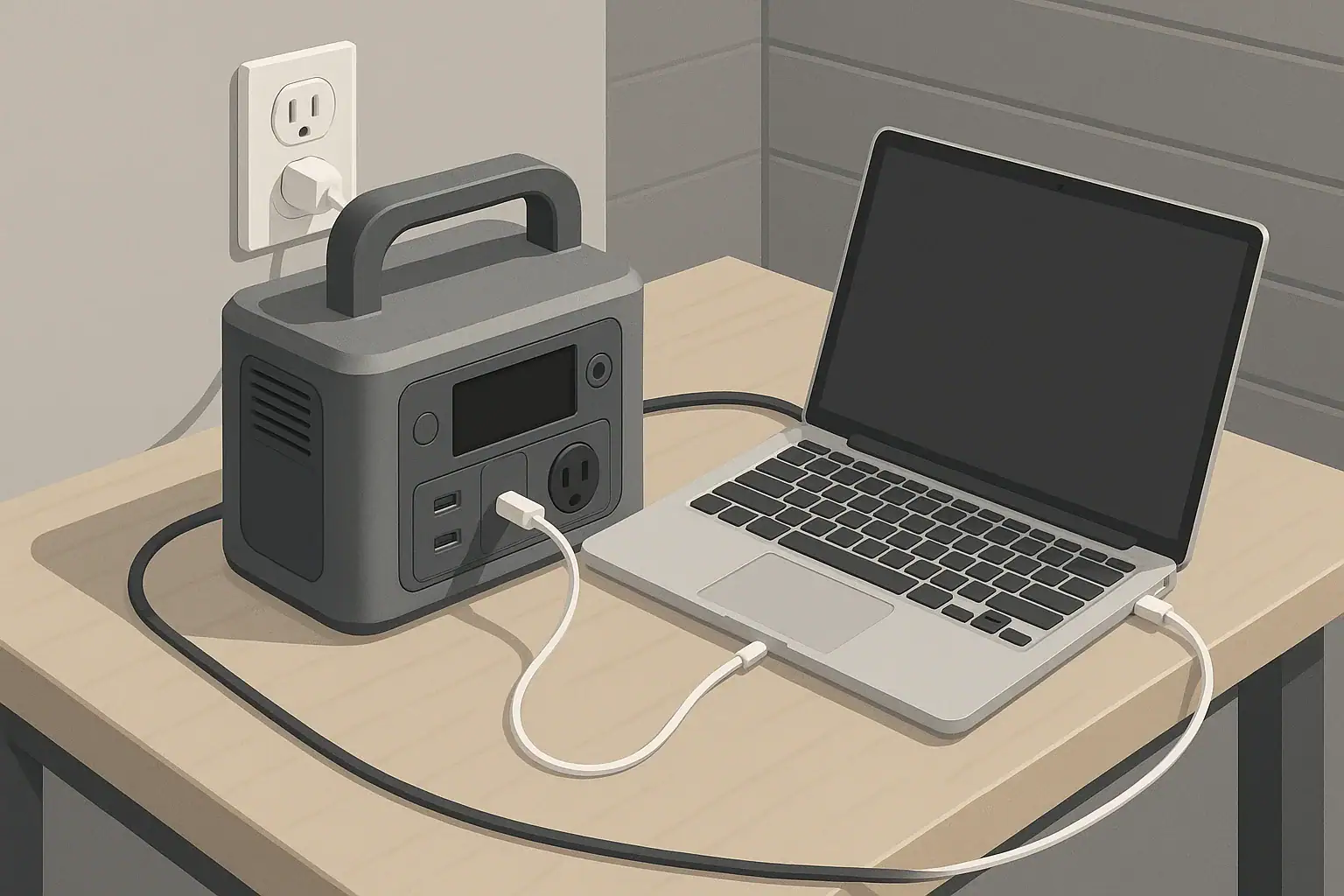
The main reason some laptops charge slowly from a portable power station is a mismatch between the laptop’s USB-C Power Delivery (PD) needs and what the power station’s port can actually provide, especially when it lacks PPS (Programmable Power Supply). When a laptop wants higher or finely tuned power but only sees low-watt or fixed PD profiles, it automatically falls back to slower, safer settings.
Understanding PPS vs fixed USB-C PD profiles helps you predict real charging speed, avoid a laptop that still drains while “charging,” and choose a power station that really supports your gear. This guide explains how PD negotiation works, what PPS actually changes, and how to diagnose slow or inconsistent laptop charging in practical, non-technical terms.
We will walk through key concepts like watts and watt-hours, real-world usage scenarios, common mistakes, safety basics, and a clear specs checklist. By the end, you will know exactly what to look for on a spec sheet and what to change in your setup to get reliable USB-C laptop power on the go or during outages.
What PPS vs fixed USB-C PD profiles means and why it matters
USB-C Power Delivery is a standard that lets a device and a charger “negotiate” voltage and current over a single cable. That negotiation determines how many watts flow into your laptop. Portable power stations increasingly rely on USB-C PD so you can skip the bulky AC charger and plug in directly.
There are two broad ways a USB-C PD port can behave:
- Fixed PD profiles – The port offers a few standard steps such as 5 V, 9 V, 15 V, and 20 V at specific maximum currents. Your laptop picks the closest match and stays there.
- PPS (Programmable Power Supply) – The port lets the laptop request voltage and current in fine increments (for example, 3.3–21 V in small steps). This allows the laptop to shape its charging curve more precisely.
On paper, both approaches can deliver the same maximum wattage. In practice, PPS often lets newer laptops run closer to their ideal charging profile with less heat and fewer power “spikes.” Without PPS, some laptops choose a lower fixed step to stay within their own temperature or safety limits, which shows up as slower charging or a battery that barely climbs when you are working hard.
For portable power stations, this difference matters because you are working with a finite battery. Efficient, stable USB-C charging means more usable runtime, less fan noise, and fewer surprises when you depend on your laptop away from grid power.
Key concepts: watts, watt-hours, and how PPS changes charging behavior
Before comparing PPS vs fixed PD in detail, it helps to understand a few basic power concepts that directly affect laptop charging from a portable power station.
Watt-hours (Wh) describe total energy over time. A 500 Wh power station, in theory, can supply 50 W for 10 hours (500 Wh ÷ 50 W = 10 h), or 100 W for 5 hours, and so on.
Watts (W) describe power at a moment in time. If your laptop is pulling 60 W from a USB-C port, that is the rate of energy flow right now.
Real systems are not perfect. Every conversion step loses a bit of energy as heat. Going from the power station’s battery (DC) to an AC outlet and then back to your laptop’s charger (DC again) wastes more energy than sending power directly from a USB-C PD port.
That is where PPS can help. With fixed PD profiles, your laptop might have to choose a standard 20 V step even if it would prefer something slightly different to reduce heat or match its internal battery voltage more closely. PPS lets the laptop request that “just right” voltage and current combination, which can:
- Keep charging power closer to its rated maximum without triggering thermal throttling.
- Reduce peaks and dips in power draw as workloads change.
- Improve overall efficiency slightly, stretching runtime from the same Wh capacity.
When sizing a portable power station for laptop use, you care about both the USB-C PD watt rating (how fast it can charge) and the battery capacity in Wh (how long it can keep charging and running the laptop). The table below shows how these pieces fit together.
| Scenario | Port type | Port rating | Laptop draw while in use | Approx. behavior on 500 Wh station |
|---|---|---|---|---|
| Light office work | Fixed PD | 60 W max | 35–45 W | Charges to full, 9–11 hours of combined use |
| Heavy multitasking | Fixed PD | 60 W max | 55–70 W | Battery may creep up slowly or hover; 6–8 hours |
| Heavy multitasking | PPS PD | 100 W max | 55–70 W | Maintains closer to full 60–65 W charge; 7–9 hours |
| Gaming or video rendering | PPS PD | 100 W max | 80–100 W | May slow charge or hold level; 4–6 hours |
| Gaming via AC laptop brick | AC inverter | 300 W+ inverter | 90–120 W effective | Shortest runtime due to DC–AC–DC losses; 3–5 hours |
Real-world examples of PPS vs fixed PD with portable power stations
To see how PPS vs fixed PD profiles affect actual laptop charging, it helps to walk through a few realistic situations you might encounter with a portable power station.
Example 1: 65 W work laptop on a 60 W fixed PD port
Imagine a laptop that ships with a 65 W USB-C charger. You plug it into a power station whose USB-C port supports only fixed PD profiles up to 60 W. The laptop negotiates 20 V at up to 3 A (about 60 W).
- At idle or light work, the laptop may pull 25–40 W. The port can easily keep up, and the battery charges at nearly full speed.
- Under heavier workloads (multiple browser tabs, video calls, external monitor), the laptop might want 60–70 W total. Because the port caps at 60 W, the system diverts more power to running the laptop and less to charging the battery.
- The result is a battery that charges slowly, stalls around a certain percentage, or even drops a few percent per hour during intense tasks, even though it shows “plugged in.”
Example 2: Same laptop on a 100 W PPS port
Now plug the same laptop into a power station with a USB-C port that supports PPS up to 100 W. If the laptop also supports PPS, it can request an optimized voltage and current combination, such as 18–20 V at a current that keeps it around its preferred 60–65 W charging level.
- During light work, it behaves similarly to the fixed port but may run slightly cooler and more efficiently.
- During heavy use, the laptop can maintain closer to its ideal 60–65 W charging while also powering the system, so the battery continues to climb instead of hovering.
- Over a full workday on battery power from the station, this can be the difference between ending with 30–40% laptop charge vs nearly empty.
Example 3: Direct USB-C vs AC brick on the same station
Consider a 500 Wh power station and a laptop that normally uses a 65 W AC charger. You have two options:
- Option A: Direct USB-C PD – The laptop pulls about 55–65 W through a PD or PPS port.
- Option B: AC outlet + laptop brick – The station’s inverter converts DC to AC, and the brick converts AC back to DC. The laptop still sees 65 W, but the station may be supplying 75–85 W internally because of conversion losses.
Over 6–8 hours, those extra 10–20 W lost as heat can reduce your runtime by an hour or more. That is why, when possible, it is usually better to charge directly via USB-C PD instead of using the laptop’s AC brick with a portable power station.
Example 4: Multiple devices sharing the same power station
Now imagine that same setup, but you also run a small monitor and a Wi-Fi router from the power station’s AC outlets. The inverter might be pushing 50–80 W just for those accessories, while the laptop is pulling another 60 W over USB-C.
- If the power station’s total output limit is near that combined load, it may throttle USB-C or shut down non-critical ports to protect itself.
- With PPS, the laptop can adjust its draw more gracefully as the station’s available headroom changes, reducing the risk of abrupt disconnects or big swings in charging speed.
Common mistakes and troubleshooting cues for slow laptop charging
Slow or inconsistent laptop charging from a portable power station usually traces back to a small set of causes. You can often fix the issue with a few quick checks instead of assuming the station or laptop is defective.
Mistake 1: Assuming any USB-C port can fully power a laptop
Many power stations include multiple USB-C ports, but not all of them are high-watt PD ports. Some are limited to 18–30 W for phones and small tablets.
- Symptom: Laptop charges very slowly or continues to lose battery during use.
- Fix: Find the port labeled with a higher watt rating (for example, 60 W, 65 W, 100 W) and move the cable there.
Mistake 2: Ignoring PPS support and PD profile limits
Newer laptops that expect PPS may behave conservatively on fixed-only PD ports. They may choose a 45 W profile even though both the laptop and port could, in theory, handle more.
- Symptom: Laptop charges fine at idle but cannot gain percentage during heavy workloads.
- Fix: Use a port that supports PPS if your laptop can use it, or reduce workload while charging so the laptop does not exceed the available PD profile.
Mistake 3: Using low-rated or damaged USB-C cables
A cable that is only rated for 30–60 W, or one with internal damage, can limit current or cause voltage drops. The PD negotiation may then settle on a lower profile than the port or laptop can handle.
- Symptom: Laptop charges faster with a different cable or from wall power using the same cable.
- Fix: Use a short, high-quality cable rated for the full wattage you need (often 100 W for modern laptops).
Mistake 4: Overloading the power station with combined loads
Even if the USB-C port is strong, the power station has a total output limit. If AC appliances, DC outputs, and USB ports together push the station near its maximum, it may reduce power to some ports or shut down to protect itself.
- Symptom: Charging is fine until other devices are turned on, then the laptop starts charging slowly or disconnects.
- Fix: Turn off non-essential loads or move some devices to a different power source to give the station more headroom.
Mistake 5: Misreading what the laptop is actually doing
Sometimes, the laptop is working harder than you realize. High screen brightness, external displays, background updates, and CPU-intensive apps all increase power draw.
- Symptom: Battery percentage drops slowly even when “plugged in,” especially during demanding tasks.
- Fix: Lower screen brightness, close heavy applications, or pause demanding work while charging to let the battery catch up.
The table below summarizes common issues and quick diagnostic steps.
| Observed issue | Likely cause | Simple checks |
|---|---|---|
| Charging icon on, battery still dropping | Port wattage too low or laptop load too high | Try higher-watt USB-C port; test while laptop is idle |
| Charges fine from wall, not from station | PD profile or PPS mismatch, or weak cable | Swap cable; compare USB-C direct vs AC brick on station |
| Charging connects and disconnects repeatedly | Station near output limit or unstable cable connection | Remove other loads; reseat cable; try different port |
| Ports shut off when starting another appliance | Total station output exceeded | Reduce AC loads; keep total draw well below station max |
| Cable or connector feels very hot | Underrated or damaged cable | Stop using that cable; replace with higher-rated one |
Safety basics: placement, heat, cords, and electrical context
Using a portable power station for USB-C laptop charging is generally straightforward, but it is still high-power electrical equipment. A few basic practices help keep both people and devices safe.
Placement and ventilation. Set the power station on a stable, dry, level surface. Leave space around air vents so internal fans can move heat away. Avoid placing the unit in enclosed cabinets, under blankets, or on soft surfaces that can block airflow.
Cord routing. Run USB-C and AC cords where they will not be pinched, sharply bent, or tripped over. A sudden yank can damage connectors or knock the power station to the floor. If you need longer reach, use properly rated extension cords and cables instead of stretching short ones.
Heat awareness. High-watt USB-C charging concentrates power in a small connector. Some warmth is normal, but if the plug, cable, or port becomes uncomfortably hot to the touch, reduce the load, unplug and let things cool, or switch to a higher-rated cable. Avoid covering the laptop or the station with pillows or clothing while charging.
Moisture and grounding. Keep the power station away from sinks, bathtubs, wet floors, and outdoor conditions where it could get rained on or splashed. Even if the unit includes protective features on its AC outlets, it is not a substitute for a permanently installed, grounded household circuit. For any setup that involves connecting a portable power source to home wiring, consult a qualified electrician.
Supervision. During high-power use, especially in unfamiliar environments like tents, RVs, or temporary workspaces, check on the station periodically. Listen for unusual fan noise, watch for warning lights, and stop using the unit if you notice smells, smoke, or visible damage.
Maintenance and storage for reliable USB-C laptop power
Good maintenance habits help ensure your portable power station will deliver stable USB-C PD or PPS power whenever you need it, whether that is for travel, camping, or backup during outages.
State of charge during storage. Many manufacturers recommend storing lithium-based power stations partially charged, often somewhere around the middle of the battery gauge. Avoid leaving the unit either completely full or completely empty for long periods when not in use.
Periodic top-ups and test runs. Batteries slowly lose charge over time, even when the unit is off. Every few months, check the charge level and top up if needed. While you are at it, plug in your usual devices—such as a laptop and a light—to confirm that USB-C PD negotiation and AC outputs still behave as expected.
Temperature management. Store the power station in a cool, dry place away from direct sunlight, heaters, or very cold conditions. Extreme temperatures during storage can shorten battery life or reduce capacity. During use, particularly with high-watt laptop charging, keep the unit where air can circulate freely.
Cable and connector care. High-watt USB-C charging depends on clean, solid electrical connections. Inspect cables and ports for bent pins, frayed insulation, or loose fits. Replace any cable that intermittently disconnects or runs unusually hot at normal loads.
Light cleaning. Dust buildup can restrict airflow and trap heat. Wipe the exterior with a dry or slightly damp cloth and keep vents clear. Do not spray cleaners directly into ports or vents.
Practical takeaways and specs to look for
Putting everything together, PPS vs fixed USB-C PD profiles mainly affect how efficiently and consistently your laptop can pull power from a portable power station. Fixed PD profiles can work well if the wattage is high enough and your laptop is tolerant of standard steps. PPS adds finer control that often improves stability, especially for newer laptops that actively manage charging curves and temperature.
For most people, the biggest wins come from choosing a power station with the right USB-C PD watt rating, using good cables, and keeping overall loads within the station’s limits. Small changes—like moving from AC charging to direct USB-C, or picking a PPS-capable port—can add hours of usable runtime over the life of a trip or outage.
Use the checklist below when evaluating a power station or diagnosing slow laptop charging.
- Confirm laptop charging wattage. Check what wattage your laptop normally uses over USB-C (commonly 45 W, 60 W, 65 W, 90 W, or higher). Aim for a power station port that can match or exceed this.
- Look for USB-C PD watt rating per port. Make sure at least one USB-C port lists a high enough rating (for example, 60–100 W) and understand that not all ports may be equal.
- Check for PPS support. If your laptop is newer and mentions PPS or advanced PD support, a PPS-capable port can help it maintain higher, more stable charging power.
- Size battery capacity for your runtime. Estimate your laptop’s typical draw while in use (for example, 40–70 W) and choose a power station with enough watt-hours to cover your expected hours of work, with 10–20% extra for conversion losses.
- Prefer direct USB-C over AC bricks. When possible, charge the laptop directly from USB-C PD instead of running its AC adapter from the inverter to reduce energy waste and heat.
- Use properly rated cables. Choose short, high-quality USB-C cables rated for the wattage you need (often 100 W), and replace any that show damage or cause intermittent charging.
- Manage combined loads. Keep the total draw from AC, DC, and USB ports comfortably below the station’s maximum output to avoid throttling or shutdowns.
- Control heat and environment. Give both the laptop and the power station good airflow, avoid extreme temperatures, and keep them away from moisture.
- Test your setup before you rely on it. Before a trip or expected outage, run your full kit—laptop, monitor, and other essentials—from the power station to confirm charging speed and runtime match your expectations.
With these points in mind, PPS vs fixed USB-C PD profiles become a practical planning detail instead of a confusing technical spec. Matching your laptop’s needs to the right port, cable, and battery size turns a portable power station into a dependable part of your everyday and emergency power setup.
Frequently asked questions
Which specs and features should I prioritize when buying a portable power station for USB-C laptop charging?
Prioritize the USB-C PD watt rating per port, the battery capacity in watt-hours (Wh), and whether the port supports PPS. Also check the station’s total output limit so combined loads won’t force throttling, and plan to use cables rated for the wattage you need.
How can I tell if my laptop supports PPS or will actually benefit from it?
Check your laptop’s technical documentation or the original charger specifications for mentions of PPS or programmable power delivery. Newer USB-C laptops that advertise advanced PD, improved thermal management, or smart charging are the most likely to benefit from PPS in real-world use.
How do cables and connectors affect charging speed?
Cables that are underspecified or damaged can limit current and cause voltage drop, forcing negotiation to a lower PD profile and reducing charging speed. Use short, high-quality USB-C cables rated for the full wattage your laptop requires and replace any cable that runs unusually hot or disconnects intermittently.
Why does my laptop say it’s plugged in but the battery percentage isn’t increasing?
That usually means the station’s available wattage is lower than the laptop’s instantaneous power draw, or the laptop reduced charging due to temperature or a PD mismatch. Try a higher-watt or PPS-capable port, reduce workload, or test with a different cable to diagnose the cause.
Is charging through the station’s AC outlet less efficient than using USB-C PD?
Yes. Using the inverter and the laptop’s AC brick adds DC–AC and AC–DC conversion losses, which increases the station’s internal draw and reduces runtime compared with direct USB-C PD charging. Whenever possible, prefer direct USB-C PD to improve efficiency.
What basic safety steps should I follow when charging a laptop from a portable power station?
Keep the station on a stable, ventilated surface, route cables to avoid pinching or tripping, and avoid moisture or extreme temperatures. Supervise high-power use, stop and inspect if connectors get very hot, and follow the manufacturer’s storage and maintenance recommendations.
Related guides
Browse this topic →

- Beginner-friendly sizing, runtime & specs
- Solar & charging (MPPT, fast charging, cables)
- Batteries (LiFePO4, cycles, care & storage)
- Safety, cold-weather performance, real-world tips
More in Charging
See all →- Can You Daisy-Chain Portable Power Stations? Why It Usually Isn’t a Good Idea
- USB-C Input vs AC Input on Portable Power Stations: Which Charging Method Makes Sense?
- Car Alternator Charging vs Cigarette Lighter Charging: What Changes for Power Stations?
- Charging a Portable Power Station From an RV Outlet: 12V, 24V, and Safety Limits
- Fast AC Charging vs Battery Longevity: Should You Use Turbo Mode Every Time?
Keep reading
About this site
Portable Energy Lab publishes practical, independent guides about portable power—clear sizing, safe use, and real-world expectations.
Affiliate disclosure
Some links on this site may be affiliate links. If you buy through these links, we may earn a small commission at no extra cost to you. This helps support our content. Read our affiliate disclosure.