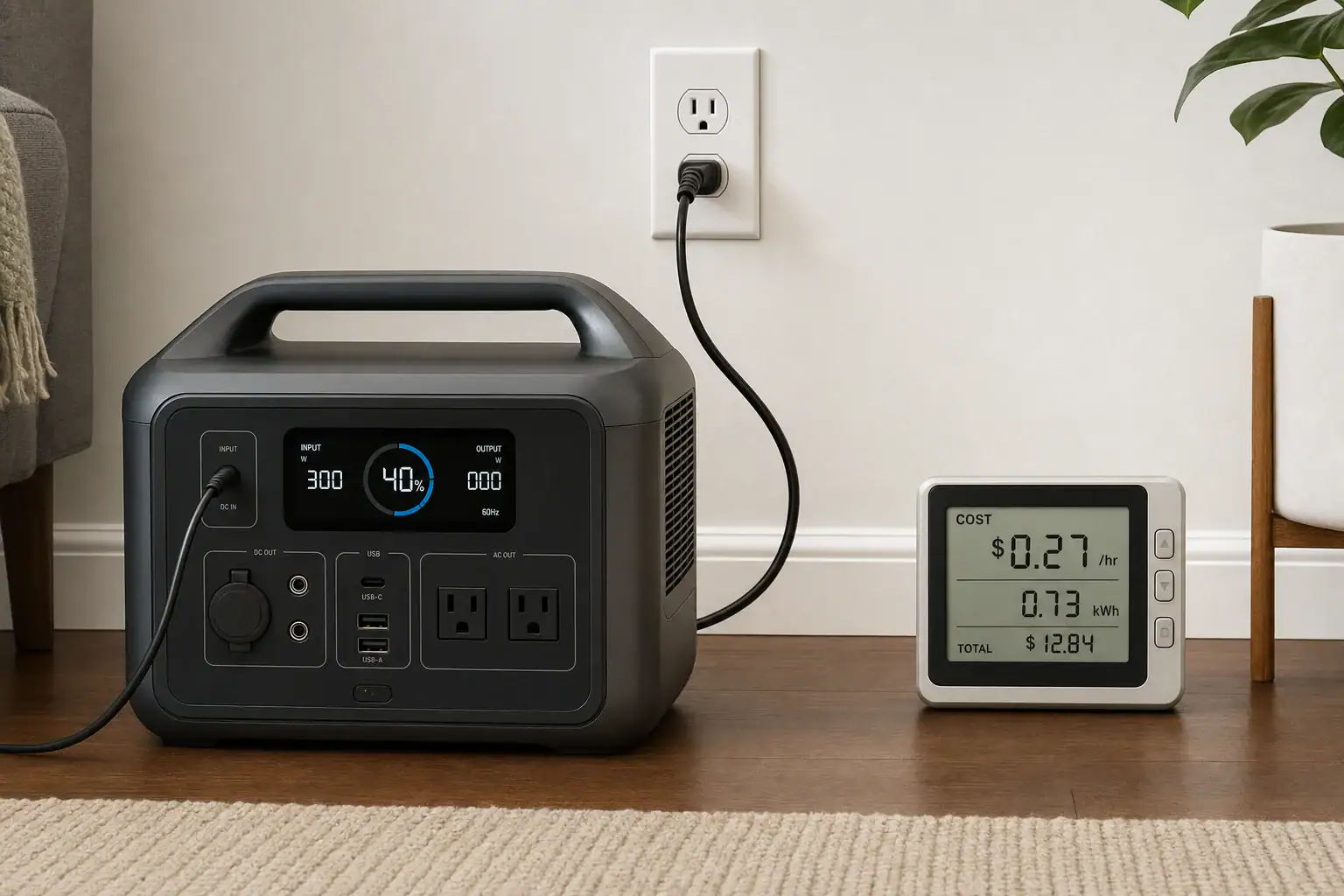
Dual Input Explained: Can You Combine Wall + Solar Charging Safely?

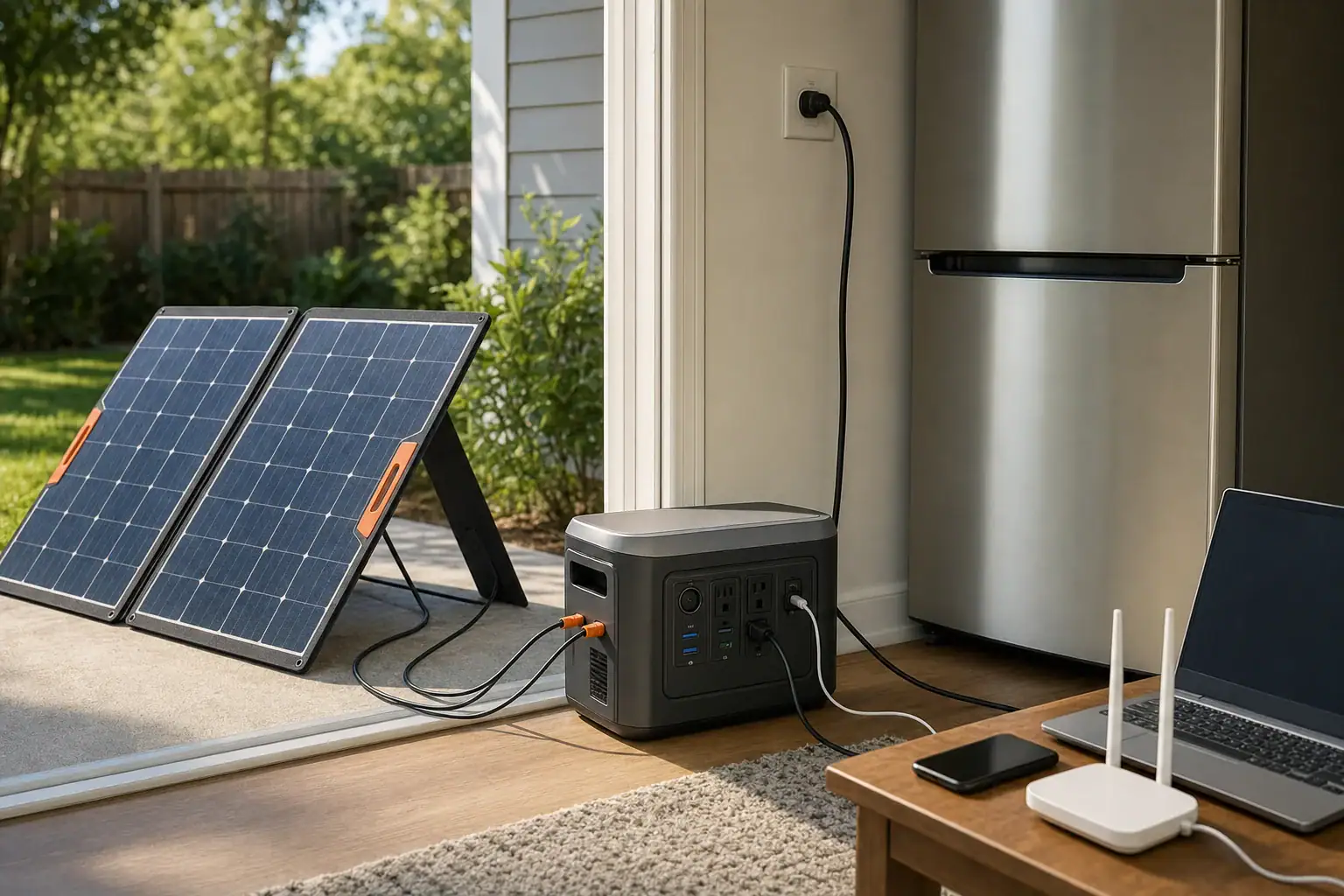
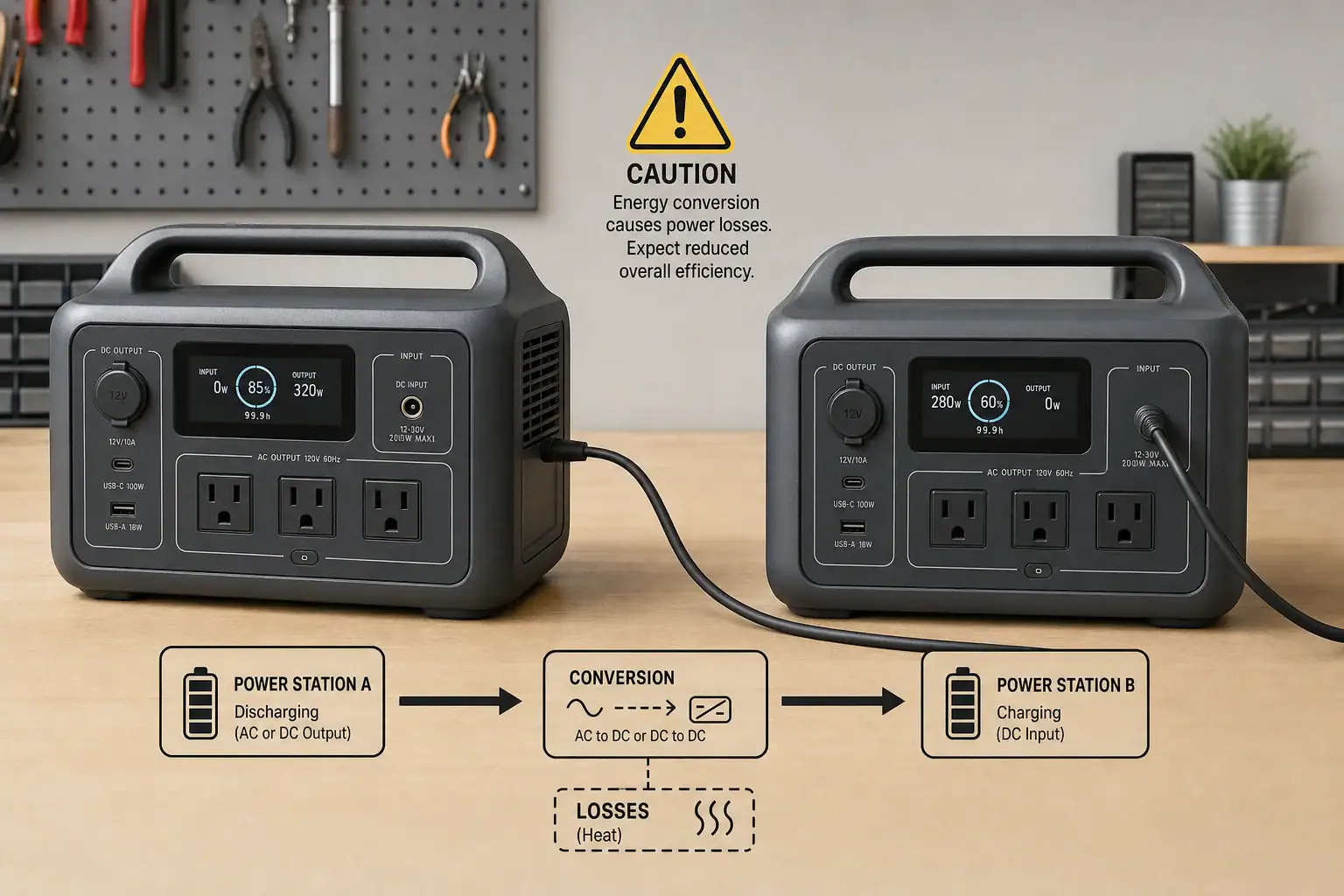
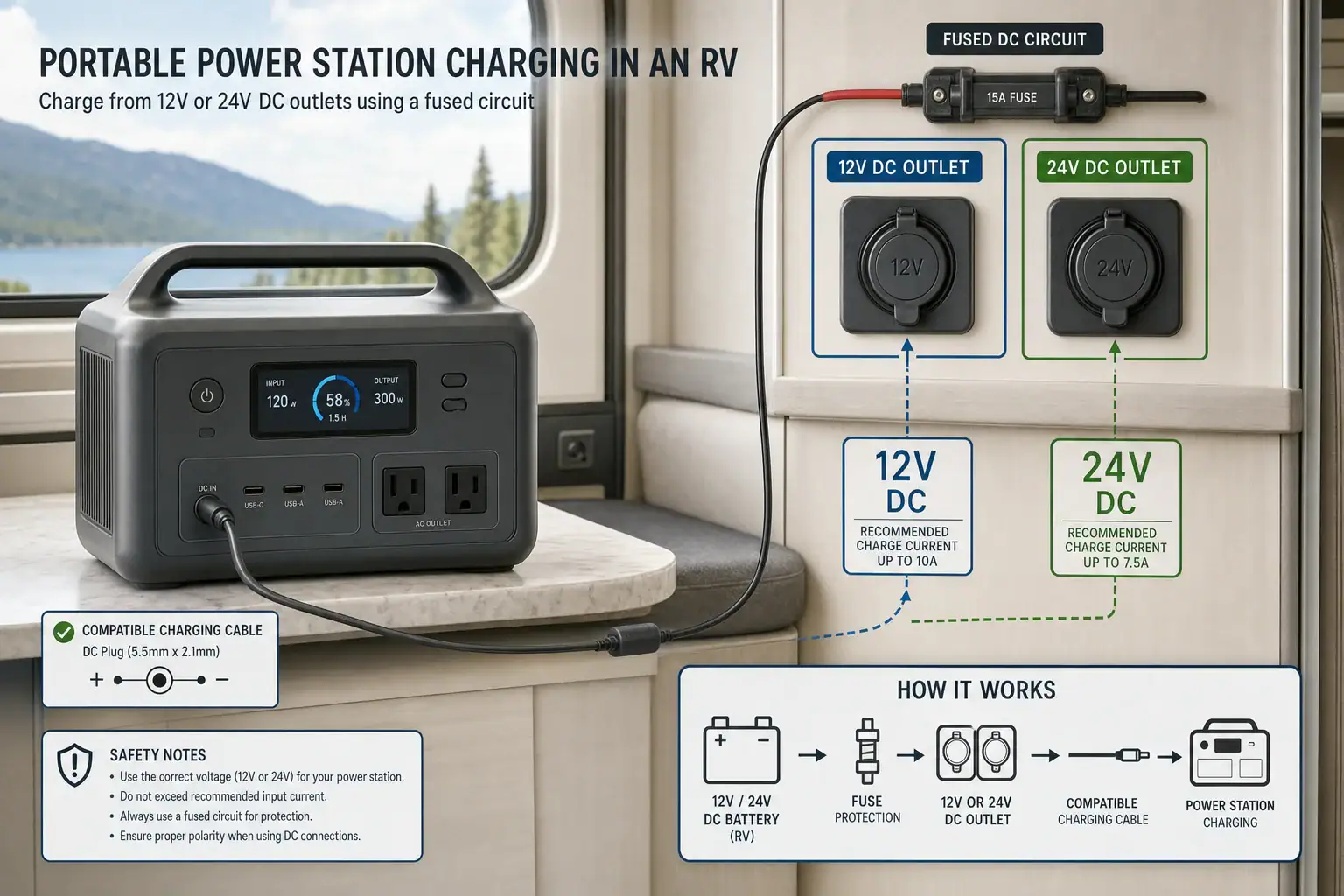
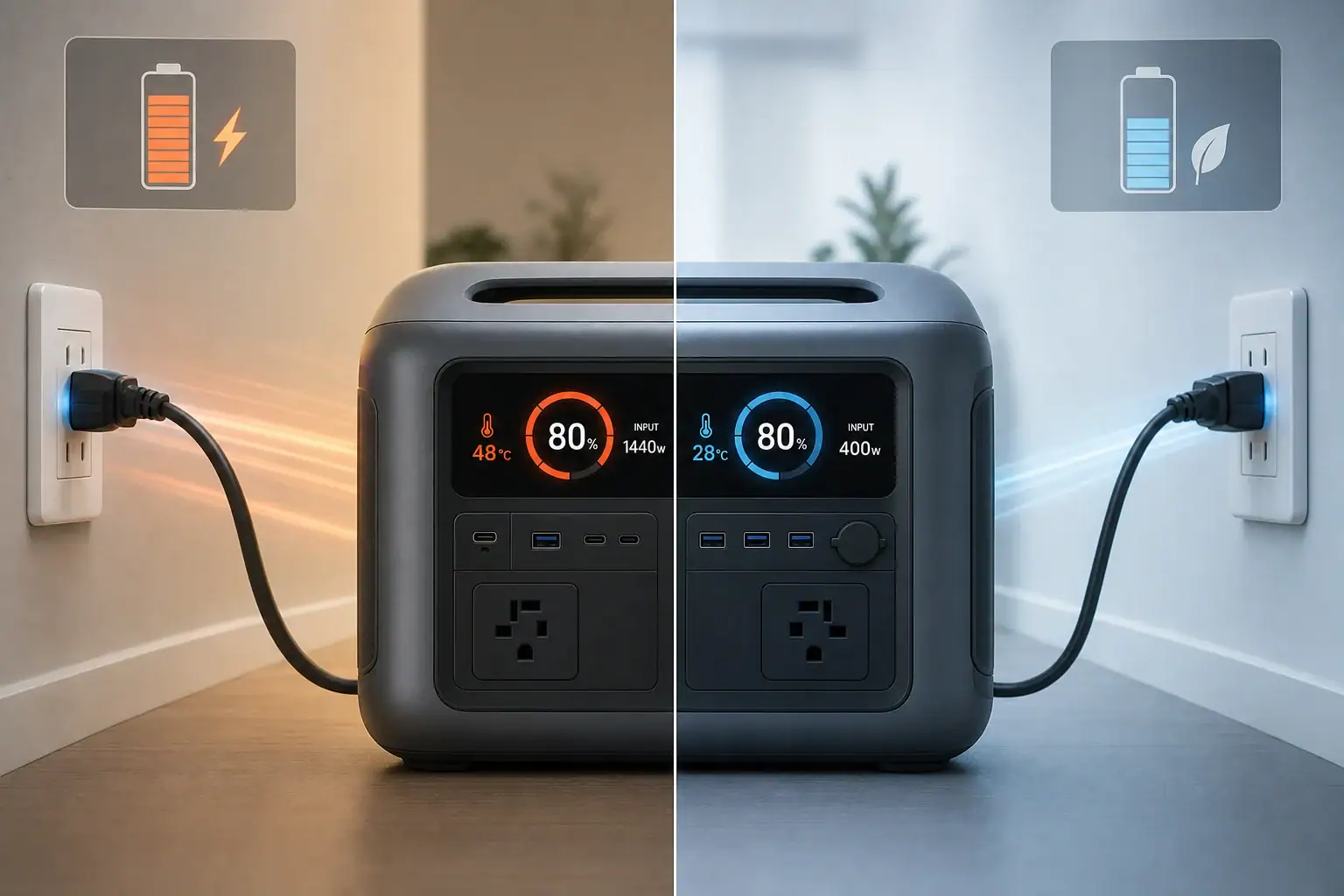
Diagram of a portable power station using both wall and solar charging inputs.

You can usually combine wall and solar charging on a portable power station safely only if the manufacturer explicitly supports dual input and the total charging watts stay within the unit’s input limit. Mixing inputs without checking specs can overload the charger, trigger protection circuits, or shorten battery life.

People search this topic when they want faster charging, wonder about “pass-through” or “dual input” modes, or worry about damaging a battery with too many input watts. Terms like input limit, charge controller, MPPT, surge watts, and state of charge often appear in manuals but are not clearly explained.

This guide breaks down how dual input charging really works, why some models accept wall plus solar at the same time and others do not, and what to check on the spec sheet before plugging in. You will learn practical wattage examples, common mistakes, and the key features that matter if you plan to use combined charging regularly.

What Dual Input Charging Means and Why It Matters

In the context of portable power stations, dual input charging means using two separate charging sources at the same time, most commonly a wall outlet (AC adapter) plus solar panels (DC input). The power station’s internal electronics decide how much power to accept from each source and how fast to charge the battery.

Dual input matters for three main reasons: charging speed, flexibility, and battery health. Combining wall and solar can significantly reduce charge time if the unit is designed to accept the extra watts. It also lets you top up from solar while on grid power, or keep charging at a decent rate when one source is weak (for example, cloudy solar conditions plus a low-watt wall outlet).

However, not every portable power station supports true dual input. Some units have multiple ports but share a single internal charge controller with a fixed input wattage limit. In those cases, plugging in wall and solar together may not increase charging speed and can sometimes cause the unit to shut down the extra input or throw an error.

Understanding what dual input really means on your model helps you avoid overloading the system, misreading the display, or assuming that more cables always equal faster charging. It is ultimately about how much safe charging power the internal hardware is designed to handle, not just how many ports are visible on the outside.

How Combining Wall and Solar Charging Actually Works

Inside a portable power station, incoming power flows through one or more charge controllers that regulate voltage, current, and total input watts before energy reaches the battery pack. When you connect both wall and solar, you are effectively asking the system to blend two sources into a single safe charging profile.

The wall charger (or built-in AC charger) typically provides a stable DC output at a fixed voltage and current, such as 24 V at 10 A (about 240 W). Solar input is more variable and usually passes through an MPPT or PWM controller that tracks panel voltage and limits current to a safe level. If the unit supports dual input, the firmware coordinates these controllers so the combined watts do not exceed the maximum charging power.

In many designs, the power station assigns priority to one input. For example, it might take as much as possible from the wall charger first, then add solar until the total hits the input limit. In others, it may cap each input at a certain level or dynamically adjust based on solar conditions and battery state of charge.

Battery chemistry also influences how dual input behaves. Lithium iron phosphate (LiFePO4) and NMC lithium-ion packs both require a constant-current/constant-voltage (CC/CV) charging profile, but they may have different recommended charge rates (often expressed as a C-rate, like 0.5C). The internal battery management system (BMS) ensures that, regardless of how many sources you connect, the battery is not charged faster than its safe limit.

Because of these internal limits, plugging in a 500 W wall charger and 400 W of solar does not guarantee 900 W of charging. If the unit’s max input is 600 W, it may cap the total at that level, automatically throttling one or both sources. The display will usually show the net input watts, which is the best way to confirm what is really happening.

Input typeTypical voltageTypical power rangeRole in dual input
Wall (AC adapter)About 20–60 V DC output100–800 WProvides stable, predictable charging power.
Solar (PV panels)About 12–60 V DC (open-circuit)50–600 WVariable power; depends on sunlight and panel angle.
Car / DC socket12–24 V DC60–180 WOften used as a secondary or backup input.
USB-C PD input5–20 V DC30–140 WSometimes can be combined with another DC or AC input.
Overview of common charging inputs and their role in dual input charging. Example values for illustration.

Real-World Dual Input Scenarios and What to Expect

To understand whether combining wall and solar will help in your situation, it helps to walk through realistic wattage and capacity examples. These are simplified scenarios, but they mirror what you will see on many portable power stations.

Imagine a 1,000 Wh power station with a maximum input of 500 W. If you use only the included wall charger rated at 300 W, a full charge from empty would take roughly 3.5–4 hours, allowing for efficiency losses and tapering at high state of charge. If you add solar panels that can deliver up to 250 W in good sun, the unit could theoretically accept the full 300 W from the wall plus up to 200 W from solar before hitting its 500 W limit. In practice, you might see 450–480 W total, cutting charge time closer to 2.5–3 hours.

Now consider a larger 2,000 Wh unit rated for 1,200 W max input. If you connect a 600 W AC charger and 600 W of solar (under ideal conditions), the station could accept nearly the full 1,200 W, bringing it from 0% to 80% in around 1.5–2 hours. The last 20% typically slows down as the BMS reduces current to protect the battery, so total time may be closer to 2.5 hours.

There are also cases where dual input does not speed things up. Some power stations share a single 300 W charge controller across both the wall and solar ports. When you plug in both, the unit might cap total input at 300 W and simply juggle which source it uses more heavily. You might see the display hover around 280–300 W whether or not solar is connected, especially if the wall charger alone already hits the limit.

Weather can also change the picture. If your solar panels are rated at 200 W but clouds reduce them to 60–80 W, adding that to a 300 W wall charger still helps, but the improvement is modest. Instead of 300 W, you might see 360–380 W. Over a full charge cycle, that could save 30–45 minutes, which might or might not matter depending on your use case.

Finally, some models allow combining DC sources, such as solar plus USB-C PD input, while AC plus solar is not supported. In that case, you might run a 200 W solar array and a 100 W USB-C PD charger together to reach 300 W total, even though the AC adapter cannot be used at the same time. The key is always to check which combinations are officially supported and verify actual input watts on the display.

Common Dual Input Mistakes and Troubleshooting Signs

Many dual input problems come from assuming that more cables automatically equal more charging power. When users do not understand the input limit or how ports share a controller, they can misinterpret warnings or think something is broken when it is not.

One frequent mistake is exceeding the recommended solar voltage or wattage while also using the wall charger. For example, connecting a large solar array that already pushes the input close to its limit, then plugging in the wall charger, can cause the unit to shut off the solar input, show an overvoltage or overcurrent error, or reduce both sources to a lower combined level.

Another issue is using non-matching or third-party adapters that are not designed to work together. An aftermarket AC adapter with higher voltage than specified, combined with solar panels wired in series, may stress the charge controller and trigger safety cutoffs. Even if the unit does not fail immediately, running it outside its intended charging profile can shorten battery lifespan.

Users also often overlook firmware behaviors. Some power stations are programmed to prioritize battery longevity over absolute speed. When the state of charge passes a certain threshold (for example, 80–90%), the system may automatically reduce input watts, regardless of how many sources are connected. This is normal and not a sign that dual input has stopped working.

Signs that your dual input setup is not working properly include the total input watts not increasing when you add a second source (and the manual says it should), repeated error icons on the display when both inputs are connected, the fan running at full speed followed by an abrupt drop in input watts, or the unit getting noticeably hotter than usual near the charge ports.

If you see these symptoms, first disconnect one input and confirm the unit charges correctly from a single source. Then test each combination separately (wall only, solar only, wall plus solar) while watching the input wattage and any warning indicators. If the behavior does not match the manual’s description or the input ratings on the label, it is safer to revert to single-source charging and contact the manufacturer for clarification.

Safety Basics for Combining Wall and Solar Charging

Safe dual input charging comes down to staying within the designed electrical limits and respecting how the power station manages its own protections. The most important number to know is the maximum total input power, usually expressed in watts. This value often assumes all active inputs combined, not per port.

Never exceed the specified input voltage range on any port, especially the solar or DC input. Solar panels wired in series can easily push voltage above what the charge controller can tolerate, even if the combined wattage seems modest. When in doubt, use series/parallel configurations that keep open-circuit voltage comfortably below the stated maximum.

Use only compatible connectors and adapters that match the polarity and voltage expectations of the device. For wall charging, stick to the supplied adapter or one that explicitly matches the voltage, current, and polarity requirements. For solar, follow the manufacturer’s guidance on panel wattage, wiring, and whether a separate charge controller is allowed or prohibited.

Thermal management is another key safety factor. Dual input charging typically produces more heat than single-source charging because the charge controller and BMS are working harder. Make sure the power station has adequate ventilation, keep it out of direct intense sun while charging, and avoid covering the vents. If the unit becomes uncomfortably hot to the touch, reduce input power or disconnect one source and let it cool.

Finally, remember that dual input does not change the safe use of the AC and DC output ports. Do not assume that faster charging means you can safely run larger loads indefinitely. Always consider both the continuous output rating and the surge watts rating when powering devices, and avoid daisy-chaining power strips or improvised wiring. For any connection to a building’s electrical system or transfer switch, consult a qualified electrician and follow local codes.

Charging Habits, Storage, and Long-Term Battery Health

How you use dual input over months and years has a direct impact on battery longevity. Even if the power station supports very high input wattage, running it at maximum charge rate every single cycle can add stress, especially in hot environments. Moderating charge speed when you are not in a rush is one of the simplest ways to extend battery life.

Whenever possible, avoid frequently charging from 0% to 100% at full speed. Many users find a sweet spot by charging between roughly 20% and 80% when daily usage allows. If your power station offers an adjustable input limit, consider setting it to a moderate level (for example, 50–70% of the maximum) for routine use and reserving full-speed dual input for emergencies or time-critical situations.

Temperature is another major factor. Charging at high input watts while the unit is already warm from heavy discharge can push internal temperatures higher, prompting the BMS to throttle charging or, in extreme cases, shut down. Letting the power station cool for a short period before initiating dual input charging can reduce thermal cycling stress on both the battery and electronics.

For storage, aim to keep the battery at a partial state of charge, often around 40–60%, and in a cool, dry place. Avoid leaving the unit plugged into wall power and solar simultaneously for weeks on end unless the manual explicitly supports float charging or UPS-style operation. Long-term trickle charging at high voltage can contribute to gradual capacity loss.

Periodically inspect your charging cables, connectors, and solar wiring. Loose connections or partially damaged cables can generate heat and resistance, especially when carrying higher currents from combined inputs. Replace any components that show discoloration, cracking, or intermittent behavior during charging.

PracticeRecommended approachEffect on battery life
Charge rateUse moderate watts for everyday charging; reserve max input for urgency.Reduces stress and slows capacity fade over time.
Charge windowOperate mostly between about 20–80% state of charge when practical.Helps maintain cycle life versus constant 0–100% cycles.
TemperatureCharge in a cool, shaded area; avoid hot car interiors.Prevents overheating and BMS throttling.
StorageStore around mid-charge, in a dry, moderate-temperature location.Minimizes long-term voltage and thermal stress.
Cable careInspect and replace worn or damaged charging leads.Improves efficiency and reduces risk of hot spots.
Key charging and storage habits that support long-term battery health. Example values for illustration.

Related guides: Solar Panel Series vs Parallel: Which Is Better for Charging a Power Station?Overpaneling Explained: Can You Connect Bigger Solar Panels Than the Input Limit?How to Read Solar Panel Specs for Power Stations: Voc, Vmp, Imp, and Why It Matters

Practical Takeaways and Buying Checklist for Dual Input Charging

When used within the designed limits, combining wall and solar charging can safely cut charge times and add flexibility to how you use a portable power station. The key is to treat dual input as a feature that must be explicitly supported and properly configured, not as a default capability of any unit with multiple ports.

Before relying on dual input in critical situations, test your setup under controlled conditions. Start with single-source charging, then add the second input while watching the display for total input watts, temperatures, and any warning indicators. If the real-world behavior matches the manual and stays within the published input ratings, you can be confident that your configuration is safe and effective.

Specs to look for

  • Maximum input wattage (AC + DC) – Look for a clearly stated combined input limit (for example, 400–1,200 W). This tells you how much benefit you can expect from dual input and helps avoid overloading.
  • Supported input combinations – Check whether the unit officially allows AC plus solar, solar plus USB-C, or only one source at a time. This matters because some models cap total input regardless of how many ports you use.
  • Solar input voltage and watt range – Look for a safe voltage window (for example, 12–60 V) and a recommended wattage (150–800 W). Matching panels to this range ensures efficient MPPT operation and reduces error conditions.
  • Charge controller type (MPPT vs. PWM) – MPPT controllers generally handle variable solar conditions better and can extract more watts from panels. This is important if you plan to rely heavily on solar as part of dual input.
  • Battery chemistry and cycle life rating – Specs like LiFePO4 with 2,000–4,000 cycles or NMC with 800–1,500 cycles indicate how well the battery tolerates frequent fast charging. This matters if you plan to use high-watt dual input often.
  • Adjustable input power or charge modes – Some units let you limit input watts or choose an “eco” or “silent” mode. This helps balance charge speed, fan noise, and battery longevity when you do not need maximum power.
  • Thermal and safety protections – Look for overvoltage, overcurrent, overtemperature, and short-circuit protections. Robust protections are crucial when combining multiple inputs that can vary in voltage and current.
  • Display detail and monitoring – A clear screen showing real-time input watts, battery percentage, and error icons makes it easier to verify that dual input is working as intended and to troubleshoot problems.
  • DC and USB-C PD input capabilities – If you plan to supplement wall or solar with USB-C or car charging, check the maximum PD wattage (for example, 60–140 W) and whether it can be used simultaneously with other inputs.

By focusing on these specifications and understanding how dual input charging is managed internally, you can safely take advantage of faster, more flexible charging without compromising the long-term health of your portable power station.

Frequently asked questions

Which specs and features should I check before attempting dual input wall and solar charging?

Check the combined maximum input wattage, supported input combinations (for example AC+solar or solar+USB-C), the solar input voltage range, charge controller type (MPPT vs PWM), and built-in thermal and electrical protections. A clear display and an adjustable input limit are also helpful to verify real-world behavior and avoid overloading the unit.

What is a common mistake that can damage the charger or battery when combining wall and solar?

Assuming more cables or higher-rated panels always increase charge speed is common; exceeding the device’s voltage or combined wattage limits or using mismatched adapters can trigger protections or stress the BMS. Always confirm port ratings and use manufacturer-approved wiring to avoid damage.

What high-level safety precautions should I follow when using wall and solar inputs together?

Stay within the specified voltage and combined wattage limits, verify correct connector polarity, and ensure adequate ventilation to prevent overheating. If you see error icons, excessive heat, or unusual behavior, disconnect one input and consult the manual or manufacturer.

How can I tell whether my power station is actually blending wall and solar power?

Watch the unit’s real-time input wattage on the display when both sources are connected; if blending occurs the net input should increase compared to a single source. If the displayed watts do not rise, check supported combinations in the manual and test each source separately to isolate the issue.

Can frequent dual input charging shorten battery lifespan?

Regularly charging at maximum input can increase thermal and electrochemical stress and accelerate capacity loss over many cycles. To extend battery life, use moderate charge rates for routine cycles, avoid constant 0–100% fast charging, and keep the unit cool while charging.

Is it safe to leave wall and solar connected for long periods (float or UPS-style operation)?

Only do so if the manual explicitly supports float charging or continuous UPS operation; otherwise long-term simultaneous connection can cause gradual voltage or thermal stress. For storage, follow manufacturer guidance—typically store at a partial state of charge and disconnect external inputs.

Can You Charge a Portable Power Station From USB-C PD? Limits, Adapters, and Gotchas

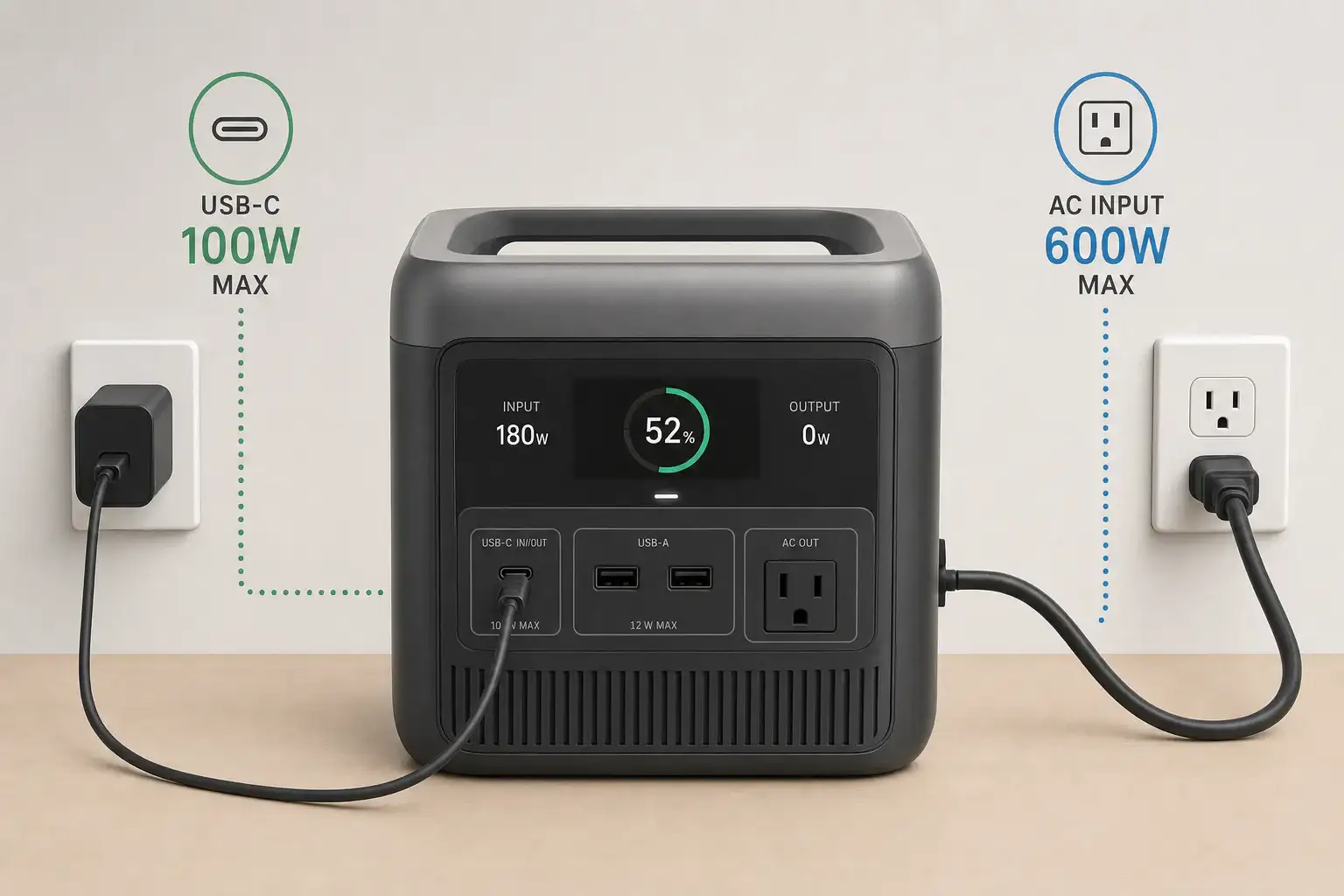
Portable power station charging from a USB-C PD charger showing power and port labels

You can charge many portable power stations from USB-C PD, but only if the station supports USB-C input and the PD wattage meets its requirements. The real limits come from the power station’s input rating, the USB-C PD profile, and any adapters in between. Understanding these details helps you avoid painfully slow charging, error messages, or no charging at all.

People often search for terms like USB-C PD input limit, PD profile compatibility, DC input watts, charge time, and pass-through charging when they run into problems. This guide explains how USB-C Power Delivery interacts with portable power stations, what adapters actually do, and the common gotchas that cause confusion. By the end, you’ll know how to match ports, voltage, and wattage so you can safely use USB-C PD chargers, laptop bricks, and multi-port GaN chargers to top up your power station when you’re at home, traveling, or off-grid.

USB-C PD Charging for Portable Power Stations: What It Means and Why It Matters

USB-C Power Delivery (PD) is a fast-charging standard that lets devices negotiate voltage and current over a USB-C cable. When a portable power station supports USB-C PD input, it can use a USB-C PD charger (such as a laptop or high-wattage phone charger) as a power source instead of or in addition to its dedicated AC adapter or DC input.

This matters because USB-C PD charging affects how flexible, fast, and convenient your portable power station is to recharge. In some setups, USB-C PD is the primary way to charge; in others, it is a backup or supplemental input to extend runtime or reduce downtime between uses.

Key reasons USB-C PD input is important for portable power stations include:

  • Charging flexibility: You can recharge from common USB-C PD chargers instead of carrying a proprietary brick everywhere.
  • Travel convenience: High-wattage USB-C laptop chargers can sometimes charge both your laptop and your power station (though not at the same time on the same port).
  • Redundancy: If you misplace the included AC adapter, a compatible USB-C PD charger can serve as a backup.
  • Modular setups: USB-C PD can be combined with other inputs on some models, increasing total input watts for faster charging.

However, not all portable power stations support USB-C input, and those that do often have strict input limits. Understanding these limits and how USB-C PD actually works is crucial before you rely on it as your main charging method.

How USB-C Power Delivery Works With Portable Power Station Inputs

USB-C PD is more than just a connector shape. It is a communication protocol where the charger (source) and the device (sink) negotiate a power contract. That contract defines the voltage and maximum current the charger will provide.

For portable power stations, several concepts determine whether USB-C PD charging will work and how fast it will be:

PD power profiles and voltage steps

USB-C PD chargers offer power in specific combinations of voltage and current, often called profiles. Common PD voltages include 5 V, 9 V, 12 V, 15 V, and 20 V. The maximum wattage is voltage multiplied by current (for example, 20 V × 3 A = 60 W).

A USB-C PD charger might advertise 65 W, 100 W, or 140 W, but the actual power delivered depends on the profile the device accepts. Many portable power stations that support USB-C PD input are designed to use higher-voltage profiles (often 20 V) to achieve reasonable charging speeds.

Power station USB-C input ratings

On the power station, the USB-C input port usually has a label such as:

  • USB-C PD 60 W (input)
  • USB-C PD 100 W (input/output)
  • USB-C 5 V/9 V/12 V/15 V/20 V, up to 3 A

This rating is the maximum the power station will accept over USB-C. Even if you plug in a 100 W PD charger, a 60 W-rated input will cap at 60 W.

For many users, the confusion comes from mixing up the charger’s maximum rating with the power station’s input limit. The lower of the two always wins.

Negotiation between charger and power station

When you connect a USB-C PD charger to a compatible power station:

  • The charger advertises its available PD profiles (for example, 5 V/3 A, 9 V/3 A, 15 V/3 A, 20 V/5 A).
  • The power station requests a profile it supports, up to its own max input rating.
  • If both sides agree, charging begins at that voltage and current.

If the power station does not support PD or cannot recognize the charger’s profiles, it may fall back to 5 V charging (very slow) or refuse to charge at all.

Dual-role USB-C ports

Some portable power stations use the same USB-C port for both input and output. In that case, the port may behave as:

  • Output: When connected to phones, tablets, or laptops.
  • Input: When connected to a PD charger that can act as a power source.

The power station’s firmware decides which role to take based on what it detects on the other end. Not every dual-role port supports input; reading the port label or manual is essential.

Adapters and USB-C to DC cables

Some users attempt to charge power stations that only have DC barrel or other DC inputs using USB-C to DC cables or adapters. These cables usually include a small PD trigger circuit that tells the USB-C charger to output a specific voltage (for example, 20 V), then route that power to a DC barrel plug.

This can work if the power station’s DC input is designed for that voltage and wattage, but it introduces additional compatibility and safety concerns, which we will cover later.

USB-C PD charger ratingCommon PD voltage profilesMax possible wattsTypical power station USB-C input behavior
45 W5 V, 9 V, 15 V45 WMay charge slowly; often limited to 30–45 W input.
60–65 W5 V, 9 V, 15 V, 20 V60–65 WGood match for 45–60 W USB-C inputs; moderate charge times.
100 W5 V, 9 V, 15 V, 20 V (up to 5 A)100 WUseful for stations with 60–100 W USB-C inputs; capped at station’s limit.
140 WUp to 28 V on some chargers140 WOnly partly usable; many power stations accept up to 20 V profiles.
Example values for illustration.

Real-World USB-C PD Charging Scenarios for Portable Power Stations

Understanding theory is helpful, but most people just want to know what happens in common setups. Here are realistic use cases and what to expect.

Charging a small power station with a laptop USB-C charger

Consider a compact portable power station with a 250 Wh battery and a USB-C PD input rated at 60 W. You plug in a 65 W USB-C laptop charger that supports 20 V/3.25 A.

  • The station negotiates a 20 V profile and draws up to 60 W.
  • Ignoring conversion losses, a 250 Wh battery would take roughly 4–5 hours to charge from empty at 60 W.
  • In practice, charging slows near full, so total time might be slightly longer.

This is a reasonable setup for everyday use, desk backup power, or travel.

Using a phone charger on a larger portable power station

Now imagine a mid-size power station with a 700 Wh battery and a USB-C PD input that supports up to 100 W. You only have a 30 W phone charger.

  • The charger likely offers 5 V/3 A and 9 V/3 A profiles.
  • The station may accept 9 V/3 A (27 W), leading to very slow charging.
  • At around 30 W, a 700 Wh battery could take well over 24 hours to charge from empty.

The result: it may work, but the charge time is so long that it is impractical for most users.

Combining USB-C PD with another input

Some portable power stations support simultaneous charging from multiple inputs, such as:

  • AC adapter + USB-C PD
  • Solar input + USB-C PD

For example, a unit might allow 200 W from its AC adapter plus 60 W from USB-C, for a total of 260 W. This can significantly reduce charge time for larger batteries, as long as the manufacturer explicitly supports combined input.

However, not all models allow this. Some limit total input or prioritize one source over another, automatically throttling USB-C when AC is connected.

USB-C to DC barrel adapters on non-USB-C power stations

Suppose you have a power station with a DC input rated 12–30 V, max 100 W, and no USB-C input. You buy a USB-C PD to DC barrel cable that triggers 20 V output from a 100 W PD charger.

  • If the DC input accepts 20 V and up to 100 W, the station may charge normally.
  • If the station expects a different voltage (for example, 24 V), it may charge slowly or not at all.
  • The adapter’s trigger circuit must match the power station’s acceptable input range.

This setup can work, but it is less predictable than using a native USB-C PD input and requires careful attention to voltage limits.

Charging while powering devices (pass-through)

Many users want to know if they can charge the power station from USB-C PD while running devices from its AC or DC outputs. This is often called pass-through charging.

Behavior varies by model:

  • Some power stations allow pass-through but may reduce battery lifespan if used constantly in this mode.
  • Others disable certain outputs while charging or limit total output power.
  • In some designs, USB-C PD input is available only when the station is in a specific mode or when AC input is not in use.

Always check how the station manages input versus output power, especially if you plan to use it as a semi-permanent UPS-style backup.

Common USB-C PD Charging Mistakes, Gotchas, and Troubleshooting Tips

Many USB-C PD charging problems with portable power stations come down to mismatched expectations or small details. Here are frequent issues and how to interpret them.

“It’s plugged in, but it won’t charge”

If the power station does not start charging when connected to a USB-C PD charger:

  • Check if the port is input-capable: Some USB-C ports are output-only for charging phones and laptops.
  • Verify PD support: Basic USB-C chargers without PD may only provide 5 V; some stations require a PD handshake to accept input.
  • Inspect the cable: Not all USB-C cables support high-wattage PD; try a known good, e-marked cable rated for 60–100 W.
  • Try another charger: Some low-cost or older PD chargers have limited profiles that do not match the station’s requirements.

“Charging is way slower than expected”

Slow charging usually traces back to one of these factors:

  • Input limit on the station: A 100 W charger on a 45 W USB-C input will still only deliver about 45 W.
  • Charger profile limitations: If the charger cannot provide 20 V, the station may be stuck at a lower voltage and wattage.
  • High battery state of charge: Many power stations reduce input current as they approach full to protect the battery.
  • Temperature throttling: If the station is hot or in direct sun, it may limit charge power.

“It starts charging, then stops or disconnects repeatedly”

Intermittent charging can be caused by:

  • Weak cable connections: Loose or worn connectors can cause brief interruptions that reset the PD negotiation.
  • Overcurrent protection on the charger: If the station tries to draw more than the charger’s safe limit, the charger may shut down and restart.
  • Adapter incompatibility: Some USB-C to DC adapters trigger a voltage that the station cannot handle reliably, causing it to drop in and out.

In many cases, testing with a different cable and a higher-quality PD charger resolves these symptoms.

Misreading labels and marketing terms

Marketing language can be confusing. Watch out for:

  • “USB-C fast charge” without PD: This may refer to proprietary phone standards, not USB-C PD input for the power station.
  • “100 W output” on the station: This might describe USB-C output capability, not input.
  • “PD support” on chargers: Not all PD chargers support the full range of voltages; some are optimized for phones rather than larger devices.

When to suspect a hardware fault

If you have verified that:

  • The station’s USB-C port is rated for PD input,
  • You are using a certified high-wattage PD charger and cable, and
  • Other devices charge correctly from the same charger,

but the power station still refuses to charge or behaves erratically, the port or internal charging circuitry may be faulty. In that situation, professional service or manufacturer support is usually required.

Safety Basics When Charging Portable Power Stations From USB-C PD

Charging a portable power station from USB-C PD is generally safe when you stay within the rated input limits and use compatible equipment. Still, it involves high currents and potentially high voltages, so basic precautions matter.

Stay within rated voltage and wattage

Whether using a native USB-C PD input or an adapter into a DC port, never exceed the power station’s stated input ratings. Higher wattage does not always mean faster or better if the device is not designed for it.

  • Match or stay below the max input wattage: If the station’s USB-C input is 60 W, a 60–100 W PD charger is fine, but the station will cap at 60 W.
  • Respect DC input voltage ranges: When using USB-C to DC adapters, ensure the triggered PD voltage fits within the station’s DC input voltage range.

Use quality chargers and cables

Reliable USB-C PD charging depends on the charger and cable:

  • Choose certified PD chargers: Low-quality chargers may mis-negotiate power levels or lack proper protections.
  • Use e-marked cables for higher wattages: For 60–100 W PD, use cables rated for the intended current.
  • Avoid damaged cables: Frayed or bent connectors can overheat or fail under load.

Heat management and placement

Both the power station and the USB-C charger generate heat while charging:

  • Provide ventilation: Keep vents clear and avoid covering the power station or charger with fabric or other materials.
  • Avoid direct sun and enclosed spaces: High temperatures can trigger thermal throttling or shutoffs.
  • Monitor during first-time setups: When you try a new charger or adapter, check for unusual warmth, smells, or noises.

Do not modify ports or open the power station

Altering USB-C ports, bypassing protective circuits, or opening the power station to change wiring can create serious fire and shock risks. Internal charging electronics are designed as a system; modifying one part can defeat safety features.

If you suspect a hardware defect or damaged port, work with the manufacturer or a qualified technician instead of attempting internal repairs yourself.

Know when to involve an electrician

While USB-C PD charging itself does not require an electrician, integrating a portable power station into a home electrical system does. If you plan to connect a power station to household circuits, consult a licensed electrician and use appropriate transfer equipment instead of improvised cables or backfeeding methods.

Maintenance and Storage Practices for Reliable USB-C PD Charging

Good maintenance and storage habits help keep both your portable power station and your USB-C charging gear working reliably over time.

Care for USB-C ports and connectors

Physical wear and contamination are common causes of USB-C charging problems:

  • Keep ports clean: Dust and debris can interfere with the small USB-C contacts; periodically inspect and gently blow out ports if needed.
  • Avoid strain on cables: Heavy cables hanging off the port can loosen connectors over time; support them where possible.
  • Insert and remove straight: Twisting or forcing connectors can damage internal contacts.

Store chargers and cables properly

To prolong the life of your USB-C PD chargers and cables:

  • Coil cables loosely: Tight bends near the connectors increase the risk of breakage.
  • Protect chargers from moisture: Store them in dry, cool locations when not in use.
  • Label high-wattage chargers: Mark which chargers are 60 W, 100 W, etc., so you can quickly select the right one for your power station.

Battery care and partial charging

Portable power stations use lithium-based batteries that benefit from moderate usage patterns:

  • Avoid leaving at 0% or 100% for long periods: For long-term storage, many manufacturers recommend around 30–60% charge.
  • Top up periodically: If stored for months, recharge briefly every few months to prevent deep discharge.
  • Use moderate charge power when possible: Constantly pushing maximum input wattage can increase heat; using a slightly lower-wattage PD charger for routine top-ups may be gentler on the system.

Environmental storage conditions

Where you store the power station and its USB-C charging accessories matters:

  • Temperature: Avoid storing in very hot or freezing environments, such as vehicles in extreme weather.
  • Humidity: Keep equipment dry to prevent corrosion on connectors and internal components.
  • Physical protection: Use padded cases or shelves to prevent drops or crushing forces on ports and housings.
ItemRecommended storage practiceWhy it matters for USB-C PD charging
Portable power stationStore at 30–60% charge in a cool, dry place.Helps maintain battery health and stable charging behavior.
USB-C PD chargersKeep away from moisture and high heat.Reduces risk of failure or unsafe operation under load.
USB-C cablesCoil loosely, avoid sharp bends near ends.Prevents internal conductor breaks that cause intermittent charging.
Adapters (USB-C to DC)Label voltage and compatible devices.Reduces risk of using mismatched voltages with power station inputs.
Example values for illustration.

Related guides: USB-C Power Delivery (PD) Explained for Portable Power StationsCan You Use a Higher-Watt Charger Than Rated? Understanding Input HeadroomUSB-C PD 3.1 (240W) on Portable Power Stations: What It Changes and Who Needs It

Practical Takeaways and USB-C PD Charging Specs to Look For

Charging a portable power station from USB-C PD is often possible and can be very convenient, but it depends on the station’s design and input ratings. If the power station has a dedicated USB-C PD input, matching it with a high-quality PD charger and cable is usually straightforward. When working through adapters or DC inputs, you must pay closer attention to voltage ranges and watt limits.

In everyday use, USB-C PD is best viewed as one of several charging options. For small to mid-size power stations, it can be the primary method. For larger units, it may serve as a backup or supplemental source alongside AC or solar inputs. Reliability and safety come from respecting input specs, using quality gear, and avoiding improvised modifications.

Specs to look for

  • USB-C PD input wattage rating: Look for clear input specs such as 45–100 W PD; higher input watts reduce charge time, especially on 300–800 Wh stations.
  • Supported PD voltage profiles: Check that the station accepts 20 V PD input; 20 V profiles allow more power transfer than 5–15 V, improving charging speed.
  • Dual-role USB-C port (input/output): Confirm whether USB-C is input-only, output-only, or both; dual-role ports increase flexibility but require clear labeling.
  • Maximum total charging input (all ports combined): Note the combined AC + DC + USB-C input limit (for example, 200–400 W) to understand best-case charge times.
  • DC input voltage range: For use with USB-C to DC adapters, look for a wide DC input range such as 12–28 V; this makes matching PD-triggered voltages easier.
  • Pass-through charging capability: Check whether the station supports powering devices while charging and if there are any output limits in that mode.
  • Battery capacity (Wh): Match capacity with realistic PD input; for example, a 60 W PD input is practical up to a few hundred watt-hours but slow for multi-kilowatt-hour units.
  • Thermal management and protections: Look for mentions of overvoltage, overcurrent, and temperature protections; these help keep USB-C PD charging safe under varying conditions.
  • Cable and charger compatibility notes: Documentation that lists recommended PD wattages and cable ratings can save troubleshooting time and ensure consistent performance.

By focusing on these specifications and understanding how USB-C PD negotiates power, you can confidently decide when and how to charge a portable power station from USB-C PD, avoid common pitfalls, and build a charging setup that fits your daily use and backup power needs.

Frequently asked questions

Which specifications and features should I check before trying to charge a power station from USB-C PD?

Check the power station’s USB-C PD input wattage and the supported PD voltage profiles (20 V support is important for higher charging rates). Also confirm whether the USB-C port is input-capable or dual-role, the combined maximum input from all ports, and use an e‑marked cable and a charger that meets or exceeds the station’s rated input.

Why does my power station charge much slower than the charger’s rated wattage?

The station’s own USB-C input rating (not the charger’s maximum) limits how much power it will accept, so a 100 W charger can be capped at 60 W by the station. Other causes include the charger not offering the higher-voltage PD profile the station needs, an underspecified cable, thermal throttling, or the station reducing charge current near full.

Can I safely use a USB-C to DC adapter to charge a power station that lacks a USB-C input?

It can work if the adapter triggers a PD voltage within the power station’s DC input range and can supply sufficient wattage, but compatibility is less predictable than a native USB-C input. Verify the station’s DC voltage and wattage specs, use a quality adapter that explicitly matches those values, and avoid ad hoc solutions that may bypass protections.

What safety precautions should I follow when charging a portable power station from USB-C PD?

Stay within the station’s rated voltage and wattage, use certified PD chargers and e‑marked cables, provide adequate ventilation to avoid overheating, and do not modify ports or internal circuitry. For any integration with household wiring or high-power setups, consult a licensed electrician.

How can I tell whether a USB-C port on my power station supports PD input or is output-only?

Check the port labeling and the user manual for terms like “PD input,” an input wattage value, or “input/output”; these indicate PD input capability. If documentation is unclear, testing with a known PD charger can confirm behavior, but stop and consult the manual if the station does not negotiate PD or shows errors.

What should I try if USB-C PD charging starts and stops intermittently?

Intermittent charging is often caused by a faulty or non‑e‑marked cable, a charger that trips overcurrent protection, or an adapter that mis‑triggers the PD profile. Try a different high‑quality e‑marked cable and a known-good PD charger; if the issue persists, the port or internal charging circuitry may be defective and require professional service.

Portable Power Station vs Power Bank vs UPS: What You Actually Need

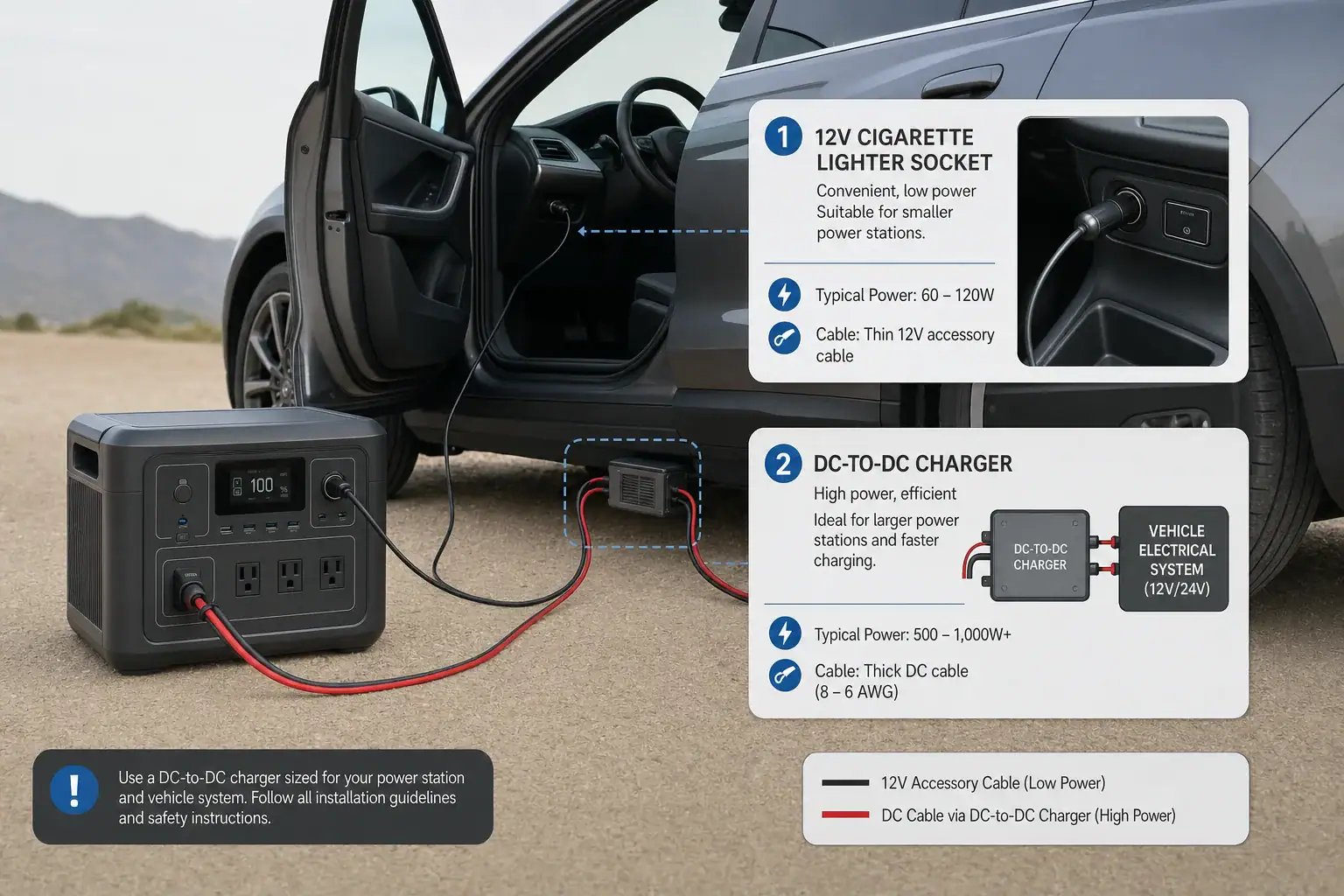
Isometric illustration comparing power bank portable power station and UPS

Choose a power bank for phones and small USB devices, a portable power station for higher-capacity AC and DC backup, and a UPS when electronics need automatic no-drop power during an outage.

These three backup power options overlap, but they are not interchangeable. A large USB battery pack may charge a laptop, yet it will not run a refrigerator. A portable power station may run home essentials, but many units do not switch fast enough to protect a desktop computer from shutting off. A UPS may keep a router alive, but it is usually built for minutes to a few hours, not a full camping weekend.

The best choice depends on what you need to power, how long it must run, whether it needs AC outlets, and whether a brief interruption is acceptable. Use the comparisons and examples below to match the device to your home backup, travel, remote work, or emergency power needs.

What each device means and why the choice matters

A power bank is the smallest category. It is usually a portable battery with USB-A, USB-C, or wireless charging output. Its job is to recharge phones, tablets, earbuds, cameras, handheld game systems, and sometimes USB-C laptops. Most power banks are easy to carry, simple to store, and practical for daily travel. Their limits are output wattage and total energy capacity.

A portable power station is a larger battery system with a built-in inverter, battery management system, display, and multiple outputs. It commonly provides AC outlets for household plugs, DC ports, and USB ports. It can run mixed loads such as a laptop, router, light, fan, mini fridge, CPAP-style device, or small appliance if the wattage is within the unit rating. It is the most flexible option for camping, van use, job sites, apartments, and short home outages.

A UPS, or uninterruptible power supply, is designed to sit between wall power and sensitive equipment. When grid power drops, the UPS switches to battery automatically. That makes it useful for desktop computers, network equipment, external drives, security systems, and other electronics that can lose work or reboot when power flickers. Many UPS units also provide surge suppression and line conditioning features, but their runtime is often limited.

The choice matters because the wrong device can fail in a predictable way. A power bank may not have an AC outlet. A power station may have plenty of battery capacity but still trip on motor startup surge. A UPS may protect a computer perfectly for ten minutes but be the wrong tool for overnight appliance backup.

Key concepts: watts, watt-hours, outputs, and transfer time

Start with watts. Watts describe how much power a device draws at a moment in time. A phone may use 5 to 20 watts while charging, a laptop may use 45 to 100 watts, a Wi-Fi router may use 8 to 20 watts, and a heating appliance can use 750 to 1500 watts. Your backup device must have enough output wattage for everything you want to run at the same time.

Next, look at watt-hours. Watt-hours describe stored energy. A simple estimate is load watts multiplied by hours of use. If a router uses 12 watts and you want it to run for 10 hours, the ideal energy need is 120 watt-hours. In real use, add a margin because inverters, voltage converters, cooling fans, and standby electronics waste some energy as heat.

For AC loads, pay attention to continuous wattage and surge wattage. Continuous wattage is what the unit can supply steadily. Surge wattage is a short burst for startup. Refrigerators, pumps, compressors, and some tools can draw several times their running wattage for a moment. If the surge is too high, the power station or UPS may shut down even if the average wattage looks reasonable.

Also consider transfer time. A UPS is built to switch very quickly when utility power fails. Many portable power stations have a backup or pass-through mode, but transfer time varies and may not be suitable for all desktop computers or sensitive devices. If the connected equipment cannot tolerate even a brief interruption, use a UPS rated for that purpose.

Decision guide for portable power station vs power bank vs UPS. Example values for illustration.
Need Best fit Why it fits Watch closely
Phone, tablet, earbuds, camera Power bank Small, low-cost, USB-focused USB-C output watts and battery size
USB-C laptop while traveling High-output power bank or small power station Can provide portable charging without wall power Laptop charging wattage and airline battery limits
Router, modem, lights, fan during outage Portable power station More watt-hours and multiple outputs Total load, runtime, and recharge plan
Desktop PC and monitor protection UPS Fast automatic switchover prevents abrupt shutdown UPS watt rating and expected runtime
Camping with small appliances Portable power station AC outlets plus DC and USB in one unit Appliance surge and daily energy use
Short outage backup for networking gear UPS or portable power station UPS protects against dropouts; power station may run longer Whether seamless transfer is required

Real-world examples for home, travel, and camping

For everyday travel, a power bank is usually enough. A small phone may have a battery around 10 to 15 watt-hours. A 20 to 30 watt-hour power bank might provide one full phone recharge and a partial second recharge after conversion losses. A larger USB-C power bank can help a laptop, but a 60 watt-hour laptop battery may drain most of it in one charge.

For remote work during a short outage, imagine a laptop drawing 50 watts, a router drawing 12 watts, and an LED light drawing 6 watts. The total is 68 watts. For six hours, the ideal need is 408 watt-hours. After allowing for conversion losses and some margin, a portable power station vs power bank in the 500 to 700 watt-hour class would be a more realistic target than a pocket power bank.

For a desktop setup, a UPS changes the goal. If a desktop computer and monitor draw 180 watts, a smaller UPS may only provide enough time to save work and shut down cleanly. That can still be valuable because the main job is preventing data loss or a hard reboot, not running the office all afternoon.

For camping, a portable power station works best when you list daily energy use. A 10 watt light for five hours uses 50 watt-hours. A 25 watt fan for eight hours uses 200 watt-hours. Charging phones and a camera may add another 80 watt-hours. That trip day already needs roughly 330 watt-hours before losses. Solar can help, but real solar output depends on clouds, shade, panel angle, and season.

Example runtime planning for common loads. Example values for illustration.
Load Typical draw Energy for 8 hours Practical device type
Smartphone charging 10 watts while charging Depends on charge cycles Power bank
Router and modem 15 to 30 watts combined 120 to 240 watt-hours UPS or portable power station
Laptop 45 to 90 watts 360 to 720 watt-hours if running continuously High-output power bank or power station
LED lamp 5 to 15 watts 40 to 120 watt-hours Power bank if USB, power station if AC
Small fan 15 to 40 watts 120 to 320 watt-hours Portable power station
Desktop PC and monitor 120 to 300 watts 960 to 2400 watt-hours UPS for brief protection, power station for longer runtime

Common mistakes and troubleshooting cues

Mistake one: buying by capacity only. A large watt-hour rating does not guarantee that a unit can run a high-wattage appliance. If a device needs 1200 watts and the inverter is rated for 600 watts, it will overload. Always compare the load wattage to the output rating first, then estimate runtime.

Mistake two: ignoring startup surge. If a fridge, pump, or compressor clicks on and the power station shuts off immediately, startup surge is a likely cause. Try removing other loads, using a lower-demand device, or choosing equipment with a higher surge rating. Do not repeatedly force restarts if the unit is showing overload warnings.

Mistake three: expecting perfect runtime math. A 500 watt-hour power station will not deliver 500 watt-hours to every AC appliance. Inverter losses, low-load overhead, high temperatures, cold batteries, and aging can reduce usable energy. For planning, many users should build in a 15 to 25 percent cushion, more if the load is critical.

Mistake four: using the wrong port or cable. A USB-C laptop may charge slowly or not at all if the cable lacks the required power rating or if the port supports only low output. Check the actual USB-C wattage, not just the connector shape. With power banks, the difference between a basic USB port and a high-output USB-C Power Delivery port can be significant.

Mistake five: treating a portable power station like a full UPS. If a computer reboots when wall power fails, the transfer delay may be too long. A UPS is the safer choice for equipment that must stay on continuously. A power station may still be useful after the UPS, but only if the setup is compatible and the total load is within rating.

Safety basics for indoor, outdoor, and backup use

Use all battery backup devices on a stable, dry surface with ventilation. Heat is a common enemy of batteries and electronics. Do not cover vents, place units under blankets, operate them inside sealed boxes, or stack gear on top of them. If a device becomes unusually hot, smells odd, swells, leaks, sparks, or shows damaged ports, stop using it.

Keep power banks, power stations, and UPS units away from water. Outdoor use should be protected from rain, puddles, sprinklers, and wet ground unless the equipment is specifically rated for those conditions. In damp locations, shock protection matters. Follow the product instructions and applicable electrical safety practices, especially when AC power and extension cords are involved.

Use cords that are rated for the load. A thin or damaged extension cord can overheat when running high-wattage appliances. Avoid daisy-chaining power strips, overloading UPS outlets, or connecting space heaters and other heavy resistive loads unless the device documentation clearly allows it. Many UPS units are not intended for heaters, refrigerators, laser printers, or large appliances.

Do not backfeed a home outlet or connect any backup device directly to household wiring without proper transfer equipment installed by a qualified electrician. Improper backfeeding can injure utility workers, damage equipment, and create fire hazards. For medical-related equipment or life-safety needs, do not rely on general consumer backup power alone; get professional guidance and plan redundancy.

Maintenance, storage, and long-term readiness

Backup power is only useful if it works when needed. Check stored devices periodically and recharge them before storm seasons, trips, or planned outages. Lithium-based power banks and power stations generally should not sit fully discharged for long periods. Many manufacturers recommend a moderate charge level for storage, then periodic top-ups.

Temperature affects both runtime and battery life. High heat can age batteries faster, and freezing conditions can temporarily reduce output. Avoid storing power banks in hot vehicles, power stations in hot attics, or UPS units in cramped spaces with poor airflow. If a battery has been in the cold, let it return to a safe operating temperature before charging if the manufacturer instructs you to do so.

UPS units deserve special attention because many use batteries that wear out after several years. A UPS may still turn on while providing much shorter runtime than it did when new. Use its self-test function if available, note alarm behavior, and replace the battery pack or the unit when runtime falls below your needs.

Portable power stations should be tested under light load every few months. Plug in a lamp, router, or other modest load and confirm that AC and USB outputs work. Check the display, input charging, cords, adapters, and any solar cables before you depend on them. Labeling cables and storing them with the device prevents last-minute confusion.

Practical takeaways and specs to look for

The simplest rule is to match the tool to the job. A power bank is best for personal electronics and lightweight travel. A portable power station is best for flexible home, vehicle, camping, and emergency use when you need more watt-hours and AC outlets. A UPS is best for automatic backup and protection of electronics that should not shut off abruptly.

For sizing, list every device you want to run, note its watts, and decide how many hours it must operate. Multiply watts by hours to estimate watt-hours, then add a realistic buffer for losses. If any device has a motor, compressor, heater, or large power supply, check continuous and surge requirements before assuming it will work.

Specs to look for

  • Battery capacity: Compare watt-hours, not just marketing size or milliamp-hours.
  • Continuous AC output: Must exceed the total watts of devices running at the same time.
  • Surge rating: Important for refrigerators, pumps, tools, and compressor loads.
  • USB-C output: For laptops, check the wattage of the port and the cable.
  • Transfer time: Critical if you need UPS-like protection for computers or networking equipment.
  • Recharge options: Wall charging, vehicle charging, and solar input affect how useful the device is during longer outages.
  • Battery chemistry and cycle rating: Helpful for estimating long-term durability.
  • Weight and size: A unit that is too heavy may stay in a closet instead of going on trips.
  • Operating temperature range: Important for garages, vehicles, winter use, and hot climates.
  • Safety certifications and protections: Look for overload, short-circuit, over-temperature, and battery management protections.

If you are buying for travel, start small and prioritize USB-C output and airline limits. If you are buying for outages, size around your essential loads rather than every appliance in the house. If you are protecting work equipment, prioritize reliable switchover and enough runtime to save work or bridge short interruptions. The right answer is often a combination: a power bank for daily carry, a UPS for sensitive electronics, and a portable power station for longer backup needs.

Frequently asked questions

Can a portable power station replace a UPS for a desktop computer?

Sometimes, but not always. A portable power station may provide enough runtime, yet its transfer time can be too slow for some desktops or monitors, causing a reboot when utility power fails. If uninterrupted operation matters, a UPS is the safer choice.

What specs matter most when choosing between these three options?

Focus on output wattage, battery capacity in watt-hours, and the type of ports you need. For computers and networking gear, transfer time matters as much as capacity. For appliances, check continuous and surge ratings before anything else.

What is the most common mistake people make when buying backup power?

The most common mistake is choosing by battery size alone. A unit can have a large capacity but still fail if its output wattage is too low for the device being powered. Always match the load first, then estimate runtime.

Is it safe to use these devices indoors?

Yes, if you use them as directed and keep them dry, ventilated, and undamaged. Do not cover vents, overload outlets, or use damaged cords. For any setup involving household wiring, use proper transfer equipment and follow electrical safety guidance.

How do I know whether I need a power bank or a portable power station?

If you only need to charge phones, tablets, earbuds, or a USB-C laptop, a power bank is usually enough. If you need AC outlets, longer runtime, or support for multiple devices at once, a portable power station is the better fit. The deciding factor is usually wattage and total energy demand.

Can a UPS run a router for several hours?

Yes, if the router load is small enough and the UPS battery capacity is sufficient. Many UPS units are designed mainly to bridge short outages, so runtime can vary a lot by load. For longer networking backup, a portable power station often provides more energy.

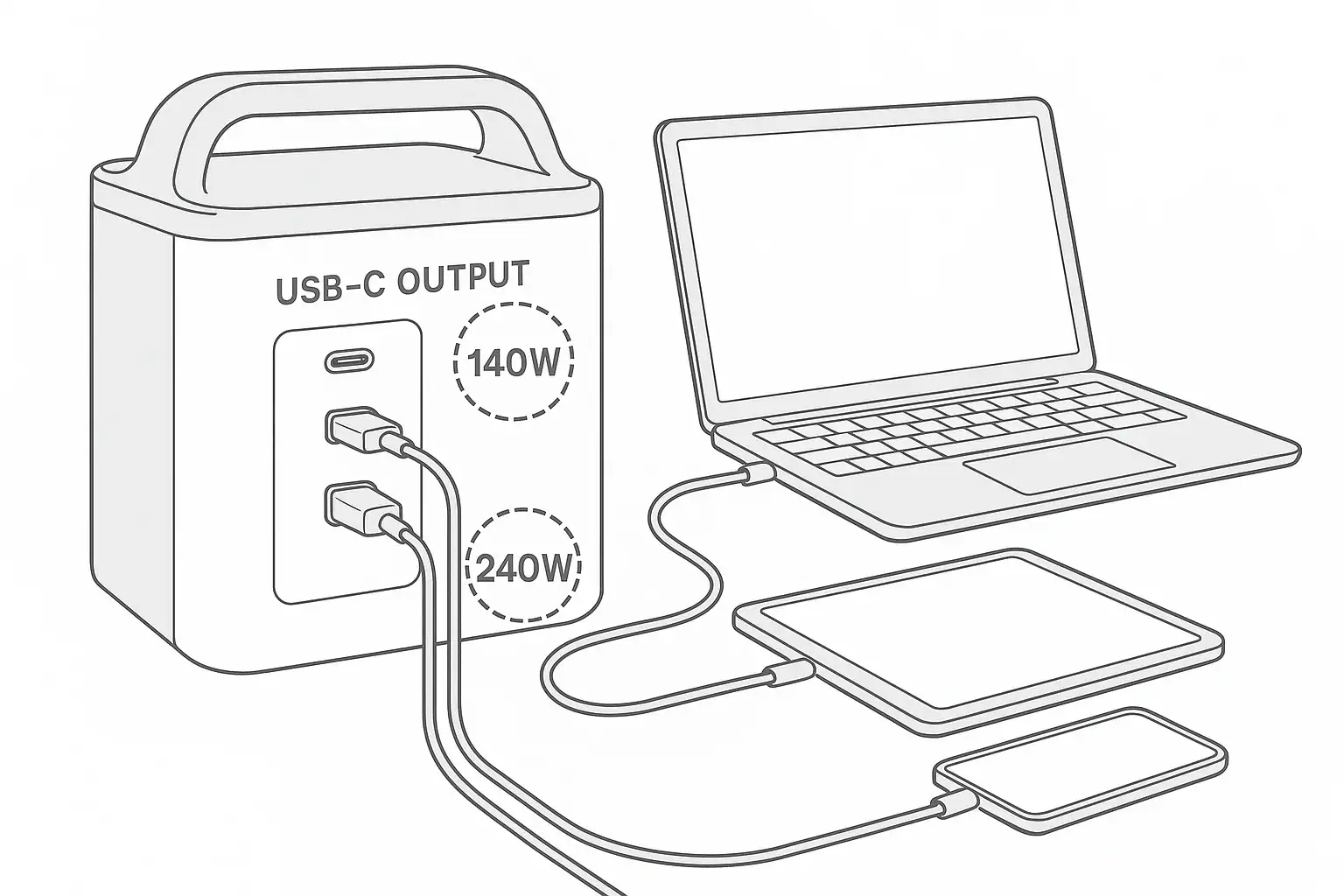
USB-C PD 3.1 (240W) on Portable Power Stations: What It Changes and Who Actually Needs It

Portable power station charging laptop and phone over USB-C

USB-C PD 3.1 with up to 240W lets a portable power station run many laptops, monitors, and docks directly over USB-C instead of through bulky AC adapters. In practical terms, that means faster charging, fewer bricks, and slightly longer runtimes because you avoid inverter losses. But it only helps if your devices and cables also support high‑wattage USB-C.

This guide explains what USB-C PD 3.1 (also called 240W USB-C or Extended Power Range USB-C) really changes on a power station, when it is worth paying for, and how to avoid common mistakes. You will see how wattage, battery size, and efficiency interact, plus concrete examples for remote work, short outages, and travel.

If you are deciding between a basic USB-C port and a 240W PD 3.1 port, use this article as a checklist: match port power to your laptop, confirm cable ratings, and make sure the battery capacity fits your runtime goals, not just the biggest number on the box.

What USB-C PD 3.1 (240W) Means and Why It Matters

USB-C Power Delivery 3.1 is an updated fast-charging standard that adds higher power levels, up to 240 watts, over a single USB-C cable. Earlier USB-C PD versions typically topped out around 60–100W. With PD 3.1, a compatible portable power station can now provide enough DC power to replace many 180–240W laptop bricks and power-hungry USB-C docks or monitors.

The key change is that a USB-C port on a power station is no longer just for phones and tablets. A 240W PD 3.1 port can become a primary output for a workstation-class laptop, a high-refresh external monitor, or a dock powering several peripherals. This shifts more of your everyday loads from AC outlets to USB-C, often improving overall efficiency.

Because USB-C PD is a negotiated standard, the device and power station agree on a safe voltage and current level. With PD 3.1, that negotiation can include new higher-voltage steps that support 140W, 180W, or 240W profiles when both ends allow it. If your device only supports 65W, it will still top out there even if the port can do 240W. The benefit of PD 3.1 is headroom: one port can serve a wide range of devices without swapping chargers.

This matters most for people who rely on performance laptops, creator workflows, or dense USB-C workstations. For basic travel charging of phones, tablets, and light laptops, 45–65W PD is usually enough, and a 240W port is more about future-proofing and flexibility than an immediate need.

Key Concepts and How USB-C PD 3.1 Fits Into a Power Station

To decide whether you need USB-C PD 3.1 240W on a portable power station, it helps to separate three ideas: how fast power flows (watts), how much energy is stored (watt-hours), and how efficiently the system converts that energy.

Watts (W): momentary power
Watts describe how much power flows at a given moment. A 240W USB-C port can deliver up to 240W to a single device if the device and cable both support it. A laptop that normally ships with a 180W charger will usually need at least 140–180W available over USB-C to maintain full performance without draining its internal battery.

Watt-hours (Wh): battery size
Watt-hours describe stored energy in the battery. A 500Wh power station can theoretically supply 100W for about 5 hours or 250W for about 2 hours, before losses. USB-C PD 3.1 does not change the battery size; it just lets you use that energy more flexibly. You still need enough Wh to cover your runtime, even if the port can deliver 240W.

Efficiency and DC vs. AC
Inside the power station, the battery is DC. When you use an AC outlet, the inverter converts DC to AC and wastes some energy as heat, often around 10–15% or more. A high-wattage USB-C PD port delivers DC-to-DC power, which is usually more efficient. Running a 120W laptop from USB-C instead of from its AC brick can extend runtime and reduce fan noise from the inverter.

Port ratings vs. total system limits
Another important concept is the difference between the rating of a single port and the power station’s total continuous output. A unit might advertise a 240W USB-C port but only support 600W total across all outputs. If you are already running 500W of AC loads, there may not be enough headroom left for the USB-C port to reach its full rating.

Typical USB-C PD levels vs. common device types on portable power stations. Example values for illustration.
Device type Typical charger rating Recommended USB-C PD level Notes for power station planning
Phones, earbuds, small gadgets 10–30W Up to 45W PD Any modern USB-C PD port is usually fine; focus on number of ports.
Tablets and light ultrabooks 30–65W 45–65W PD Higher PD 3.1 is optional; battery capacity matters more than port peak.
Office and business laptops 65–100W 65–100W PD Comfortable for remote work; PD 3.1 adds future headroom.
Creator / gaming laptops 120–240W 140–240W PD 3.1 Needs PD 3.1 plus a cable and laptop that support high-wattage USB-C.
USB-C monitors 30–90W 100W+ PD Leaves room to power the monitor and trickle-charge a laptop via dock.
USB-C docks/hubs with peripherals 60–180W total 140–240W PD 3.1 One strong port can feed a dock that distributes power to many devices.

Real-World Examples of USB-C PD 3.1 on Portable Power Stations

Looking at concrete setups makes it easier to decide if USB-C PD 3.1 240W is useful for you. The examples below assume all devices support USB-C PD and that cables are correctly rated.

Example 1: Remote video editor with a high-draw laptop
A creator laptop can easily draw 140–180W while rendering. On a power station with only a 60W USB-C port, the laptop will continue to drain its internal battery under load, even though it shows as “charging.” To stay productive, you would have to plug the laptop’s original AC brick into the power station’s AC outlet, forcing the inverter to run and wasting energy.

With a 240W PD 3.1 port, the same laptop can negotiate a higher power level (for example, 180W). This lets it maintain or gain charge while running at full performance, all from a single USB-C cable. The AC outlets remain free for other gear like a small audio interface or external storage.

Example 2: Compact home office backup
Imagine a work-from-home setup: a 65W laptop, a 60W USB-C monitor, and a small dock drawing another 20W. Total USB-C load is around 145W. During a short outage, a power station with a strong PD 3.1 port can feed the dock or monitor, which then powers and connects everything else. The AC outlets are reserved for your modem, router, and maybe a small desk lamp.

If the power station has a 700Wh battery and the combined DC load is 145W, an idealized runtime is roughly 700Wh ÷ 145W ≈ 4.8 hours. After accounting for efficiency losses, a realistic expectation might be 3.5–4 hours of work time, all without spinning up large AC adapters.

Example 3: Vanlife or camping workstation
In a van or RV, a typical digital nomad setup might include a 90W laptop, a 30W tablet, and a 15W phone, plus a 12V fan and lights. If the power station offers multiple USB-C ports including one PD 3.1 port, you could run the laptop from the high-wattage port, the tablet from a secondary USB-C port, and the phone from USB-A, while the fan and lights use the 12V output. No AC loads are needed, so the inverter can stay off most of the time.

Example 4: Short outage with internet and work gear
During a neighborhood outage, you might prioritize a laptop (60W) and a router/modem combination (15–25W). If your power station has a PD 3.1 port, the laptop can run from USB-C while the router is on AC or DC, depending on the adapter. A 500Wh power station could reasonably keep you online for several hours, especially if you dim the laptop screen and avoid heavy CPU/GPU loads.

Example USB-C PD 3.1 usage scenarios and estimated runtimes. Example values for illustration.
Scenario Approx. USB-C load Example battery size Rough runtime estimate*
Remote editor laptop only 160W 700Wh About 3.5–4 hours
Home office: laptop + monitor + dock 145W 700Wh About 4–4.5 hours
Vanlife: laptop + tablet + phone 130W 500Wh About 3–3.5 hours
Outage: laptop + router 80W 500Wh About 5–6 hours
Light travel: tablet + phone only 40W 300Wh About 6–7 hours

*Estimates assume moderate efficiency losses and real-world usage; actual runtimes vary by device behavior and settings.

Common Mistakes and Troubleshooting Cues with High-Wattage USB-C

High-wattage USB-C PD 3.1 is powerful but easy to misinterpret. Many “problems” are actually negotiation or configuration issues, not hardware failures. Recognizing typical symptoms can save time and frustration.

Mistake 1: Assuming a 240W port always delivers 240W
The port rating is a maximum, not a guarantee. If your laptop only supports 100W over USB-C, it will never draw more than that, even from a 240W port. If the laptop still drains its battery under heavy load, the limitation is on the laptop side, not the power station.

Mistake 2: Using low-rated or unknown cables
Many USB-C cables are only rated for 60W or 100W. With PD 3.1, the system checks cable capability. If the cable is not rated for higher current, the negotiated power level will drop. Typical signs include slow charging, a laptop toggling between charging and not charging, or a warning message about the power source.

Mistake 3: Overloading the power station’s total output
Even if the USB-C port can handle 240W, the power station has a total output ceiling. If AC loads are already near that limit, adding a high-draw USB-C session can cause the unit to throttle or shut down. You might notice all outputs turning off or the USB-C port dropping to a lower charging rate when you start another appliance.

Mistake 4: Misunderstanding low-load auto shutoff
Some power stations turn off DC or USB outputs when the total draw is very low for a while. This can confuse users charging tiny devices like earbuds, trackers, or low-power sensors over USB-C. The port appears to “randomly” turn off, but it is actually a power-saving feature.

Mistake 5: Expecting USB-C to fix incompatible devices
Not every laptop that ships with a 180–240W brick supports high-wattage USB-C charging. Some rely on proprietary connectors or require specific firmware. In those cases, the USB-C port on the power station may only provide basic or no charging, and you must still use the original AC adapter.

Basic troubleshooting steps

  • Test with a known high-quality, high-wattage USB-C cable and compare behavior.
  • Check whether the device supports USB-C PD and its maximum wattage rating.
  • Reduce or disconnect AC loads to see if USB-C charging speed improves.
  • Try another USB-C device to confirm the port itself is working as expected.
  • Look for settings on the device that limit charging speed (for example, battery health modes).

Safety Basics When Using USB-C PD 3.1 and Other Outputs

USB-C PD 3.1 includes built-in protections such as negotiated voltage, overcurrent limits, and thermal safeguards. Still, safe operation of a portable power station depends on how and where you use it.

Placement and ventilation

  • Set the power station on a stable, dry, non-flammable surface.
  • Keep vents clear on all sides; avoid covering the unit with bags, clothing, or bedding.
  • Expect some warmth when running near 240W over USB-C, especially in warm environments.

Cable safety

  • Use USB-C cables rated for high current; replace any cable that feels hot, is discolored, or has damaged insulation.
  • Avoid tight bends, knots, or pinched cables under furniture or doors.
  • Route cords to minimize tripping hazards and accidental yanking of connectors.

Mixing USB-C and AC loads

  • Remember that USB-C, DC, and AC outputs share one battery and one overall power budget.
  • Do not assume the unit can run a large appliance and a 240W USB-C laptop at the same time; check total continuous wattage.
  • If the power station shuts down under load, disconnect devices and restart with fewer or lower-power items.

Environmental conditions

  • Keep the power station away from standing water, heavy condensation, and direct rain.
  • Avoid leaving the unit in enclosed hot spaces such as parked vehicles in full sun.
  • Be cautious in very cold conditions, where battery performance drops and plastics become more brittle.

Maintenance and Storage for Power Stations with USB-C PD 3.1

High-wattage USB-C does not change maintenance fundamentals, but it can stress weak cables or worn connectors faster. A few simple habits help keep both the battery and ports in good condition over years of use.

Battery care

  • Avoid storing the power station fully empty or fully charged for long periods.
  • For long-term storage, aim for a moderate state of charge and top up every few months.
  • Do a full functional test before storm seasons, trips, or planned outages.

Port and cable inspection

  • Check USB-C ports periodically for dust, debris, or looseness.
  • Replace cables that no longer click firmly into place or that intermittently disconnect.
  • Label high-wattage cables so they do not get mixed up with low-power ones.

Temperature and environment

  • Store the unit in a dry, shaded location with moderate temperatures.
  • Allow the battery to warm up to a safe operating range before charging if it has been in freezing conditions.
  • After heavy use at high wattage, let the unit cool before sealing it in a tight case or compartment.
Suggested maintenance intervals for portable power stations with high-wattage USB-C. Example values for illustration.
Task Suggested interval What to check Why it matters
Battery top-up during storage Every 2–3 months Charge level not near 0% for long periods Reduces stress from deep discharge and keeps unit ready.
USB-C port and cable inspection Every 1–3 months Secure connection, no visible damage or debris Prevents intermittent faults during high-wattage use.
Full load test (USB-C + AC) Every 3–6 months Devices reach expected charging or run power Confirms performance before relying on the system.
Vent and case inspection Every few uses No dust buildup, cracks, or warped areas Maintains cooling performance and safety.
Check backup charging methods Before trips or storm season Wall, vehicle, and solar inputs all work as expected Ensures you can recharge when grid power is limited.

Practical Takeaways and Specs to Look For

USB-C PD 3.1 at 240W is most valuable if you run power-hungry laptops, USB-C docks, or multi-monitor setups and want to minimize AC adapters. For phones, tablets, and light laptops, a lower-wattage PD port usually covers daily needs, and total battery capacity becomes more important than peak port power.

When comparing portable power stations, focus on how well the USB-C ports align with your actual devices and workloads instead of chasing the biggest number on the spec sheet. Think in terms of “can this port fully replace my laptop’s wall charger?” and “how many hours of work time do I realistically need?”

Specs to Look For: Quick Checklist

  • USB-C PD rating per port: Check that at least one port matches or exceeds your laptop’s original charger wattage.
  • Number of USB-C ports: Count how many devices you want to run simultaneously (laptop, monitor, tablet, phone, dock).
  • PD 3.1 / 240W support: Consider this if you use or plan to use high-performance laptops or power-dense USB-C docks.
  • Battery capacity (Wh): Estimate runtime by dividing battery Wh by your total expected load (W), then adjust down for efficiency.
  • Total continuous output (W): Make sure the combined AC + DC + USB-C loads stay under the unit’s continuous rating.
  • DC vs. AC usage: Prefer USB-C and DC outputs for electronics when possible to reduce inverter losses.
  • Cable ratings: Plan to use clearly labeled high-wattage USB-C cables for any device that might draw over 100W.
  • Port layout: Check that USB-C ports are easy to access when multiple bulky plugs are connected.
  • Noise and cooling: Look for designs that stay reasonably quiet under sustained USB-C loads.
  • Long-term support: Features like firmware updates or configurable eco/always-on modes can improve USB-C behavior over time.

Viewed this way, USB-C PD 3.1 240W is not just a buzzword but a tool: it lets a portable power station behave more like a compact DC power hub for modern electronics. If you match port power, battery size, and cable quality to your real devices, you can simplify your setup, stretch runtimes, and rely less on bulky AC bricks wherever you work or travel.

Frequently asked questions

Which specs and features should I prioritize when buying a power station with USB-C PD 3.1 240W?

Focus on matching per-port USB-C PD wattage to your highest-draw device, the power station’s total continuous output, and battery capacity in watt-hours. Also check cable ratings, supported PD voltage profiles, cooling/noise characteristics, and whether firmware updates or configurable power modes are available.

How can I tell if my laptop or cable will actually support USB-C PD 3.1 240W?

Confirm your laptop’s maximum USB-C PD input in its specifications or user manual and look for cables labeled or e-marked for high-wattage PD (for example, 140W/240W ratings). If either the laptop or the cable lacks high-wattage support, the negotiated charging level will be lower than 240W.

Why won’t a 240W PD 3.1 port always deliver 240W to my device?

The port rating is a maximum; actual delivery depends on negotiation between the power station, cable, and device, plus the power station’s total output limits and thermal constraints. If the device or cable cannot accept high voltage or current, or other outputs are near the station’s ceiling, the negotiated power will be reduced.

Is USB-C PD 3.1 240W safe to use for extended charging sessions?

USB-C PD 3.1 includes negotiated voltage/current and built-in protections against overcurrent and thermal issues, but safe extended use also requires good ventilation and undamaged, correctly rated cables. Monitor for excessive heat, avoid enclosing the unit, and follow manufacturer recommendations for ambient temperature and placement.

Can a 240W PD 3.1 port replace my laptop’s AC adapter entirely?

It can replace the AC adapter only if your laptop supports high-wattage USB-C charging, you use a properly rated cable, and the power station has sufficient continuous output and battery capacity to sustain your workload. Otherwise you may need to use the original adapter or accept reduced performance or shorter runtimes.

What are simple troubleshooting steps for charging problems with high-wattage USB-C?

Try a certified high-wattage USB-C cable first, reduce or disconnect other loads on the power station, and test with another PD-capable device to isolate the issue. Also check device charging settings (battery health modes), inspect ports and cables for damage, and reboot or update firmware if available.

PPS vs Fixed USB-C PD Profiles: Why Some Laptops Charge Slowly and How to Fix It

Portable power station charging a laptop with USB-C

The main reason some laptops charge slowly from a portable power station is a mismatch between the laptop’s USB-C Power Delivery (PD) needs and what the power station’s port can actually provide, especially when it lacks PPS (Programmable Power Supply). When a laptop wants higher or finely tuned power but only sees low-watt or fixed PD profiles, it automatically falls back to slower, safer settings.

Understanding PPS vs fixed USB-C PD profiles helps you predict real charging speed, avoid a laptop that still drains while “charging,” and choose a power station that really supports your gear. This guide explains how PD negotiation works, what PPS actually changes, and how to diagnose slow or inconsistent laptop charging in practical, non-technical terms.

We will walk through key concepts like watts and watt-hours, real-world usage scenarios, common mistakes, safety basics, and a clear specs checklist. By the end, you will know exactly what to look for on a spec sheet and what to change in your setup to get reliable USB-C laptop power on the go or during outages.

What PPS vs fixed USB-C PD profiles means and why it matters

USB-C Power Delivery is a standard that lets a device and a charger “negotiate” voltage and current over a single cable. That negotiation determines how many watts flow into your laptop. Portable power stations increasingly rely on USB-C PD so you can skip the bulky AC charger and plug in directly.

There are two broad ways a USB-C PD port can behave:

  • Fixed PD profiles – The port offers a few standard steps such as 5 V, 9 V, 15 V, and 20 V at specific maximum currents. Your laptop picks the closest match and stays there.
  • PPS (Programmable Power Supply) – The port lets the laptop request voltage and current in fine increments (for example, 3.3–21 V in small steps). This allows the laptop to shape its charging curve more precisely.

On paper, both approaches can deliver the same maximum wattage. In practice, PPS often lets newer laptops run closer to their ideal charging profile with less heat and fewer power “spikes.” Without PPS, some laptops choose a lower fixed step to stay within their own temperature or safety limits, which shows up as slower charging or a battery that barely climbs when you are working hard.

For portable power stations, this difference matters because you are working with a finite battery. Efficient, stable USB-C charging means more usable runtime, less fan noise, and fewer surprises when you depend on your laptop away from grid power.

Key concepts: watts, watt-hours, and how PPS changes charging behavior

Before comparing PPS vs fixed PD in detail, it helps to understand a few basic power concepts that directly affect laptop charging from a portable power station.

Watt-hours (Wh) describe total energy over time. A 500 Wh power station, in theory, can supply 50 W for 10 hours (500 Wh ÷ 50 W = 10 h), or 100 W for 5 hours, and so on.

Watts (W) describe power at a moment in time. If your laptop is pulling 60 W from a USB-C port, that is the rate of energy flow right now.

Real systems are not perfect. Every conversion step loses a bit of energy as heat. Going from the power station’s battery (DC) to an AC outlet and then back to your laptop’s charger (DC again) wastes more energy than sending power directly from a USB-C PD port.

That is where PPS can help. With fixed PD profiles, your laptop might have to choose a standard 20 V step even if it would prefer something slightly different to reduce heat or match its internal battery voltage more closely. PPS lets the laptop request that “just right” voltage and current combination, which can:

  • Keep charging power closer to its rated maximum without triggering thermal throttling.
  • Reduce peaks and dips in power draw as workloads change.
  • Improve overall efficiency slightly, stretching runtime from the same Wh capacity.

When sizing a portable power station for laptop use, you care about both the USB-C PD watt rating (how fast it can charge) and the battery capacity in Wh (how long it can keep charging and running the laptop). The table below shows how these pieces fit together.

USB-C laptop runtime and charging power overview – Example values for illustration.
Scenario Port type Port rating Laptop draw while in use Approx. behavior on 500 Wh station
Light office work Fixed PD 60 W max 35–45 W Charges to full, 9–11 hours of combined use
Heavy multitasking Fixed PD 60 W max 55–70 W Battery may creep up slowly or hover; 6–8 hours
Heavy multitasking PPS PD 100 W max 55–70 W Maintains closer to full 60–65 W charge; 7–9 hours
Gaming or video rendering PPS PD 100 W max 80–100 W May slow charge or hold level; 4–6 hours
Gaming via AC laptop brick AC inverter 300 W+ inverter 90–120 W effective Shortest runtime due to DC–AC–DC losses; 3–5 hours

Real-world examples of PPS vs fixed PD with portable power stations

To see how PPS vs fixed PD profiles affect actual laptop charging, it helps to walk through a few realistic situations you might encounter with a portable power station.

Example 1: 65 W work laptop on a 60 W fixed PD port

Imagine a laptop that ships with a 65 W USB-C charger. You plug it into a power station whose USB-C port supports only fixed PD profiles up to 60 W. The laptop negotiates 20 V at up to 3 A (about 60 W).

  • At idle or light work, the laptop may pull 25–40 W. The port can easily keep up, and the battery charges at nearly full speed.
  • Under heavier workloads (multiple browser tabs, video calls, external monitor), the laptop might want 60–70 W total. Because the port caps at 60 W, the system diverts more power to running the laptop and less to charging the battery.
  • The result is a battery that charges slowly, stalls around a certain percentage, or even drops a few percent per hour during intense tasks, even though it shows “plugged in.”

Example 2: Same laptop on a 100 W PPS port

Now plug the same laptop into a power station with a USB-C port that supports PPS up to 100 W. If the laptop also supports PPS, it can request an optimized voltage and current combination, such as 18–20 V at a current that keeps it around its preferred 60–65 W charging level.

  • During light work, it behaves similarly to the fixed port but may run slightly cooler and more efficiently.
  • During heavy use, the laptop can maintain closer to its ideal 60–65 W charging while also powering the system, so the battery continues to climb instead of hovering.
  • Over a full workday on battery power from the station, this can be the difference between ending with 30–40% laptop charge vs nearly empty.

Example 3: Direct USB-C vs AC brick on the same station

Consider a 500 Wh power station and a laptop that normally uses a 65 W AC charger. You have two options:

  • Option A: Direct USB-C PD – The laptop pulls about 55–65 W through a PD or PPS port.
  • Option B: AC outlet + laptop brick – The station’s inverter converts DC to AC, and the brick converts AC back to DC. The laptop still sees 65 W, but the station may be supplying 75–85 W internally because of conversion losses.

Over 6–8 hours, those extra 10–20 W lost as heat can reduce your runtime by an hour or more. That is why, when possible, it is usually better to charge directly via USB-C PD instead of using the laptop’s AC brick with a portable power station.

Example 4: Multiple devices sharing the same power station

Now imagine that same setup, but you also run a small monitor and a Wi-Fi router from the power station’s AC outlets. The inverter might be pushing 50–80 W just for those accessories, while the laptop is pulling another 60 W over USB-C.

  • If the power station’s total output limit is near that combined load, it may throttle USB-C or shut down non-critical ports to protect itself.
  • With PPS, the laptop can adjust its draw more gracefully as the station’s available headroom changes, reducing the risk of abrupt disconnects or big swings in charging speed.

Common mistakes and troubleshooting cues for slow laptop charging

Slow or inconsistent laptop charging from a portable power station usually traces back to a small set of causes. You can often fix the issue with a few quick checks instead of assuming the station or laptop is defective.

Mistake 1: Assuming any USB-C port can fully power a laptop

Many power stations include multiple USB-C ports, but not all of them are high-watt PD ports. Some are limited to 18–30 W for phones and small tablets.

  • Symptom: Laptop charges very slowly or continues to lose battery during use.
  • Fix: Find the port labeled with a higher watt rating (for example, 60 W, 65 W, 100 W) and move the cable there.

Mistake 2: Ignoring PPS support and PD profile limits

Newer laptops that expect PPS may behave conservatively on fixed-only PD ports. They may choose a 45 W profile even though both the laptop and port could, in theory, handle more.

  • Symptom: Laptop charges fine at idle but cannot gain percentage during heavy workloads.
  • Fix: Use a port that supports PPS if your laptop can use it, or reduce workload while charging so the laptop does not exceed the available PD profile.

Mistake 3: Using low-rated or damaged USB-C cables

A cable that is only rated for 30–60 W, or one with internal damage, can limit current or cause voltage drops. The PD negotiation may then settle on a lower profile than the port or laptop can handle.

  • Symptom: Laptop charges faster with a different cable or from wall power using the same cable.
  • Fix: Use a short, high-quality cable rated for the full wattage you need (often 100 W for modern laptops).

Mistake 4: Overloading the power station with combined loads

Even if the USB-C port is strong, the power station has a total output limit. If AC appliances, DC outputs, and USB ports together push the station near its maximum, it may reduce power to some ports or shut down to protect itself.

  • Symptom: Charging is fine until other devices are turned on, then the laptop starts charging slowly or disconnects.
  • Fix: Turn off non-essential loads or move some devices to a different power source to give the station more headroom.

Mistake 5: Misreading what the laptop is actually doing

Sometimes, the laptop is working harder than you realize. High screen brightness, external displays, background updates, and CPU-intensive apps all increase power draw.

  • Symptom: Battery percentage drops slowly even when “plugged in,” especially during demanding tasks.
  • Fix: Lower screen brightness, close heavy applications, or pause demanding work while charging to let the battery catch up.

The table below summarizes common issues and quick diagnostic steps.

Common laptop charging problems from portable power stations – Example values for illustration.
Observed issue Likely cause Simple checks
Charging icon on, battery still dropping Port wattage too low or laptop load too high Try higher-watt USB-C port; test while laptop is idle
Charges fine from wall, not from station PD profile or PPS mismatch, or weak cable Swap cable; compare USB-C direct vs AC brick on station
Charging connects and disconnects repeatedly Station near output limit or unstable cable connection Remove other loads; reseat cable; try different port
Ports shut off when starting another appliance Total station output exceeded Reduce AC loads; keep total draw well below station max
Cable or connector feels very hot Underrated or damaged cable Stop using that cable; replace with higher-rated one

Safety basics: placement, heat, cords, and electrical context

Using a portable power station for USB-C laptop charging is generally straightforward, but it is still high-power electrical equipment. A few basic practices help keep both people and devices safe.

Placement and ventilation. Set the power station on a stable, dry, level surface. Leave space around air vents so internal fans can move heat away. Avoid placing the unit in enclosed cabinets, under blankets, or on soft surfaces that can block airflow.

Cord routing. Run USB-C and AC cords where they will not be pinched, sharply bent, or tripped over. A sudden yank can damage connectors or knock the power station to the floor. If you need longer reach, use properly rated extension cords and cables instead of stretching short ones.

Heat awareness. High-watt USB-C charging concentrates power in a small connector. Some warmth is normal, but if the plug, cable, or port becomes uncomfortably hot to the touch, reduce the load, unplug and let things cool, or switch to a higher-rated cable. Avoid covering the laptop or the station with pillows or clothing while charging.

Moisture and grounding. Keep the power station away from sinks, bathtubs, wet floors, and outdoor conditions where it could get rained on or splashed. Even if the unit includes protective features on its AC outlets, it is not a substitute for a permanently installed, grounded household circuit. For any setup that involves connecting a portable power source to home wiring, consult a qualified electrician.

Supervision. During high-power use, especially in unfamiliar environments like tents, RVs, or temporary workspaces, check on the station periodically. Listen for unusual fan noise, watch for warning lights, and stop using the unit if you notice smells, smoke, or visible damage.

Maintenance and storage for reliable USB-C laptop power

Good maintenance habits help ensure your portable power station will deliver stable USB-C PD or PPS power whenever you need it, whether that is for travel, camping, or backup during outages.

State of charge during storage. Many manufacturers recommend storing lithium-based power stations partially charged, often somewhere around the middle of the battery gauge. Avoid leaving the unit either completely full or completely empty for long periods when not in use.

Periodic top-ups and test runs. Batteries slowly lose charge over time, even when the unit is off. Every few months, check the charge level and top up if needed. While you are at it, plug in your usual devices—such as a laptop and a light—to confirm that USB-C PD negotiation and AC outputs still behave as expected.

Temperature management. Store the power station in a cool, dry place away from direct sunlight, heaters, or very cold conditions. Extreme temperatures during storage can shorten battery life or reduce capacity. During use, particularly with high-watt laptop charging, keep the unit where air can circulate freely.

Cable and connector care. High-watt USB-C charging depends on clean, solid electrical connections. Inspect cables and ports for bent pins, frayed insulation, or loose fits. Replace any cable that intermittently disconnects or runs unusually hot at normal loads.

Light cleaning. Dust buildup can restrict airflow and trap heat. Wipe the exterior with a dry or slightly damp cloth and keep vents clear. Do not spray cleaners directly into ports or vents.

Practical takeaways and specs to look for

Putting everything together, PPS vs fixed USB-C PD profiles mainly affect how efficiently and consistently your laptop can pull power from a portable power station. Fixed PD profiles can work well if the wattage is high enough and your laptop is tolerant of standard steps. PPS adds finer control that often improves stability, especially for newer laptops that actively manage charging curves and temperature.

For most people, the biggest wins come from choosing a power station with the right USB-C PD watt rating, using good cables, and keeping overall loads within the station’s limits. Small changes—like moving from AC charging to direct USB-C, or picking a PPS-capable port—can add hours of usable runtime over the life of a trip or outage.

Use the checklist below when evaluating a power station or diagnosing slow laptop charging.

  • Confirm laptop charging wattage. Check what wattage your laptop normally uses over USB-C (commonly 45 W, 60 W, 65 W, 90 W, or higher). Aim for a power station port that can match or exceed this.
  • Look for USB-C PD watt rating per port. Make sure at least one USB-C port lists a high enough rating (for example, 60–100 W) and understand that not all ports may be equal.
  • Check for PPS support. If your laptop is newer and mentions PPS or advanced PD support, a PPS-capable port can help it maintain higher, more stable charging power.
  • Size battery capacity for your runtime. Estimate your laptop’s typical draw while in use (for example, 40–70 W) and choose a power station with enough watt-hours to cover your expected hours of work, with 10–20% extra for conversion losses.
  • Prefer direct USB-C over AC bricks. When possible, charge the laptop directly from USB-C PD instead of running its AC adapter from the inverter to reduce energy waste and heat.
  • Use properly rated cables. Choose short, high-quality USB-C cables rated for the wattage you need (often 100 W), and replace any that show damage or cause intermittent charging.
  • Manage combined loads. Keep the total draw from AC, DC, and USB ports comfortably below the station’s maximum output to avoid throttling or shutdowns.
  • Control heat and environment. Give both the laptop and the power station good airflow, avoid extreme temperatures, and keep them away from moisture.
  • Test your setup before you rely on it. Before a trip or expected outage, run your full kit—laptop, monitor, and other essentials—from the power station to confirm charging speed and runtime match your expectations.

With these points in mind, PPS vs fixed USB-C PD profiles become a practical planning detail instead of a confusing technical spec. Matching your laptop’s needs to the right port, cable, and battery size turns a portable power station into a dependable part of your everyday and emergency power setup.

Frequently asked questions

Which specs and features should I prioritize when buying a portable power station for USB-C laptop charging?

Prioritize the USB-C PD watt rating per port, the battery capacity in watt-hours (Wh), and whether the port supports PPS. Also check the station’s total output limit so combined loads won’t force throttling, and plan to use cables rated for the wattage you need.

How can I tell if my laptop supports PPS or will actually benefit from it?

Check your laptop’s technical documentation or the original charger specifications for mentions of PPS or programmable power delivery. Newer USB-C laptops that advertise advanced PD, improved thermal management, or smart charging are the most likely to benefit from PPS in real-world use.

How do cables and connectors affect charging speed?

Cables that are underspecified or damaged can limit current and cause voltage drop, forcing negotiation to a lower PD profile and reducing charging speed. Use short, high-quality USB-C cables rated for the full wattage your laptop requires and replace any cable that runs unusually hot or disconnects intermittently.

Why does my laptop say it’s plugged in but the battery percentage isn’t increasing?

That usually means the station’s available wattage is lower than the laptop’s instantaneous power draw, or the laptop reduced charging due to temperature or a PD mismatch. Try a higher-watt or PPS-capable port, reduce workload, or test with a different cable to diagnose the cause.

Is charging through the station’s AC outlet less efficient than using USB-C PD?

Yes. Using the inverter and the laptop’s AC brick adds DC–AC and AC–DC conversion losses, which increases the station’s internal draw and reduces runtime compared with direct USB-C PD charging. Whenever possible, prefer direct USB-C PD to improve efficiency.

What basic safety steps should I follow when charging a laptop from a portable power station?

Keep the station on a stable, ventilated surface, route cables to avoid pinching or tripping, and avoid moisture or extreme temperatures. Supervise high-power use, stop and inspect if connectors get very hot, and follow the manufacturer’s storage and maintenance recommendations.

Portable Power Station vs Power Bank: Where the Line Really Is

Isometric illustration comparing a portable power station and power bank

The real difference between a portable power station and a power bank is that a power bank is built to recharge small devices, while a portable power station is built to run devices and small appliances. Both are portable batteries, but they are designed for very different jobs and power levels.

If you only need to keep phones, earbuds, or a laptop topped up, a high-capacity power bank is usually enough. If you want to run a Wi ‑Fi router, mini fridge, CPAP (with appropriate medical guidance), or power tools during an outage or camping trip, you are in portable power station territory.

This guide walks through what actually separates these two categories, how to estimate runtimes, where each option makes sense in real life, and how to avoid common sizing and safety mistakes before you spend money.

What Each Device Really Is and Why It Matters

Both power banks and portable power stations are rechargeable battery packs, but they sit at different points on the portable energy spectrum.

Power banks are compact, light, and focused on USB or low ‑voltage DC outputs. They are meant to recharge internal batteries in phones, tablets, earbuds, cameras, and sometimes laptops.

Portable power stations are larger, heavier units with higher capacity and built ‑in AC inverters. They are meant to power devices directly, including things you normally plug into a wall outlet.

This distinction matters because it affects:

  • What you can plug in: USB gadgets only, or full size AC plugs as well.
  • How long things run: minutes of laptop use vs hours of appliance runtime.
  • How you recharge: simple USB wall chargers vs wall, car, and solar options.
  • How you plan: counting phone recharges vs planning wattage and watt hours.

Thinking clearly about what you need to power, not just what you need to charge, is the fastest way to choose between a portable power station vs power bank.

Key Technical Concepts: Capacity, Outputs, and Power Limits

You can draw the line between power banks and portable power stations by looking at three core specs: capacity, outputs, and power ratings.

Capacity: mAh vs Wh and a Simple Runtime Formula

Power banks are usually advertised in milliamp hours (mAh), while power stations use watt hours (Wh). Watt hours make comparison easier because they already include voltage.

To roughly convert a power bank rating to watt hours, you can use:

Wh ≈ (mAh ÷ 1000) × 3.7 (assuming a typical 3.6–3.7 V internal battery).

Once you know watt hours, a simple planning rule is:

Estimated runtime (hours) ≈ Battery Wh × 0.85 ÷ Device watts

The 0.85 factor roughly accounts for conversion losses and is only an estimate, but it is good enough for planning.

Table 1. Typical sizes and example runtimes Example values for illustration.
Device type Typical capacity Example load Approximate runtime or recharges*
Small power bank 10,000 mAh (≈7 Wh) Smartphone (10 Wh battery) About 2–3 full recharges
Large power bank 27,000 mAh (≈100 Wh) Laptop (50 Wh battery) About 1–1.5 full recharges
Small portable power station 300 Wh Wi ‑Fi router (15 W) About 17 hours (300×0.85÷105)
Mid size portable power station 600 Wh Mini fridge (60 W average) About 8.5 hours (600×0.85÷60)
Large portable power station 1,200 Wh Mixed loads (120 W total) About 8.5 hours (1,200×0.85÷120)

*These are planning numbers, not guarantees. Actual results vary with efficiency, age, temperature, and how devices cycle on and off.

Outputs: USB vs AC Household Outlets

Outputs are where the functional divide becomes obvious.

  • Power bank outputs:
    • USB A for phones and small gadgets.
    • USB C (often with fast charging power delivery) for phones, tablets, and some laptops.
    • Occasionally a low voltage DC barrel jack or wireless charging pad.
  • Portable power station outputs:
    • One or more 120 V AC outlets via an internal inverter.
    • USB A and USB C for mobile devices.
    • 12 V DC car socket and/or DC barrel ports for coolers and other DC gear.

If you need to plug in a standard household AC plug, you are looking for a portable power station, not a basic power bank.

Power Ratings: Continuous and Surge

Portable power stations list two important watt ratings for the AC inverter:

  • Continuous watts: what the inverter can supply steadily.
  • Surge (peak) watts: short bursts for startup spikes, such as fridges or pumps.

To avoid overload shutdowns, the total watts of everything you plug in should stay below the continuous rating, and any single device’s startup spike should stay below the surge rating. Power banks rarely publish these numbers because they are not intended for high wattage AC loads.

Real ‑World Examples: When Each Option Makes Sense

Choosing between a portable power station vs power bank becomes easier when you look at specific scenarios instead of abstract specs.

Short Power Outages at Home

For brief outages of a few hours, most people care about communication, light, and maybe keeping food safe.

  • Power bank is enough when:
    • You mainly want to keep phones charged for calls and updates.
    • You use small USB lanterns or headlamps for light.
    • You do not need to run a router or fridge.
  • Portable power station is better when:
    • You want your Wi ‑Fi router and modem to stay on.
    • You need to power a laptop for work during the outage.
    • You want to cycle a compact fridge or freezer to protect food.

As a rough guide, a 300–500 Wh power station can keep a router, a laptop, and a few LED lights going through a typical evening outage.

Remote Work, Study, and Mobile Offices

If you work from coffee shops, libraries, vehicles, or temporary spaces, your main loads are usually laptops, phones, and networking gear.

  • Power bank use: a 20,000–30,000 mAh bank with strong USB C output can add several hours of laptop time and many phone charges during a long workday.
  • Portable power station use: a 300–600 Wh station can run a laptop, monitor, and mobile hotspot or router for an entire day, with enough spare capacity to recharge other devices.

Power stations also make it easier to support multiple people sharing one power source in a meeting room, van, or cabin.

Camping, Vanlife, and RV Trips

Outdoors, you often need a mix of low power electronics and a few higher draw items.

  • Power banks shine when:
    • You are backpacking and every ounce matters.
    • You only need to charge phones, GPS units, cameras, and headlamps.
    • You are staying just a night or two between access to wall outlets.
  • Power stations shine when:
    • You are car camping or in a van and can handle extra weight.
    • You want to run a 12 V fridge, air pump, or fan.
    • You plan to add folding solar panels for multi day or off grid stays.

Many people use a power station as the central hub in the vehicle or tent and then carry smaller power banks during day hikes.

Everyday Carry vs Stationary Backup

Another practical way to draw the line is how often you want to carry the device.

  • Power banks: live in a backpack, purse, or pocket every day and are easy to take on flights, trains, and commutes (within airline capacity limits).
  • Portable power stations: behave more like small appliances. You move them when needed—to the living room during a storm, to the car for a road trip, or to a campsite—but you do not carry them everywhere.

If the idea of carrying it all day sounds annoying, it is almost certainly a portable power station, not a power bank.

Common Mistakes and Simple Troubleshooting Cues

Misunderstanding the difference between a portable power station vs power bank often leads to the same avoidable problems. Knowing these patterns helps you troubleshoot quickly or avoid the issue entirely.

Common Planning and Sizing Mistakes

  • Buying only by mAh: Treating a 30,000 mAh power bank as if it can replace a 300 Wh power station. They are not equivalent; the station typically has several times more usable energy.
  • Ignoring watts: Looking at battery capacity but not checking whether the inverter (or USB C port) can actually supply the required watts to your device.
  • Overestimating runtime: Forgetting that conversions and heat losses reduce usable capacity, especially when using AC outlets.
  • Using the wrong outputs: Powering a router through an inefficient AC adapter when a more efficient DC output is available on the station.
Table 2. Frequent problems and quick checks Example values for illustration.
Symptom Likely cause Quick things to check
Device will not turn on when plugged into power bank Output too weak or wrong connector Confirm USB C power rating, cable quality, and whether the device needs AC instead of USB
Portable power station shuts off when an appliance starts Startup surge exceeds inverter rating Compare appliance wattage to station surge watts; try a lower watt device
Runtime is much shorter than expected Loads higher than assumed or AC losses Check live watt readout if available; recalculate using total watts and 0.85 efficiency factor
Battery gets hot while charging and powering devices High load plus pass through charging Reduce the number of devices, improve ventilation, or avoid pass through for long periods
Car will not start after charging a station overnight Vehicle battery discharged Only charge from car outlets while driving, or use low draw settings and built in protections

Pass Through Charging Pitfalls

Pass through charging means using the battery to power devices while it is being charged. It is convenient, but there are trade offs:

  • Not every port on every device supports pass through; some will shut off or limit power.
  • Heat buildup is common, especially on small power banks under heavy load.
  • If the input wattage is lower than the output wattage, the battery still drains over time.

For always on setups like routers or low wattage electronics, a portable power station with clearly rated continuous output and good cooling is usually more robust than a small bank pushed to its limits.

Charging Time Surprises

Another common surprise is how long it takes to refill a larger battery.

  • Power banks charging from a 10–20 W USB wall adapter may still take several hours.
  • Portable power stations can take many hours to recharge from a standard wall outlet, especially if capacity is 500 Wh or more.
  • Car and solar charging are typically slower than wall charging and depend heavily on driving time or sun conditions.

Use the simple estimate “battery Wh ÷ charger watts” as a starting point, then add extra time for real world inefficiencies.

Safety Basics for Portable Power Stations and Power Banks

Both types of devices are generally safe when used as intended, but they store a lot of energy in a compact space. A few habits go a long way toward minimizing risk.

Placement and Ventilation

  • Place portable power stations on stable, dry, non flammable surfaces.
  • Keep vents and fans clear on all sides; do not push the unit against walls or soft furnishings while in use.
  • Avoid covering power banks or stations with blankets, clothing, or bags while charging or under heavy load.

Cords, Adapters, and Load Management

  • Use cables rated for the current and wattage you need, especially for high output USB C charging.
  • Avoid long chains of adapters, splitters, and extension cords from a single outlet on a power station.
  • Do not exceed the rated output of any port or the total inverter capacity. If the device has a display, watch the wattage while you plug in new loads.

Interaction With Home Electrical Systems

Some users want a portable power station to support part of a home during outages. That can be useful, but there are important limits.

  • Do not attempt to backfeed a home electrical panel through improvised cords or connectors.
  • Do not bypass transfer switches or safety interlocks.
  • For any setup that involves your home’s wiring rather than just plugging appliances into the station’s outlets, consult a qualified electrician.

For many households, the simplest and safest method is to plug individual devices directly into the portable power station and leave the main electrical system alone.

Battery Handling and Damage Signs

  • Do not open or modify any battery pack or portable power station.
  • Stop using devices that show swelling, cracking, strong chemical smells, or unusual heat at light loads.
  • Keep all battery devices away from flammable materials while charging.
  • Follow the manufacturer’s guidance on operating and charging temperature ranges.

Maintenance, Storage, and Long Term Use

With basic care, both power banks and portable power stations can last for years. A few habits help preserve capacity and keep them ready for emergencies.

Cold and Hot Weather Considerations

Temperature strongly affects lithium based batteries.

  • Cold: Capacity appears lower, and charging at very low temperatures can be harmful. Keep power banks in a pocket or insulated pouch; keep power stations in a sheltered, dry area such as inside a vehicle or tent, within the stated temperature range.
  • Heat: High temperatures accelerate battery wear. Avoid leaving either type of device in a closed vehicle or direct sun for long periods.

Storage and Self Discharge

  • Avoid storing batteries completely full or completely empty for months at a time.
  • A mid range state of charge (often around half) is a reasonable target for long term storage.
  • Top up stored units every few months to offset self discharge and check that everything still works.
  • Store in a cool, dry place away from ignition sources.

For portable power stations used as backup, it is helpful to schedule a quick function check before storm seasons: power a small load for a short time, confirm the display and ports work, and then recharge.

Routine Care and Inspection

  • Keep ports free of dust and moisture; use covers if supplied.
  • Inspect cables for frayed insulation, bent connectors, or overheating marks.
  • Make sure power station vents and fans are clean and unobstructed.
  • If the device supports firmware updates and clear instructions are provided, apply them in a controlled environment, not during a critical outage.

Practical Takeaways and Specs to Look For

By now, the dividing line between a portable power station vs power bank should be clearer: power banks are for recharging small devices, while power stations are for running devices and small appliances. The right choice depends on what you need to power, for how long, and how often you want to carry the battery with you.

Quick Takeaways

  • Choose a power bank for everyday carry, travel, and topping up phones, tablets, and sometimes laptops.
  • Choose a portable power station when you need AC outlets, longer runtimes, or support for multiple devices and small appliances.
  • Plan using watt hours and watts, not just mAh, and use the simple runtime formula to sanity check expectations.
  • Think about recharging methods (wall, car, solar) and how often you can realistically refill the battery.

Specs to Look For Before You Buy

Use this checklist to compare options and avoid common mismatches.

  • Capacity (Wh or mAh): Convert to watt hours if needed and compare against your estimated daily energy use.
  • Output types: Count how many USB A, USB C, 12 V DC, and AC outlets you truly need at the same time.
  • Output power: For power banks, check maximum USB C wattage; for stations, check inverter continuous and surge watts against your devices.
  • Input power and charging options: Note maximum wall, car, and solar input so you know how fast you can realistically recharge.
  • Display and monitoring: A clear wattage and battery percentage display makes planning and troubleshooting much easier.
  • Weight and size: Decide whether this is an everyday carry item or a mostly stationary backup appliance.
  • Pass through capability: If you plan to run devices while charging, confirm which ports support it and under what limits.
  • Operating temperature range: Check that the device fits your climate and intended use (indoor only vs outdoor and vehicle use).
  • Cycle life and warranty information: Higher cycle ratings and clear support terms matter if you will use the battery heavily.

Matching these specs to your actual devices and routines will help you choose the right tool, avoid disappointment, and get the most value from your portable power setup.

Frequently asked questions

Which specs and features matter most when choosing between a portable power station and a power bank?

Prioritize capacity (Wh or converted mAh), output types (USB C, AC, 12 V DC), and output power (continuous and surge watts for inverters). Also consider input/charging options, weight/portability, and whether the unit supports pass-through or has a clear display for monitoring.

Can I compare a power bank and a portable power station using mAh alone?

No. mAh ignores voltage, so it can be misleading across different devices. Convert mAh to Wh for a like-for-like comparison and also check output wattage and inverter capabilities for real-world use.

Is it safe to use portable power stations and power banks indoors?

Yes, when used as directed: keep units on stable, ventilated, non-flammable surfaces, avoid covering them, and do not modify batteries or bypass safety features. For any connection to home wiring or more complex setups, consult a qualified electrician.

How can I estimate how long a power station will run an appliance?

Use the simple rule: estimated runtime (hours) ≈ Battery Wh × 0.85 ÷ Device watts. Remember this is an estimate; actual runtime varies with efficiency, device cycling, and environmental conditions.

What common mistakes should I avoid when buying these devices?

Avoid choosing only by mAh or ignoring continuous/surge watt ratings, overlooking required output types, and underestimating charging times or the impact of efficiency losses. Match specs to your actual devices and typical usage patterns.

Can I charge a power station from solar panels while powering devices?

Many power stations accept solar input and allow simultaneous use, but charging rate depends on panel wattage, sun conditions, and the station’s maximum input. Check the station’s supported solar voltage/current and expect lower net efficiency during pass-through use.

USB-C Power Delivery (PD) Explained for Portable Power Stations

Portable power station charging laptop and phone via USB C

USB-C Power Delivery on a portable power station lets you charge phones, tablets, and many laptops directly and more efficiently than using the AC outlets. By matching PD wattage to each device, using the right cables, and understanding port limits, you can stretch your watt-hours and keep critical electronics running longer off-grid.

This guide explains what USB-C PD actually does inside a power station, how to read the specs on the label, and when to choose PD versus AC. You will see real-world examples, simple runtime estimates, and common pitfalls that cause slow or unreliable charging. Whether you use a portable power station for camping, backup power, or mobile work, understanding PD helps you plan loads, avoid overloads, and protect your battery over the long term.

What USB-C Power Delivery Is and Why It Matters

USB-C Power Delivery (PD) is a fast-charging standard that uses the USB-C connector to negotiate higher voltages and currents than older USB ports. Instead of always outputting 5 V, a PD port and a compatible device agree on a voltage and current profile in real time, typically anywhere from 5 V up to 20 V and from a fraction of an amp up to several amps.

On a portable power station, this means you can often plug devices directly into a USB-C PD port instead of using their AC power bricks. That reduces conversion losses, cuts fan noise, and frees up AC outlets for gear that truly needs them. In practical terms, PD ports can fast-charge modern phones, tablets, handheld consoles, cameras, and many laptops, sometimes at 60 W, 100 W, or more.

PD matters most when:

  • You need to maximize runtime from a limited battery during outages or camping.
  • You carry multiple devices and want to minimize bulky AC adapters.
  • You rely on a laptop or tablet for work and need predictable charging performance.

Key USB-C PD Concepts and How They Work

To use USB-C PD effectively with a portable power station, it helps to understand a few core ideas: voltage profiles, wattage ratings, per-port versus total limits, and input versus output roles.

Voltage profiles and negotiation

PD works by negotiating a compatible “profile” between the power station and the device. Common fixed voltage levels include:

  • 5 V (legacy USB level, low power)
  • 9 V (typical for phone fast charging)
  • 12 V
  • 15 V
  • 20 V (often used for laptops and monitors)

The device asks for a combination of voltage and current that fits its needs and the port’s limits. The power station then supplies that profile as long as thermal and power budgets allow.

Wattage and port ratings

Power is measured in watts (W), calculated as voltage (V) × current (A). Portable power stations often advertise USB-C PD ratings such as 18 W, 45 W, 60 W, 65 W, or 100 W per port. A label like “5 V⎓3 A, 9 V⎓3 A, 15 V⎓3 A, 20 V⎓3.25 A (65 W max)” means:

  • The port can supply those voltage levels.
  • Maximum current changes with voltage.
  • Total power is capped at 65 W regardless of the combination.

Per-port vs. total USB budget

Most power stations also have a total USB or total DC output limit across all USB ports. For example, a unit might have:

  • One USB-C PD port rated to 100 W
  • One USB-C PD port rated to 60 W
  • Two USB-A ports at 12 W each
  • Total USB output limit of 120 W

In that case, you cannot use 100 W + 60 W + 12 W + 12 W at the same time. The electronics will share or cap power so the combined USB output stays at or below 120 W.

Input vs. output PD roles

USB-C PD ports on power stations can act as:

  • Output only: Send power from the station to devices.
  • Input only: Accept power from a PD wall charger or other source to recharge the station.
  • Bidirectional: Act as input or output depending on what is connected.

Labeling near the port or in the manual usually indicates “PD in,” “PD out,” or “PD in/out,” along with wattage limits for each direction.

PD vs. regular USB ports

Portable power stations typically include a mix of USB-A and USB-C ports:

  • USB-A (legacy): Often 5 V at 2.4 A (≈12 W). Good for basic phones, earbuds, and accessories.
  • USB-C non-PD: Uses the USB-C connector but fixed at 5 V, usually 10–15 W. Not suitable for most laptops.
  • USB-C PD: Negotiated voltage, higher wattage, suitable for laptops and fast-charging phones.

Real-World USB-C PD Examples with Portable Power Stations

Understanding numbers is easier with concrete scenarios. The examples below assume typical behavior; actual performance depends on your specific devices and power station.

Matching PD wattage to common devices

Device type Typical PD need (W) Minimum practical PD port Notes for portable power station use
Smartphone 18–30 W 18–30 W USB-C PD Fast charges; can also use USB-A if PD ports are reserved for larger loads.
Tablet 30–45 W 30–45 W USB-C PD Charges noticeably faster on PD than on 12 W USB-A.
Small / thin laptop 45–65 W 60–65 W USB-C PD Often charges at full speed; may slow under heavy CPU/GPU load.
Mainstream 15″ laptop 60–90 W 60–100 W USB-C PD Will usually charge; may discharge slowly under intensive workloads on lower-watt ports.
High-performance laptop 90–150+ W 100 W USB-C PD (if supported) PD may only maintain battery or charge slowly; full performance may still require the original AC adapter.
Camera / action cam 10–18 W Any PD or 5 V USB-A Low draw; usually fine on shared USB power.
Typical USB-C PD wattage needs for common devices when powered from a portable power station. Example values for illustration.

Estimating runtime for a laptop on USB-C PD

To estimate how long a power station can run a laptop over USB-C PD:

  1. Find the power station’s usable capacity in watt-hours (Wh).
  2. Estimate the laptop’s average draw while in use (W). This is often lower than the adapter’s maximum rating.
  3. Multiply capacity by an efficiency factor (around 0.9 for DC-to-DC) and divide by the laptop’s draw.

Example: A 500 Wh power station running a laptop that averages 40 W over USB-C PD:

  • Usable energy ≈ 500 Wh × 0.9 = 450 Wh
  • Estimated runtime ≈ 450 Wh ÷ 40 W ≈ 11.25 hours

This estimate assumes no other loads and moderate temperatures. Heavy multitasking or gaming can raise power draw and shorten runtime significantly.

Using PD alongside other outputs

Consider a small mobile office setup on a 500 Wh station with a 120 W total USB limit:

  • Laptop on 60 W PD, averaging 45 W while working.
  • Tablet on 30 W PD, averaging 20 W while in use.
  • Phone on USB-A at 10 W.

Total real draw is about 45 + 20 + 10 = 75 W, well below the 120 W USB limit, so all devices charge normally. If you add another high-draw device to USB, the station may reduce PD wattage or drop some ports to prevent exceeding the total limit.

PD vs. AC charging efficiency

Charging a laptop through AC usually involves two conversion steps: DC (battery) to AC (inverter), then AC back to DC in the laptop’s power brick. Using USB-C PD typically keeps everything DC-to-DC with fewer conversion losses. Over a long workday, this can translate into noticeably more runtime from the same battery capacity and less heat and fan noise from the inverter.

Common USB-C PD Mistakes and Troubleshooting

Many charging problems with portable power stations come down to mismatched expectations, mislabeled ports, or cables that cannot carry the required power. The table below summarizes frequent issues and where to look first.

Symptom Likely cause What to check or change
Laptop does not charge over USB-C at all Laptop does not support USB-C charging, or port is data-only Confirm laptop specs; look for charging symbols near USB-C; use original AC adapter if USB-C power is not supported.
Charging is very slow or battery still drains PD port wattage is below laptop’s typical draw Compare laptop adapter rating to PD port rating; move the laptop to the highest-wattage PD port or reduce workload.
Phone will not fast charge Using USB-A or non-PD USB-C, or low-quality cable Switch to a PD-capable USB-C port and a known good cable; verify port labeling and wattage.
Ports shut off or reset when multiple devices are connected Total USB/DC output limit exceeded or thermal protection Reduce the number of high-draw devices; spread loads between USB and DC outputs; allow the unit to cool.
Power station fans run constantly when using PD High combined load or pass-through charging Lower PD output where possible; avoid heavy pass-through use for long periods; ensure good ventilation.
Power station will not charge from a PD wall charger Using output-only PD port or incompatible charger profile Confirm which port supports PD input; verify PD input wattage rating; try a different PD charger or cable.
Typical USB-C PD problems with portable power stations and quick troubleshooting checks. Example values for illustration.

Checklist when PD is not working as expected

  • Port type: Confirm you are using a USB-C PD port, not USB-A or non-PD USB-C.
  • Direction: Make sure the port supports output when charging devices and input when recharging the station.
  • Wattage: Compare the device’s power needs to the port’s PD rating and the total USB output limit.
  • Cable: Try a different, short, high-quality USB-C cable rated for the needed wattage.
  • Battery level: Some stations reduce PD output at very low or very high state of charge to protect the battery.
  • Firmware behavior: If the station supports updates, check whether PD behavior changed after an update and adjust expectations accordingly.

USB-C PD Safety Basics on Portable Power Stations

USB-C PD is designed to be safe and self-limiting, but real-world use on portable power stations still requires some basic precautions, especially at higher wattages.

Built-in protections

  • Negotiated power: Devices only draw what the PD contract allows, reducing the risk of overload.
  • Overcurrent and overvoltage protection: Power stations monitor ports and shut them down if currents or voltages exceed safe limits.
  • Thermal management: Fans and internal sensors limit power or turn outputs off if temperatures rise too high.

Safe cable and connector use

  • Use cables rated for the wattage you expect. For 60 W and below, most quality USB-C cables are fine; for 100 W and above, use cables explicitly rated for higher current.
  • Avoid sharply bending or pinching cables, especially near the connectors, as this can cause heat buildup or intermittent connections.
  • Inspect USB-C ports and plugs periodically for debris, moisture, or visible damage before connecting high-power loads.

Managing heat and ventilation

  • Place the power station on a hard, stable surface with vents unobstructed.
  • Avoid covering the unit with clothing, blankets, or gear while running high PD loads or using pass-through charging.
  • If the case feels unusually hot or fans run at maximum for extended periods, reduce load or pause charging until the unit cools.

Using pass-through charging wisely

  • Pass-through (charging the station while powering devices) is convenient but increases internal heat and stress.
  • For long sessions, consider charging the power station first, then running loads, instead of doing both at maximum levels simultaneously.
  • Stay within the manufacturer’s combined input and output ratings to avoid protective shutdowns.

Long-Term Use, Maintenance, and Storage with PD

USB-C PD itself requires little maintenance, but how you use it affects the long-term health of both your portable power station and your devices.

Protecting the power station battery

  • Avoid routinely running the battery from 100% down to 0% at high PD loads; moderate depth of discharge can help extend battery life.
  • When possible, keep heavy PD loads (like laptops) off the station while it is charging at maximum input power to reduce heat and cycling stress.
  • If the unit allows adjustable charge rates, using a moderate input level instead of the absolute maximum can improve long-term battery health.

Storage practices when you rely on PD

  • For long-term storage, keep the power station at a partial state of charge (often around 40–60%) rather than full or empty, if recommended by the manufacturer.
  • Store the unit and PD cables in a cool, dry place away from direct sunlight and extreme temperatures.
  • Every few months, top up the battery and briefly test the PD ports with a known device so you are not surprised during an outage or trip.

Caring for high-wattage PD cables

  • Label your higher-wattage USB-C cables so you can quickly find them for laptops or other demanding devices.
  • Coil cables loosely for transport; avoid tight wraps that strain the connectors or internal conductors.
  • Replace cables that show fraying, discoloration near the ends, or intermittent charging behavior.

Planning for evolving devices

As new laptops, tablets, and accessories adopt higher-wattage USB-C PD standards, consider leaving some margin in your setup. Choosing a power station with at least one high-wattage PD port and a healthy total USB budget gives you flexibility as your device lineup changes over time.

Practical Takeaways and Specs to Look For

USB-C Power Delivery turns a portable power station into a more efficient and flexible hub for modern electronics. A bit of planning around wattage, ports, and cables can prevent most charging headaches and help you get more runtime from the same battery capacity.

Key practical takeaways

  • Use USB-C PD instead of AC for laptops and tablets whenever possible to reduce conversion losses and noise.
  • Match PD wattage to your most demanding device; underpowered ports lead to slow charging or continued battery drain.
  • Remember that per-port ratings and total USB output limits are different; both matter when running multiple devices.
  • Invest in a few known high-quality USB-C PD cables and keep them with the power station.
  • Monitor heat and fan behavior during heavy PD and pass-through use, and back off if the unit is clearly stressed.

Specs to look for on a portable power station (USB-C PD)

  • Number of USB-C PD ports: At least one high-wattage PD port for a laptop, plus additional ports if you plan to charge multiple PD devices.
  • Per-port PD rating: Look for a port that meets or exceeds your laptop’s adapter rating (for example, 60 W, 65 W, 100 W).
  • Total USB output budget: Ensure the total USB wattage can support your typical combined loads (laptop + phone + tablet, etc.).
  • PD input capability: If you want to recharge the station via USB-C, check for a PD input or bidirectional port and its maximum input wattage.
  • Supported voltage profiles: Confirm that the PD port supports common laptop voltages such as 15 V and 20 V if you rely on USB-C charging.
  • Pass-through behavior: Check whether the station supports powering devices while charging and whether there are any limits on PD during pass-through.
  • Thermal and protection features: Look for clear information about overcurrent, overvoltage, and temperature protection on USB-C ports.
  • Battery capacity vs. usage: Compare the station’s watt-hours to the power draw of your main PD devices to estimate realistic runtimes.

By focusing on these PD-related specs and habits, you can choose and use a portable power station that keeps your essential USB-C gear powered reliably, efficiently, and safely wherever you need it.

Frequently asked questions

Which USB-C PD specifications and features should I prioritize when choosing a portable power station?

Prioritize the number of high-wattage USB-C PD ports, per-port wattage, and the total USB output budget so your typical device mix can run simultaneously. Also check whether a PD port is bidirectional for PD input, the maximum PD input wattage, supported voltage profiles (e.g., 15 V/20 V), and the unit’s thermal and protection features for reliable operation.

Why is my laptop charging very slowly or still losing battery when plugged into USB-C PD?

Slow charging usually means the PD port is rated below the laptop’s average draw, the station’s total USB budget is being shared, or the cable is not rated for the required current. Verify the port’s PD wattage and the cable rating, try a higher-wattage PD port if available, and reduce the laptop workload to lower power draw.

Is USB-C Power Delivery safe to use with portable power stations?

Yes—PD uses negotiation and most stations include overcurrent, overvoltage, and thermal protections to limit risk. However, high-wattage use and pass-through charging increase internal heat, so follow ventilation guidance and the manufacturer’s combined input/output limits to maintain safe operation.

What type of cable do I need for high-wattage USB-C PD (such as 100 W)?

Use a USB-C cable explicitly rated for the higher current (usually 5 A) or labeled for 100 W PD; these often include an e-marker chip to communicate capability. Short, high-quality cables reduce loss and heat; avoid older or cheap cables that lack the proper rating for high-watt charging.

How can I estimate how long my laptop will run on a power station using USB-C PD?

Estimate runtime by taking the station’s usable watt-hours, multiplying by a DC-to-DC efficiency factor (≈0.9), and dividing by the laptop’s average power draw in watts. For example, a 500 Wh station × 0.9 ≈ 450 Wh; at a 40 W average draw that yields about 11.25 hours.

What should I do if the power station’s USB-C ports shut off when multiple devices are connected?

Check the station’s total USB output limit and reduce high-draw devices or redistribute loads to AC or DC outputs to stay within the combined budget. Also allow the unit to cool, use higher-priority PD ports for critical devices, and verify cables and connections to rule out intermittent faults.

Key practical takeaways

  • Use USB-C PD instead of AC for laptops and tablets whenever possible to reduce conversion losses and noise.
  • Match PD wattage to your most demanding device; underpowered ports lead to slow charging or continued battery drain.
  • Remember that per-port ratings and total USB output limits are different; both matter when running multiple devices.
  • Invest in a few known high-quality USB-C PD cables and keep them with the power station.
  • Monitor heat and fan behavior during heavy PD and pass-through use, and back off if the unit is clearly stressed.

Specs to look for on a portable power station (USB-C PD)

  • Number of USB-C PD ports: At least one high-wattage PD port for a laptop, plus additional ports if you plan to charge multiple PD devices.
  • Per-port PD rating: Look for a port that meets or exceeds your laptop’s adapter rating (for example, 60 W, 65 W, 100 W).
  • Total USB output budget: Ensure the total USB wattage can support your typical combined loads (laptop + phone + tablet, etc.).
  • PD input capability: If you want to recharge the station via USB-C, check for a PD input or bidirectional port and its maximum input wattage.
  • Supported voltage profiles: Confirm that the PD port supports common laptop voltages such as 15 V and 20 V if you rely on USB-C charging.
  • Pass-through behavior: Check whether the station supports powering devices while charging and whether there are any limits on PD during pass-through.
  • Thermal and protection features: Look for clear information about overcurrent, overvoltage, and temperature protection on USB-C ports.
  • Battery capacity vs. usage: Compare the station’s watt-hours to the power draw of your main PD devices to estimate realistic runtimes.

By focusing on these PD-related specs and habits, you can choose and use a portable power station that keeps your essential USB-C gear powered reliably, efficiently, and safely wherever you need it.

Frequently asked questions

Which USB-C PD specifications and features should I prioritize when choosing a portable power station?

Prioritize the number of high-wattage USB-C PD ports, per-port wattage, and the total USB output budget so your typical device mix can run simultaneously. Also check whether a PD port is bidirectional for PD input, the maximum PD input wattage, supported voltage profiles (e.g., 15 V/20 V), and the unit’s thermal and protection features for reliable operation.

Why is my laptop charging very slowly or still losing battery when plugged into USB-C PD?

Slow charging usually means the PD port is rated below the laptop’s average draw, the station’s total USB budget is being shared, or the cable is not rated for the required current. Verify the port’s PD wattage and the cable rating, try a higher-wattage PD port if available, and reduce the laptop workload to lower power draw.

Is USB-C Power Delivery safe to use with portable power stations?

Yes—PD uses negotiation and most stations include overcurrent, overvoltage, and thermal protections to limit risk. However, high-wattage use and pass-through charging increase internal heat, so follow ventilation guidance and the manufacturer’s combined input/output limits to maintain safe operation.

What type of cable do I need for high-wattage USB-C PD (such as 100 W)?

Use a USB-C cable explicitly rated for the higher current (usually 5 A) or labeled for 100 W PD; these often include an e-marker chip to communicate capability. Short, high-quality cables reduce loss and heat; avoid older or cheap cables that lack the proper rating for high-watt charging.

How can I estimate how long my laptop will run on a power station using USB-C PD?

Estimate runtime by taking the station’s usable watt-hours, multiplying by a DC-to-DC efficiency factor (≈0.9), and dividing by the laptop’s average power draw in watts. For example, a 500 Wh station × 0.9 ≈ 450 Wh; at a 40 W average draw that yields about 11.25 hours.

What should I do if the power station’s USB-C ports shut off when multiple devices are connected?

Check the station’s total USB output limit and reduce high-draw devices or redistribute loads to AC or DC outputs to stay within the combined budget. Also allow the unit to cool, use higher-priority PD ports for critical devices, and verify cables and connections to rule out intermittent faults.

Portable Power Station vs Power Bank: How to Choose the Right One

isometric illustration of two portable power units

A portable power station is better when you need to run laptops, appliances, or multiple devices for hours, while a power bank is usually enough for phones and small USB gadgets. Both are battery packs, but they differ a lot in capacity, output power, and how you actually use them day to day.

This guide breaks down the real differences between a portable power station and a power bank, using simple examples and numbers you can plug into your own situation. You will see how to estimate runtimes, what each option can realistically power, and where the extra cost and weight of a power station actually pay off.

Whether you are planning for travel, camping, remote work, or home emergency backup, use this comparison to decide which type of battery pack fits your needs now and what to look for if you upgrade later.

What They Are and Why the Difference Matters

At a high level, both power banks and portable power stations are rechargeable batteries with electronics that safely deliver power to your devices. The main difference is scale and capability.

Power bank: A compact battery pack designed mainly for phones, tablets, and other USB-powered devices. It focuses on portability and quick top-ups, not running appliances.

Portable power station: A larger, box-style battery system with multiple output types (for example, AC outlets, 12 V car-style ports, and USB). It is built to run higher‑power devices like laptops, lights, small refrigerators, or tools for longer periods.

This difference matters because it affects:

  • What you can plug in (USB only vs USB + AC + 12 V)
  • How long you can run things (tens of watt‑hours vs hundreds or thousands)
  • How you transport and recharge the unit (pocketable vs handled box, USB vs wall + car + solar)

If your goal is “keep my phone alive all weekend,” a power bank is usually enough. If your goal is “keep my router, laptop, and a small fridge running through an outage,” you are in portable power station territory.

Key Concepts: Capacity, Power, and Outputs

To compare a portable power station vs a power bank in a meaningful way, it helps to understand three core ideas: capacity, power, and output types.

Capacity: How much energy is stored

Capacity is the total amount of energy the battery can store. It is best expressed in watt‑hours (Wh). Many power banks are marketed in milliamp‑hours (mAh), which can be confusing.

Typical ranges:

  • Power banks: roughly 5–100 Wh (often shown as 5,000–30,000 mAh)
  • Portable power stations: roughly 200–2,000+ Wh

A simple way to estimate runtime is:

Estimated runtime (hours) ≈ Battery capacity (Wh) ÷ Device power draw (W) × 0.8

The 0.8 factor accounts for typical conversion losses and inefficiencies (around 20%).

Battery type Example capacity Example device Device power draw Approx. runtime or charges*
Small power bank 20 Wh Smartphone (10 Wh battery) 10 W while charging ≈ 1.5–2 full charges
Large power bank 60 Wh Tablet (25 Wh battery) 15 W while charging ≈ 2 full charges
Compact power station 300 Wh Laptop 60 W ≈ 4 hours of use
Mid‑size power station 500 Wh Wi‑Fi router + modem 20 W total ≈ 20 hours of runtime
Larger power station 1,000 Wh Small fridge 80 W average ≈ 10 hours of runtime
*Example runtimes use a 20% loss factor. Example values for illustration.

Power: How much can be delivered at once

Even if two units have the same capacity, they may not be able to deliver power at the same rate.

  • Continuous watts: How much power the device can deliver steadily (for example, 100 W, 500 W).
  • Surge watts: Short bursts for devices that need extra power at startup (for example, small compressors or motors).

Power banks usually top out at tens of watts through USB. Portable power stations often provide hundreds of watts (or more) through AC outlets and DC ports, which is why they can run appliances instead of just charging them.

Outputs and ports: What you can plug in

Power banks typically offer:

  • USB‑A ports for phones and accessories
  • USB‑C ports, sometimes with USB Power Delivery (PD) for faster laptop and tablet charging

Portable power stations typically offer:

  • AC outlets (inverter output) for standard household plugs
  • 12 V DC ports (car‑style sockets) for automotive and camping gear
  • Multiple USB‑A and USB‑C ports for phones, tablets, and laptops

More output types give you flexibility but also add cost and size. If you only ever charge USB devices, a power bank is usually the simpler choice.

Real‑World Examples: When Each Option Makes Sense

Below are practical scenarios that show how portable power stations and power banks perform in everyday use.

Everyday commuting and travel

If you mainly need to keep your phone and earbuds charged on the go, a pocket‑size power bank is usually the best fit. You might carry:

  • A small 20–40 Wh power bank for a day trip, providing one to three phone charges.
  • A 40–80 Wh power bank with USB‑C PD for a weekend away, topping up a phone and a tablet or small laptop.

A portable power station is usually overkill for air travel or daily commuting due to size and weight, and many airline rules limit the capacity you can take in carry‑on luggage.

Camping and van trips

For car camping or van trips, your needs often extend beyond phones. You might want to run:

  • LED string lights for several evenings
  • A laptop for work or media
  • A small fan at night
  • Camera batteries and other gear chargers

A mid‑size portable power station (for example, 300–700 Wh) can usually handle this combination for a weekend, especially if you are careful about turning devices off when not needed. A power bank can supplement for phones, but it will not comfortably run AC devices like fans or projectors.

Home internet and work‑from‑home backup

Many people want enough backup power to keep internet and basic work tools running during short outages. Typical loads include:

  • Wi‑Fi router and modem (10–25 W)
  • Laptop (40–80 W while in use)
  • Phone charging (5–10 W intermittently)

A power bank can keep a phone and maybe a laptop charged, but it cannot power a router that needs AC unless you use extra adapters. A compact power station with a 200–500 Wh battery and modest AC output can keep your network and laptop going for several hours to a full workday, depending on how heavily you use the laptop.

Medical and appliance backup

Some users want backup for devices like small refrigerators, CPAP machines, or circulation fans. These are almost always beyond a power bank’s capabilities because they require:

  • AC power with enough continuous wattage
  • Surge capability for startup loads
  • Hundreds of watt‑hours for overnight runtimes

In these cases, you would look at portable power stations in the 500–1,500 Wh range or larger, and verify that the continuous and surge ratings exceed the device’s requirements.

Job sites and field work

On job sites or in the field, you may need to run tools, test equipment, or lighting where grid power is not available. A power bank is sometimes useful for handheld electronics, but a portable power station is usually the main power source for:

  • Work lights
  • Battery chargers for cordless tools
  • Measurement or communication equipment

Here, the key is matching the station’s continuous watt rating and capacity to your typical tool usage pattern, not just its advertised peak wattage.

Common Mistakes and How to Avoid Them

People often buy the wrong type or size of portable battery because marketing terms can be vague. These are some of the most common pitfalls when choosing between a portable power station vs a power bank.

Mistake 1: Confusing mAh with real runtime

Power banks are often advertised in mAh, which makes them look huge compared to a power station measured in Wh. The number is not directly comparable unless you convert it.

  • Rough conversion: Wh ≈ (mAh ÷ 1,000) × nominal voltage (often around 3.6–3.7 V for lithium cells)

Troubleshooting cue: If your “30,000 mAh” power bank is not giving as many charges as you expected, convert to Wh and apply the runtime formula with a 20–30% loss factor. The result will usually match your real‑world experience much more closely.

Mistake 2: Ignoring continuous and surge power ratings

Some buyers focus only on capacity (Wh) and overlook how much power can be delivered at once.

  • A power station with 500 Wh but only 200 W continuous output might not run a 300 W appliance, regardless of its large battery.
  • A power bank with a 100 W USB‑C output can charge many laptops, while a similar‑capacity bank limited to 18 W cannot.

Troubleshooting cue: If a device will not start or shuts off the battery pack, check the continuous watt rating and whether the unit is going into overload protection.

Mistake 3: Overestimating solar charging

Some portable power stations support solar input, but real‑world solar charging is often slower than expected because of panel angle, shading, and weather.

  • A 100 W panel may only deliver 50–70 W for several hours on a typical day.
  • Charging a 500 Wh station from solar alone can easily take a full sunny day or more.

Troubleshooting cue: If your power station seems to “never reach 100%” on solar, calculate expected daily solar energy (panel watts × effective sun hours × efficiency) and compare it to the station’s capacity.

Mistake 4: Forgetting about weight and transport

It is easy to underestimate how heavy a large battery can be. A big portable power station may weigh as much as a small piece of luggage.

  • For backpacking, even a 20–40 Wh power bank can feel heavy if you are counting every gram.
  • For car‑based trips, a 500–1,000 Wh power station is manageable but not something you want to carry long distances.

Troubleshooting cue: If you find yourself leaving the power station behind because it is too heavy, you may be better served by a smaller station plus one or two power banks targeted to your most important devices.

Mistake 5: Using the wrong device for the job

Trying to run an appliance from a power bank or using a large power station just to top up a phone are both inefficient in different ways.

Situation Common mistake Better approach What to check
Weekend city trip Carrying a heavy power station for phone charging only Use a small or mid‑size power bank Phone battery size, daily usage hours
Short power outage Expecting a phone‑oriented power bank to run a router via adapters Use a compact power station with AC output Router power draw (W), required runtime
Camping with laptop and lights Relying on a single high‑capacity power bank Use a mid‑size power station, plus a small power bank for phones Total nightly watt‑hours for lights and laptop
Running a small fridge Choosing a station by capacity only, ignoring continuous watts Match station continuous and surge watts to fridge label Fridge running watts and startup surge
Backpacking Bringing a very large power bank that rarely gets used Downsize to the smallest bank that covers planned charges Number of days, expected device charges
Use case examples showing when each device type fits best. Example values for illustration.

Safety Basics for Portable Power Stations and Power Banks

Both device types are generally safe when used correctly, but they store significant energy and should be treated with care.

Built‑in protections to look for

  • Overcharge and over‑discharge protection: Prevents damage from charging too long or draining the battery too deeply.
  • Short‑circuit protection: Shuts the unit down if output terminals are accidentally bridged.
  • Over‑current and over‑voltage protection: Limits current and voltage to safe levels for connected devices.
  • Temperature monitoring: Reduces power or shuts down if the battery or inverter gets too hot.

Safe placement and ventilation

  • Operate the unit on a stable, dry surface away from flammable materials.
  • Leave space around vents and cooling fans so heat can escape.
  • Avoid covering the device with clothing, blankets, or gear while it is charging or discharging heavily.

Charging safely

  • Use appropriate chargers and cables that match the manufacturer’s recommendations.
  • Avoid daisy‑chaining questionable adapters or extension cords into the AC outlets of a power station.
  • Do not leave damaged cables in service; replace any with frayed insulation, bent connectors, or exposed wire.

Recognizing warning signs

Stop using the device and disconnect loads if you notice:

  • Unusual swelling or deformation of the case
  • Strong chemical or burning odors
  • Excessive heat that does not subside after loads are removed

In these cases, follow the manufacturer’s guidance for disposal or service rather than attempting to repair the device yourself.

Maintenance and Long‑Term Use

Good maintenance habits help both portable power stations and power banks last longer and perform more consistently.

Storage best practices

  • Store at a moderate state of charge, often around 40–60%, if you will not use the device for several months.
  • Keep in a cool, dry place away from direct sunlight and extreme temperatures.
  • Avoid storing completely full or completely empty for long periods, as both can accelerate battery aging.

Regular cycling and checkups

  • Every few months, charge the unit to around 80–100%, run a light load, and confirm that ports and displays work as expected.
  • Top the battery back up to your preferred storage level afterward.
  • Inspect ports for dust or debris and gently clean if needed.

Managing expectations as the battery ages

All lithium‑based batteries gradually lose capacity over time and with repeated charge cycles. You may notice:

  • Shorter runtimes for the same loads
  • More noticeable voltage sag under heavy load
  • Longer recharge times if internal resistance increases

Planning for some capacity loss over the life of the device can help you choose a size that still meets your needs after a few years of use.

Practical Takeaways and Specs to Look For

Choosing between a portable power station vs a power bank comes down to what you need to power, for how long, and how you plan to carry and recharge the unit.

  • For phones, earbuds, and light travel, a small to mid‑size power bank is usually the most practical and cost‑effective option.
  • For laptops, routers, lights, and small appliances, a portable power station with AC output and higher capacity is often required.
  • Combining a power station for heavy loads with one or two power banks for personal devices can give you flexibility without overusing the larger unit.

Specs to look for when comparing models

Use this checklist when evaluating any power bank or portable power station:

  • Battery capacity (Wh): Compare against your estimated daily energy use using the runtime formula.
  • Continuous output (W): Must exceed the total wattage of everything you plan to run at once.
  • Surge output (W): Important for devices with motors or compressors that draw extra power at startup.
  • Output types: USB‑A, USB‑C PD, AC outlets, and 12 V ports as needed for your devices.
  • USB‑C PD wattage: For laptops and tablets, look for USB‑C ports with enough wattage to match or exceed the device’s original charger.
  • Recharge methods: Wall charging, car charging, and solar input if you plan to be off‑grid.
  • Recharge time: How long it takes to go from empty to full with your typical charging method.
  • Weight and dimensions: Check whether you will realistically carry it as part of your normal gear.
  • Display and indicators: Battery percentage, input/output watts, and remaining runtime estimates improve usability.
  • Protection features: Over‑charge, over‑discharge, short‑circuit, over‑current, and temperature protections.

If you start by listing your devices, their wattage, and how many hours you need them to run, you can quickly see whether a power bank or a portable power station is the better fit and choose a size that matches your real‑world needs instead of just the biggest number on the box.

Frequently asked questions

Which specs and features should I prioritize when choosing between a portable power station vs power bank?

Prioritize battery capacity in watt‑hours (Wh), the continuous output in watts (W), and the output types you need (for example AC, 12 V, USB‑C PD). Also consider recharge methods, weight, and recharge time so the unit fits how and where you will use it. These factors together determine whether a unit can actually run your devices for the required time.

How can I avoid overestimating how many charges or runtime a power bank will provide?

Convert advertised mAh to Wh (Wh ≈ (mAh ÷ 1,000) × nominal cell voltage) and then use the runtime formula: Wh ÷ device watts × ~0.8 to account for conversion losses. This gives a realistic estimate and helps you compare different units on the same basis. Always allow an additional margin for inefficiencies and cable loss.

What common mistake should I watch for when selecting a unit?

A common mistake is choosing solely by capacity (Wh) without checking the continuous and surge watt ratings; a large battery cannot power a high‑wattage device if its output rating is too low. Verify both capacity and output ratings to ensure the unit can start and run your equipment. Also match output types to your device connectors to avoid inefficient adapters.

What safety precautions should I follow when using a portable power station or power bank?

Use the manufacturer‑recommended chargers and cables, keep the unit on a stable, ventilated surface, and avoid exposing it to extreme heat or moisture. Check for built‑in protections like over‑current and temperature monitoring, and stop use if you detect swelling, burning smells, or persistent overheating. Dispose of or service damaged batteries according to the maker’s instructions.

Can I bring a portable power station or power bank on an airplane?

Airline rules vary, but many carriers allow power banks under a certain Wh limit in carry‑on baggage, while larger stations or very high‑capacity batteries are often restricted or require airline approval. Check your carrier’s specific policy before travel and never place batteries in checked luggage if they are prohibited. Always declare larger batteries when required.

Will solar panels reliably recharge a portable power station while camping?

Solar can recharge a station but actual output depends on panel wattage, sun angle, shading, and weather; a 100 W panel often delivers 50–70 W in typical conditions. Estimate daily solar energy as panel watts × effective sun hours × efficiency and compare it to the station’s capacity to judge charging time. Plan for longer recharge times and consider supplemental charging methods if you need guaranteed availability.