
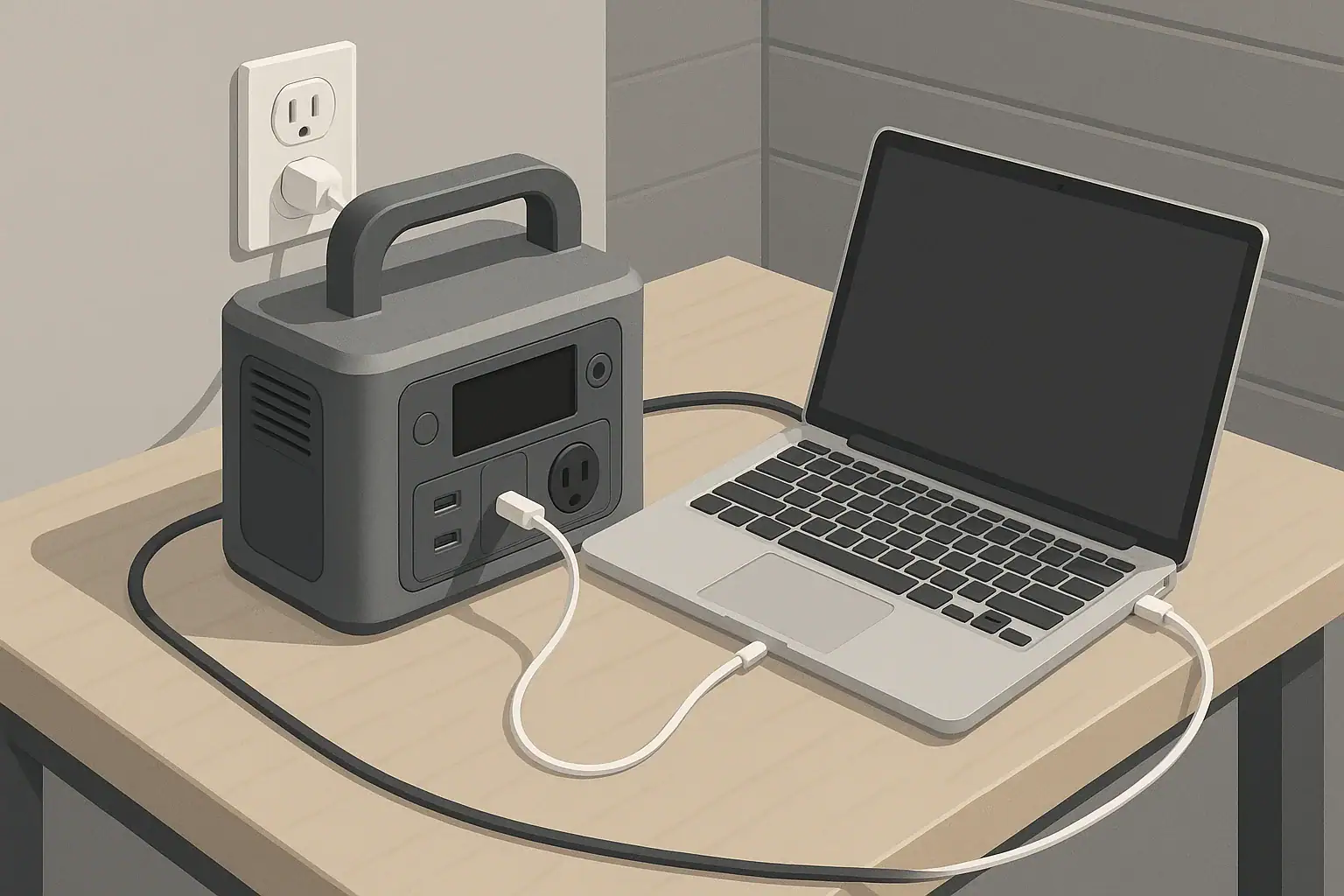
USB-C Power Delivery (PD) is a standard that lets devices and chargers negotiate how much power to use over a single cable. Many modern portable power stations now include USB-C PD ports to charge laptops, tablets, and phones without using the AC outlets. However, not all PD ports behave the same. Some offer fixed voltage profiles only, while others support PPS, or Programmable Power Supply.
Fixed USB-C PD profiles use a handful of standard voltage steps such as 5 V, 9 V, 15 V, or 20 V. Your laptop chooses one of those steps and pulls current up to the power station’s limit. PPS adds the ability to fine-tune both voltage and current in small increments, allowing more efficient and stable charging, especially for devices that prefer specific voltages or that actively control battery temperature and charging curves.
This becomes important when using a portable power station because laptop charging speed, heat, and run time depend on how well the power station’s USB-C port matches what the laptop expects. If the port only offers fixed profiles and your laptop is optimized for PPS, it may fall back to a lower power mode. That can mean slower charging, or even a battery that still drains slowly while plugged in under heavy use.
What PPS vs fixed USB-C PD profiles means and why it matters
Understanding the basics of PPS versus fixed PD helps you choose a power station with the right USB-C features, estimate realistic run times, and troubleshoot slow or inconsistent laptop charging. It also connects directly to sizing decisions: the watt rating of each port, the overall battery capacity in watt-hours, and how efficiently DC power is delivered all determine whether your portable setup feels seamless or frustrating.
Key concepts: watts, watt-hours, surge vs running, and efficiency losses
Two basic units drive most charging and runtime questions: watts (W) and watt-hours (Wh. Watts describe power at a moment in time, while watt-hours describe energy stored or used over time. When a laptop charges from a USB-C PD port on a portable power station, the USB-C port’s watt rating and the laptop’s draw in watts determine charging speed, while the station’s capacity in watt-hours determines how long you can keep everything running.
On the energy side, the power station’s battery capacity is typically listed in watt-hours. If your laptop averages 50 W while charging and running, and the station has 500 Wh of usable capacity, the theoretical run time is 500 Wh ÷ 50 W = 10 hours. In practice, you have to subtract efficiency losses. DC-to-DC conversion from the internal battery to USB-C is usually more efficient than going out through an AC inverter and then back into a laptop charger, but there are still losses in cables, electronics, and heat. A realistic rule of thumb is that you may only get 80–90% of the rated capacity in real use.
Most USB-C PD ports on power stations are rated somewhere around 30–140 W. A laptop that can accept 65 W over USB-C will usually charge quickly if the port can deliver at least 65 W at a compatible voltage. With fixed PD profiles, the port might offer, for example, 20 V at up to 3.25 A (about 65 W. With PPS, the laptop can request something like 18 V at a specific current to manage heat and internal battery charging more precisely. If the laptop wants PPS but only finds fixed steps, it may choose a lower power profile, such as 45 W, causing slower charging.
Surge versus running power is less of a concern for USB-C than for large AC loads, but it still matters at the whole-station level. If other devices on AC are pulling near the inverter’s limit, the station might throttle or prioritize loads, which can reduce the available power on USB-C PD ports or even shut them off. Higher instantaneous draws, such as a laptop ramping up CPU and GPU while charging, can cause brief spikes. A well-sized power station with headroom above your combined loads is less likely to sag or shut down, and PPS can help smooth those variations by letting the laptop adjust draw more gracefully within the port’s limits.
The key sizing logic is to match your laptop’s maximum USB-C charging power with the port rating and to size the battery in watt-hours for the total time you want to run, then discount for efficiency. If PPS support is present, the laptop and power station can often find a more efficient operating point, translating into slightly longer runtimes, less heat, and more stable behavior.
| What to check | Why it matters | Example notes |
|---|---|---|
| USB-C PD watt rating | Limits maximum laptop charging speed | Look for a port rating at or above your laptop’s charger wattage, such as 60–100 W. |
| PPS support on USB-C port | Improves compatibility and efficiency for newer devices | If your laptop supports PPS, a PPS-capable port can help maintain higher, more stable power. |
| Power station battery capacity (Wh) | Determines how long you can run and charge devices | Estimate total runtime using laptop watt draw and factor in 10–20% efficiency loss. |
| Number of active devices | Multiple devices share limited power budget | Running phones, tablets, and a laptop from the same unit reduces available power per port. |
| AC inverter vs USB-C direct | Impacts overall efficiency and heat | USB-C direct from the power station is usually more efficient than using a separate AC brick. |
| Cable quality and rating | Influences maximum power and stability | Use a USB-C cable rated for the required wattage, such as 60 W or 100 W. |
| Ambient temperature | Affects battery and charging performance | High heat or extreme cold can cause slower charging or throttling. |
Example values for illustration.
Real-world examples of PPS vs fixed PD with portable power stations
Consider a laptop that normally uses a 65 W USB-C charger. On a power station with a 60 W fixed PD port and no PPS, the laptop may choose a 20 V profile at up to 3 A. Because the port tops out near 60 W, the laptop may charge close to full speed at idle, but if you start a demanding task, the laptop’s total power use can exceed what the port can supply. The system may reduce battery charging speed or even begin to drain the battery slowly while plugged in.
Now compare that with a similar power station whose USB-C port supports PPS up to 100 W. If your laptop also supports PPS, it can request a voltage and current combination tuned to its internal charging circuitry, staying near its ideal 65 W even as workload changes. The result is that the battery continues to gain charge while you work, instead of hovering or dropping. On a long workday powered entirely from the station, that difference can decide whether you run out of power before finishing.
Portable power station run time also shifts based on how you connect the laptop. If you plug the original AC charger into an AC outlet on the station, the laptop may still get full 65 W charging, but the station’s inverter has to convert DC to AC and your charger converts it back to DC. This double conversion adds overhead. For example, that same laptop might effectively cost the power station 70–80 W instead of about 60–65 W via direct USB-C. Over several hours, the difference adds up to noticeably shorter overall runtime.
These differences become more obvious when you combine loads. Imagine running a laptop, a small monitor, and a Wi-Fi router during a power outage. With a moderate-size power station, direct USB-C charging using supported PPS can keep the laptop closer to its rated power while leaving more capacity for the other devices. If the station only offers fixed profiles and the laptop falls back to a lower power mode, you might see the battery percentage rise slowly or even stall when the laptop is busy, even though everything appears to be connected correctly.
Common mistakes and troubleshooting cues for slow laptop charging
Slow or inconsistent laptop charging on a portable power station often traces back to a handful of common issues. One frequent mistake is assuming that any USB-C port will provide full laptop power. Many ports on power stations are designed primarily for phones or small tablets and may be limited to 18–30 W, which is far below what most modern laptops expect. Even if the station has a high-watt USB-C port, using the wrong port or a lower-rated one can cap charging speed.
Another source of trouble is ignoring PPS compatibility. Some newer laptops behave best when they can negotiate fine-grained voltages. If the power station only offers fixed profiles, the laptop may request a conservative level like 45 W for safety or thermal reasons. In everyday use, that shows up as slow charging, or a laptop that charges well at idle but cannot gain battery percentage during intensive tasks. In some cases, the laptop may briefly connect and disconnect from charging as it tests different profiles.
Cable issues can also mimic power station problems. A USB-C cable not rated for higher wattage may limit current or cause the devices to fall back to lower PD profiles. This can look like a port limitation even when the power station is fully capable. Likewise, long or damaged cables can introduce enough resistance to cause voltage drops, prompting the laptop to draw less power to stay within safe limits.
Troubleshooting cues include watching how the laptop behaves under different combinations: testing one device at a time, moving the cable to a different USB-C port on the power station, or switching between USB-C direct and the laptop’s AC charger plugged into the station’s AC outlet. If the laptop charges normally from wall power but slowly from USB-C on the power station, the issue is usually port wattage, PD profile support, or cabling rather than the laptop itself. If sudden shutoffs occur when multiple AC loads run alongside USB-C charging, you may be hitting the station’s total output limit, causing protective shutdowns.
Safety basics: placement, ventilation, cords, heat, and GFCI context
Using a portable power station for USB-C laptop charging is generally safer than improvising with extension cords or unprotected adapters, but basic safety practices still matter. Place the power station on a stable, dry, and level surface, with enough space around the vents for airflow. Blocking vents or placing the unit in a confined space can cause heat buildup, which can trigger throttling or shutdowns and reduce battery life over time.
Pay attention to cord routing. USB-C cables and AC cords should not be pinched under furniture, run through doorways that close on them, or stretched in ways that strain connectors. Tripping hazards are a safety risk to both people and equipment; a sudden pull on a cable can dislodge plugs or damage ports. Using appropriately long, undamaged cables rated for the loads you need helps maintain both safety and charging performance.
Heat management is especially important when charging larger devices like laptops. Both PPS and fixed PD profiles are designed with safety in mind, but high power transfer still generates heat in cables, connectors, and devices. If you notice connectors becoming hot to the touch, reduce the load, improve ventilation, or switch to a higher-rated cable. Avoid covering the power station or laptop with blankets, cushions, or other insulating materials while charging.
For use near sinks, garages, or outdoor spaces, be mindful of moisture and grounding. Some power stations include GFCI-type protection on AC outlets, which can add a layer of safety against ground faults. However, they are not a replacement for properly installed household wiring. If you plan to use a power station in conjunction with home circuits or transfer equipment, consult a qualified electrician. Use the station as a standalone power source for laptops and small electronics unless your setup has been professionally designed and installed.
Maintenance and storage for reliable USB-C laptop power
Good maintenance and storage habits help ensure your portable power station will deliver stable USB-C PD power when you need it. Keeping the battery within a moderate state of charge during storage is often recommended; many manufacturers suggest around 40–60% as a balance between readiness and long-term battery health. Avoid leaving the station either completely full or completely empty for long periods when not in use.
Self-discharge means that the battery will slowly lose charge over time even when turned off. Check the charge level every few months and top it up as recommended by the manufacturer to prevent deep discharge. Periodically exercising the unit by running a few typical loads, such as a laptop and a lamp, can also help confirm that USB-C PD ports and AC outlets are working correctly before you rely on them during a power outage or trip.
Temperature is another key factor. Store the power station in a cool, dry place away from direct sunlight, heaters, or very cold environments. Extreme temperatures during storage can accelerate battery aging or lead to reduced capacity. During use, particularly with high-power USB-C laptop charging, keep the station where air can circulate freely and where it will not be exposed to rain or condensation.
Inspect USB-C cables and connectors regularly for fraying, bent pins, or loose fits. Because PPS and high-watt PD depend on clean electrical connections and solid signaling, a damaged cable can reduce charging speed or cause erratic behavior. Wiping down the exterior of the station with a dry or slightly damp cloth, keeping dust out of vents, and following any manufacturer-recommended firmware updates or checks help maintain safe, reliable power delivery.
| Task | Suggested frequency | Why it matters |
|---|---|---|
| Check state of charge | Every 2–3 months | Prevents deep discharge and confirms readiness for outages or trips. |
| Top-up charging during storage | When charge falls near mid-range | Keeps battery in a healthy range without sitting full or empty. |
| Inspect USB-C and AC cables | Before extended use | Damaged cables can limit PD power, including PPS, or create hazards. |
| Test run typical loads | Every few months | Verifies ports, inverter, and PD negotiation work as expected. |
| Clean vents and surfaces | As needed based on dust | Maintains airflow and reduces heat buildup during high-power charging. |
| Review operating and storage temperatures | Seasonally | Helps avoid storing or running the unit in extreme heat or cold. |
| Check for firmware or guidance updates | Occasionally | Ensures you follow current recommendations for safe battery use. |
Example values for illustration.
Practical takeaways and checklist for better laptop charging
Getting dependable laptop charging from a portable power station comes down to understanding how PPS and fixed USB-C PD profiles interact with your devices, and sizing the station around your real-world needs. While the technical details can be complex, you can usually avoid slow charging and surprise shutdowns by checking a few key specifications and using the right cables and ports.
Think about how and where you use your laptop: remote work, travel, camping, or backup during outages. In each case, a direct USB-C PD connection that matches your laptop’s expected wattage is usually more efficient than running the AC charger, and PPS support can add a margin of comfort for newer devices. Combine that with basic safety, storage, and maintenance habits, and a portable power station can be a reliable part of your everyday and emergency power plan.
- Confirm your laptop’s typical USB-C charging wattage and whether it supports PPS.
- Match that wattage with a power station USB-C PD port that can deliver equal or higher power.
- Prefer direct USB-C charging over using the laptop’s AC brick when practical for better efficiency.
- Use short, high-quality USB-C cables rated for the wattage you need, and replace damaged ones.
- Allow good ventilation around both the power station and laptop to limit heat-related throttling.
- Store the station partially charged in a cool, dry place and top it up periodically.
- Test your full setup periodically so slow charging or port issues are discovered before you depend on it.
With these practices, PPS and fixed USB-C PD profiles become tools you can plan around rather than mysteries that cause unexpected slowdowns. That preparation pays off whether you are working off-grid, riding out a brief outage, or simply keeping your laptop powered wherever you need it.
Frequently asked questions
How can I tell if my laptop supports PPS?
Check the laptop’s technical specifications or the power adapter documentation for mentions of PPS or “Programmable Power Supply” and the PD revision (PD 3.0+ often indicates PPS support). If the documentation is unclear, look in system power settings or the manufacturer’s support resources for supported charging profiles.
If a power station only offers fixed PD profiles, can my laptop still charge at full speed?
It can, but only if one of the fixed voltage/wattage steps matches your laptop’s required charging profile; otherwise the laptop may fall back to a lower safe profile. Laptops optimized for PPS may reduce charging speed or prioritize running power over battery charging when they cannot negotiate a finely tuned voltage/current combination.
Does charging through the power station’s AC outlet use more battery than charging over USB-C PD?
Yes. Using the AC outlet requires the station to invert DC to AC and then the laptop’s charger converts AC back to DC, creating extra conversion losses. That double conversion typically increases the effective power draw compared with direct USB-C PD, shortening overall runtime.
What kind of USB-C cable should I use for high-watt PPS or fixed PD charging?
Use a cable rated for the wattage you need (for example, 60 W or 100 W) and ideally one that is e-marked or certified for high-current PD use. Shorter, high-quality cables reduce voltage drop and heat; damaged or low-rated cables can force a device to fall back to lower PD profiles.
What quick troubleshooting steps help resolve slow charging from a power station?
Test with the laptop idle and under load, try different USB-C ports and the laptop’s AC charger in the station’s AC outlet to compare behavior, and swap in a known-good, properly rated cable. Also confirm the station’s port wattage and PD/PPS support and ensure other devices aren’t exceeding the station’s total output.
Recommended next:
- USB-C Power Delivery (PD) Explained for Portable Power Stations
- Charging From a Car: What’s Safe, What’s Slow, and What Can Break
- Input Limits (Volts/Amps/Watts) Explained: How Not to Damage Your Unit
- MPPT vs PWM in Portable Power Stations: What It Changes in Real Life
- Can You Use a Higher-Watt Charger Than Rated? Understanding Input Headroom
- Why Charging Slows Down Near 80–100%: A Simple Explanation
- More in Charging →
Related guides
Browse this topic →
- Beginner-friendly sizing, runtime & specs
- Solar & charging (MPPT, fast charging, cables)
- Batteries (LiFePO4, cycles, care & storage)
- Safety, cold-weather performance, real-world tips
More in Charging
See all →- Can You Charge a Portable Power Station From USB-C PD? Limits, Adapters, and Gotchas
- Why Your Power Station Won’t Charge From a Generator: Frequency, Grounding, and Fixes
- USB-C PD 3.1 (240W) on Portable Power Stations: What It Changes and Who Needs It
- AC Charging Heat & Fan Noise: Why It Happens and How to Reduce It Safely
- Car Charging Explained: 12V Socket vs DC-DC Charger vs Alternator (Speed + Safety)
Keep reading
About this site
Portable Energy Lab publishes practical, independent guides about portable power—clear sizing, safe use, and real-world expectations.
Affiliate disclosure
Some links on this site may be affiliate links. If you buy through these links, we may earn a small commission at no extra cost to you. This helps support our content. Learn more.